Designing Internet Access for Compromised Systems

Virtual machines are a godsend when it comes to malware analysis. Granted there a many malware samples that may have capabilities to detect if they are operating in a virtualized environment and thus respond differently. Many, though not all of these, can be mitigated by patching the malware binary, or tricking it into a false result before needing to look at the sample on a bare-metal system.

When I’m looking at a piece of malware, I’ll run it through a number of environments, gradually permitting external access once I have an idea of what the malware’s capabilities look like. Initially when detonating samples, I’ll have the target endpoint and a REMnux virtual machine running inetsim operating on an isolated network. Rather than re-invent the wheel, here’s a solid article on setting up an isolated network on VMware ESXi.

At some point I want to enable access to the internet to observe command and control (C2) and any dropper activity. I don’t want there to be an avenue for the malware to be able to interact with any other assets whether on my lab network, or outside it. One way to solve this would be networking and introducing a router to broker the network access. It’s been a while since I had my CCNA and I had some hesitations about getting it right without impacting other services in a very internet dependent household. What I wound up going with instead is a completely separate internet connection for the malware network utilizing a LTE hot-spot.

I run my lab environment on ESXi environment using an Intel NUC. The model I have only has one onboard NIC. The easiest way to add another physical adapter was with a USB Gigabit Ethernet adapter for a measly $13 on amazon. ESXi will not detect this adapter out of the box. Follow the process on this article to configure the USB network adapter for ESXi. You will need to download the USB Network Native Driver for ESXi. Be sure to select the appropriate version to match the version of ESXi you’re running. I’m sure there’s an interesting story on why VMWare calls these ‘Flings’ but that knowledge escapes me.

If all goes as it should, and doesn’t it always, you should see second physical adapter (vusb0) in the ESXi console.
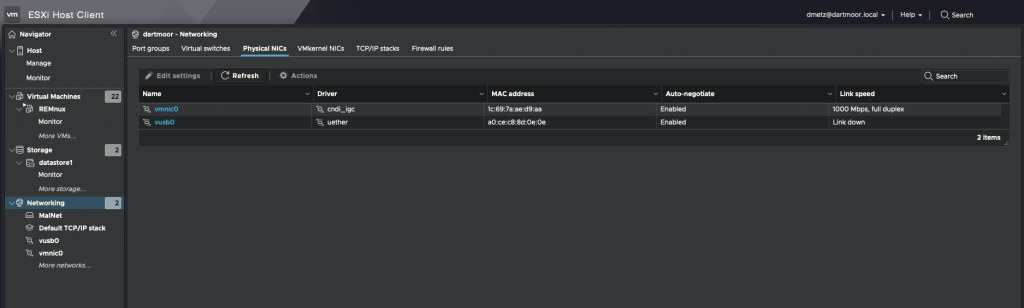
USB network adapter shown as vusb0

For the secondary internet access, I wound up going with a Netgear LM1200 LTE Hotspot. I like this device because you can configure it to use an LTE connection as a backup if your primary wired internet service is down. I may utilize that in the future but for now it’s only used on the malware network without any connection to the primary LAN. Based on my current cellular plan I was able to add the minimum hotspot plan for $10/mo. A worthy investment for me for the peace of mind that I’m (less likely) to compromise the rest of my network when experimenting with live malware. It will also (one would hope) keep my home IP off any watchlists for malware beacons, or anyone else tracking where different samples are detonated from. As Mr. Heller sagely said, “Just because you’re paranoid doesn’t mean they aren’t after you.”

The same setup could be very useful for responding to compromises in isolated enterprise or manufacturing environments. If you need to have the device access the internet (maybe to upload evidence to you Forensics Service Provider (FSP)), but don’t want to maintain a connection to the corporate LAN due to suspected compromise, this solution would work for that.

Once I had the hotspot up and running, the LAN connection on the hotpot gets connected to the USB ethernet adapter. Then go back to ESXi to the isolated network you created before, the one that you were warned “NO UPLINK”, and use the ‘Add uplink’ function and add the vusb0 device. You can adjust the settings on the LTE hotspot for DHCP if needed as long as the device is in Router (not Bridged) mode.

Malware network with external internet access

That’s it. Now when the infected computer needs to get to the internet, all traffic will go through the LTE connection and the infected systems remain isolated from the primary network.

Release the hounds and observe

If I’m in a situation where I absolutely need to run the malware on a bare-metal system I can connect using the LTE modem without threat to any of the other physical systems.

Hunting for Indicators with PowerShell: New Files

When analyzing the impact of malware execution on a system, it’s important to identify what additional files the malware has introduced to the system. Have other exe’s been dropped? Are there .vbs files being sprinkled around by the malware fairies?

What other file types would you be concerned with showing up on your systems?

Maybe it’s the inverse and it’s the file extension itself that’s the outlier and you need to identify all the .m41z files, as an example.

I wanted an easy way to identify new files on the system, and yet be flexible to incorporate different extensions and durations. As usual, a PowerShell script seemed the easiest way to address it.

There are 2 inputs, file extension, and duration. What are the kind of new files are you looking for and how far back do you want to look?

<#

GetNewFiles.ps1
@dwmetz, 19-july-2023
A simple script to find any new files on the file system for a specific filetype within x # of days

#>
Write-host " "
$script:filetype = Read-host -Prompt 'Enter the file type to look for (ex. txt, ps1, exe)'
$script:time = Read-host -Prompt 'How many days back do you want to look?'
$ErrorActionPreference = "SilentlyContinue"
Write-host " "
$NewFiles = Get-ChildItem -Path c:\ -Recurse  -Filter "*.$script:filetype" |
Where-Object { $_.CreationTime -gt (Get-Date).AddDays(-$script:time) }
"Number of $script:filetype files found: $($NewFiles.Count)"
$NewFiles | Select-Object Fullname,CreationTime

Running the script on a suspected infected asset, I can look for new files of interest and if need be work backwards for a larger time sampling.

In the example above, one of the executables bears looking into. The other is benign and related to software updates.

For the .ps1 results we see the script we’re running “GetNewFiles.ps1” as well as another hit for a script that was created on the system the day before.

NOTE: If a file is no longer there when you run the script, for example created and deleted during the malware operation, you won’t see it here as it’s no longer present on the system.

If you run the malware on multiple samples, can you see a commonality among the new files? Does it always drop ‘notAsafeFILE.exe‘ in the same path, or is there a randomization in the file naming and location? PowerShell can be a quick way to come to that answer and identify what other files require investigation.

Mal-Hash Updates

Mal-Hash.ps1

  • The script takes the input of a file, calculates the hashes (MD5, SHA1, SHA256), and then submits the SHA256 hash to Virus Total* for analysis.
  • The script will also run Strings against the sample.
  • The script will check Malware Bazaar to see if a sample matching the hash is available.
  • The hashes, strings, Virus Total and Malware Bazaar results are both displayed on screen and saved to a text report.
  • Timestamp of the analysis is recorded in UTC.

VTHashSub.ps1

  • The script takes a hash value as input and submits the hash to Virus Total* for analysis.
  • The script will check Malware Bazaar to see if a sample matching the hash is available.
  • The hashes, Virus Total and Malware Bazaar results are both displayed on screen and saved to a text report.
  • Timestamp of the analysis is recorded in UTC.

Mal-Hash.ps1 and VTHashSub.ps1 will operate (via PowerShell) on Windows, Mac & Linux.

* Virus Total API key expected in vt-api.txt.

Latest updates:

  • n of x vendors detected
  • VT permalink
  • Malware Bazaar results

Both scripts available on my GitHub page:

https://github.com/dwmetz/Mal-Hash

Raspberry Pi Forensics Hacking Gadget

Ever since the 2021 iPad models with USB-C chargers came out, I’ve been intrigued by the notion of Raspberry Pi gadgets. In short, these are Raspberry Pi devices that draw their power, and/or networking from the USB-C port on the iPad Pro.

Having awakened my tinkering spirit with the internet speed monitor project, I was looking for another project. I had one unused Raspberry Pi Zero W in a box of spare Pi parts, so that’s where I started.

I chose Kali for the distribution to use because there are images specific to various Raspberry Pi hardware models, and because the distribution itself supports many popular Linux tools for Forensics and Reverse Engineering. REMnux is my default Linux for malware poking, but to date it’s only supported on Intel architectures.

Know from the start you’re not going to be using this device for processing on the scale of Enron, but for access to a wider toolset when on the go, and especially for training I think it’s a pretty cool setup. If you’re looking to set up a mobile development environment, or still run Kali but with more oomf – there’s number of resources to do so using a Pi 4. Since the Pi Zero W is powered by a USB-micro, it cannot support networking (iPad to Pi) over the USB port. Later models like the Pi 4 (USB-C powered) are capable, but at the time of the project, all mine be were occupied. In this case we’ll be connecting to the Pi over WiFi via SSH.

Grab the image for Pi Zero W (or whatever’s applicable for the model you’re running from https://www.kali.org/get-kali/#kali-arm. There’s plenty of documentation on enabling SSH if it isn’t by default. On this particular build for the Pi, it was. You’ll also want to install tightvncserver.

Depending on which Pi hardware version you’re using, the Pi will have different capabilities. Notably lacking on the Pi Zero W, the resources to run any modern browser. But since I have the iPad that it’s running from it’s not like I’m missing it at all.

Kali supports the installation of what they call meta-packages. These are specific sets of tools or features to support different capabilities (Bluetooth hacking, wireless hacking, etc.) For my build I chose the reverse engineering and forensics packages as those are the tools I’m most interested in experimenting with.

I had a bit of trial and error when it came to the physical USB connections. Originally I had a series of USB-C connecting adapters, terminating with a USB-C to USB micro adapter. When I had this franken-jack plugged into the iPad the Pi wouldn’t power up. However if I had a USC-C cable connected to the jack, or between the jack and the iPad, I could get power (just with a cable I didn’t need.) At some point I had the idea of introducing a USB-A into the mix and voila, power to the Pi. All that said, the final hardware combo consisted of a USB-C (male) to USB-A (female) 180 degree adapter, and a USB-A (male) to USB-Micro (male) adapter.

The 180 degree adapter enables a very low profile while having a reasonable gap for ventilation, even when connected to a Magic Keyboard.

Plug the device into the USB-C port on the iPad a give it a minute or two to boot up.

For SSH on the iPad there’s no better than Blink.

I don’t have VNC running at boot to save on resources, but I have a script in my home directory to quickly turn it on when GUI access is needed.

For VNC I use Jump Desktop, and have a configuration saved for VNC tunneled over SSH.