CSIRT-Collect USB can be found in the main repository for CSIRT-Collect. CSIRT-Collect is a PowerShell script to collect memory and (triage) disk forensics for incident response investigations.
CSIRT-Collect USB is designed to run directly from a USB device. While a network deployment certainly supports automation, as an Incident Responder I can think of several examples where that wouldn’t be an option:
An air-gapped manufacturing environment
Hospital/Medical Environments
Ransomware incidents when the assets have been detached from the network
Preparation is the first phase of the Incident Response lifecycle. (PICERL) Once you’ve tested and/or adapted the collection for your environment, consider prepping a handful of drives and having them pre-deployed to sites where you’re likely to need them.
The Setup
First off you’re going to need a high-capacity USB device. Larger sized flash drives will work. Personally I’m a fan of Samsung (T series) SSD drives, both for their size and their write speeds during acquisitions.
On the root of the USB device:
A (initially empty) folder named ‘Collections’
KAPE directory from default KAPE installation
EDD.exe in \KAPE\Modules\bin\EDD (Encrypted Disk Detector)
CSIRT-Collect_USB.ps1
MRC.exe (Magnet RAM Capture)
Launch
To run the script, open an elevated PowerShell prompt and browse to the USB device. Then simply
.\CSIRT-Collect_USB.ps1
CSIRT-Collect_USB.ps1 starting
What it Captures
The first process the script runs is Magnet RAM Capture. Once the RAM has been captured, the windows build (profile) is captured. The RAM image and the build info are named to reflect the asset hostname being collected.
The next process is the KAPE Triage collection. Host artifacts are acquired and then assembled as a .vhdx (portable hard disk) image. After the KAPE Targets portion completes, KAPE calls the Encrypted Disk Detector module which checks the local physical drives on a system for TrueCrypt, PGP, VeraCrypt, SafeBoot, or Bitlocker encrypted volumes. This information is saved into the Collections directory, as well as displayed to the responder to identify other volumes that may need to be collected while the system is live.
Lastly, if BitLocker is enabled for the OS drive the script will capture that information as well and back-up the recovery key.
Disk Encryption Check
Collection Contents
Inside the Collections folder, a subfolder will be created for each asset collected. The size of the USB device will determine how many collections can be captured before the results need to be offloaded.
The \Collections\%hostname% directory will include:
Console log capturing all KAPE targets activity
.vhdx of the host artifacts
collection complete date/time .txt
Memory acquisition .raw
Windows profile (build information) .txt
In the \Collections\%hostname%\Decrypt folder you will find
console log for KAPE modules (EDD)
recovery key for BitLocker (C) volume .txt
Live Response directory with the output of EDD .txt
I’ve worked remotely for the past 6 years which means I spend a lot of time in my home office. Last year we moved into a new house with much better space for my office, and I’ve been shaping it more and more to my tastes.
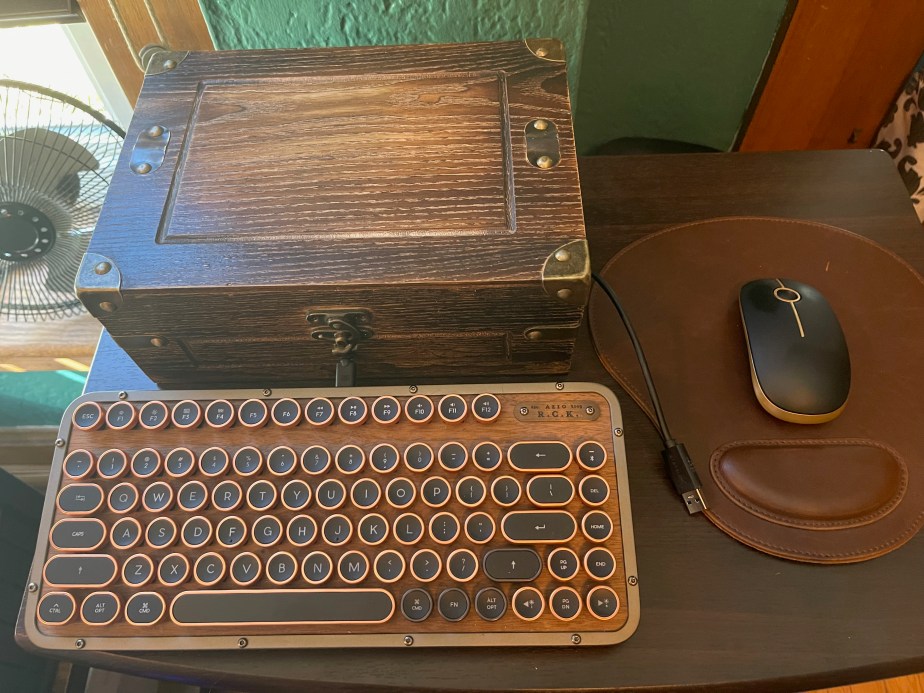
I do a lot of forensic imaging. I’ve got a pretty basic but rock solid setup that works for me (see Forensic Imaging a Microsoft Surface Pro). Since I use it frequently I’m hesitant to put it away, but at the same point I don’t like looking at a pile of wires and devices when not in use. That brings us to the latest home office update, the Forensic Imaging Station (Steampunk Edition).
For this project I grabbed a small wooden box from Hobby Lobby. A good cigar box will also work. That was going to be my first choice but the only spare box I had on hand said “Corona” on the face and… you know. This box looks nice but it’s composed of mostly particle board, so go slow drilling.
I drilled four holes in the box. A 1/2 inch hole on the front face under the locking clasp for the USB-C cable, and three 5/8 inch holes – 2 on the side and one on the back, to accommodate the rest.
Inside the box I’ve arranged a USB hub connecting:
Paladin flash drive
External WD hard drive
Keyboard (USB)
RF dongle for mouse.
Pass through for “universal” laptop power adapter
Cheap wood makes for messy holes.
This box had plenty of space to arrange the components. The laptop power adapter comes in the back of the box and then back out on the side. The USB connector for the hub is also passed through the side. The cable for the keyboard passes through the front.
The finished set-up
The setup is completed with an Azio Retro Compact keyboard, (with replacement copper-edged keys) and a sort of matching mouse.
When it’s time to image, just sit the laptop on top, connect the USB cable and power, and you’re good to go.
Post Update:
Because I’ve come to learn that a project is really ever finished at version 1 – a close up view after details added. (Rubber grommets for the cable holes and decorative details and rubber feet on the top for laptop.
Recently my session on PowerShell Tools for IR Forensics Collection was re-broadcast by Magnet Forensics. During the event there were a few questions and I thought I’d share my responses here.
If you missed the presentation, just look to the previous post and you’ll find a link for YouTube.
Does the CSIRT script check for sufficient available space for the temp files before running? I’ve run into this issue with KAPE collections that get a lot of event logs.
No it doesn’t. Depending on the artifact collection type, the output sizes can vary greatly. Once you have a collection script that you want to use as your default, I’d measure what the average size is. In all my collection processes I like to make sure I have 1.5x available free space for what I anticipate collecting. A WMI ‘check’ could be built into the script to verify the freespace vs. expected collection needs.
This will present the available free space on any fixed disks attached to the system.
The best utilization of free space I could come up with was to grab the memory first, compress it, ship it off and then repeat the collection, compression and transfer with KAPE. This minimizes the amount of disk space needed on the remote host. Both processes have a clean-up operation where all local data is deleted from the endpoint once the network transfer has successfully completed.
With memory sizes so big lately, is it possible to configure the script to collect the important artifacts from memory, rather than the entire memory (e.g. process listing, network connections, etc.)?
It would be possible to generate that information on the endpoint using a series of PowerShell commands and write the output to a text file (Get-Process, Get-NetTCPConnection, etc.). This is certainly useful from an IR perspective, but the only artifact that would be returned back would be the output file. Depending on the circumstances of the investigation you may still need/want the full memory image as evidence.
Do we have the list of artifacts that are being collected here?
In the example presented we’re leveraging the SANS Triage KAPE collection target. The specific collection template used by the CSIRT-Collect script can be adjusted by changing the KAPE command options in the script. You can view the details for any KAPE target by either double-clicking the entry in the KAPE gui, or by viewing the corresponding .tkape file in the program directory (use your text editor of choice). For the SANS Triage collection, the following artifacts are gathered:
# Event Logs
# Evidence of Execution
Name: Prefetch
Name: RecentFileCache
Name: Amcache
Name: Amcache transaction files
Name: Syscache
Name: Syscache transaction files
Name: PowerShell Console Log
# File System
Name: $MFT
Name: $LogFile
Name: $J
Name: $Max
Name: $SDS
Name: $Boot
Name: $T
# LNK Files and JumpLists
Name: Lnk files from Recent
Comment: Also includes automatic and custom jumplist directories
Name: Lnk files from Microsoft Office Recent
Name: Lnk files from Recent (XP)
Name: Desktop lnk files XP
Name: Desktop lnk files
Name: Restore point lnk files XP
# Recycle Bin and Recycler
Name: $Recycle.Bin
Name: RECYCLER WinXP
# System Registry Files
Name: SAM registry transaction files
Name: SECURITY registry transaction files
Name: SOFTWARE registry transaction files
Name: SYSTEM registry transaction files
Name: SAM registry hive
Name: SECURITY registry hive
Name: SOFTWARE registry hive
Name: SYSTEM registry hive
Name: RegBack registry transaction files
Name: SAM registry hive (RegBack)
Name: SECURITY registry hive (RegBack)
Name: SOFTWARE registry hive (RegBack)
Name: SYSTEM registry hive (RegBack)
Name: SYSTEM registry hive (RegBack)
Name: System Profile registry hive
Name: System Profile registry transaction files
Name: Local Service registry hive
Name: Local Service registry transaction files
Name: Network Service registry hive
Name: Network Service registry transaction files
Name: System Restore Points Registry Hives (XP)
# User Registry Files
Name: ntuser.dat registry hive XP
Name: ntuser.dat registry hive
Name: ntuser.dat registry transaction files
Name: ntuser.dat DEFAULT registry hive
Name: ntuser.dat DEFAULT transaction files
Name: UsrClass.dat registry hive
Name: UsrClass.dat registry transaction files
# System Level Artifacts
# Scheduled Tasks
Name: at .job
Name: at SchedLgU.txt
Name: XML
Name: SRUM
Name: Thumbcache DB
# USB Devices Logs
Name: Setupapi.log XP
Name: Setupapi.log Win7+
Name: WindowsIndexSearch
Name: WBEM
# User Communication
# Outlook PST and OST files
Name: PST XP
Name: OST XP
Name: PST
Name: OST
# Skype
Name: main.db (App <v12)
Name: skype.db (App +v12)
Name: main.db XP
Name: main.db Win7+
Name: s4l-[username].db (App +v8)
Name: leveldb (Skype for Desktop +v8)
# Web Browser Artifacts
Name: Chrome bookmarks XP
Name: Chrome Cookies XP
Name: Chrome Current Session XP
Name: Chrome Current Tabs XP
Name: Chrome Favicons XP
Name: Chrome History XP
Name: Chrome Last Session XP
Name: Chrome Last Tabs XP
Name: Chrome Preferences XP
Name: Chrome Shortcuts XP
Name: Chrome Top Sites XP
Name: Chrome Visited Links XP
Name: Chrome Web Data XP
Name: Chrome bookmarks
Name: Chrome Cookies
Name: Chrome Current Session
Name: Chrome Current Tabs
Name: Chrome Favicons
Name: Chrome History
Name: Chrome Last Session
Name: Chrome Last Tabs
Name: Chrome Preferences
Name: Chrome Shortcuts
Name: Chrome Top Sites
Name: Chrome Visited Links
Name: Chrome Web Data
Name: Chrome Extension Files
Name: Chrome Extension Files XP
Name: Edge folder
Name: WebcacheV01.dat
Name: Firefox Places
Name: Firefox Downloads
Name: Firefox Form history
Name: Firefox Cookies
Name: Firefox Signons
Name: Firefox Webappstore
Name: Firefox Favicons
Name: Firefox Addons
Name: Firefox Search
Name: Firefox Places (XP)
Name: Firefox Downloads (XP)
Name: Firefox Form history (XP)
Name: Firefox Cookies (XP)
Name: Firefox Signons (XP)
Name: Firefox Webappstore (XP)
Name: Firefox Favicons (XP)
Name: Firefox Addons (XP)
Name: Firefox Search (XP)
Name: Index.dat History
Name: Index.dat History subdirectory
Name: Index.dat temp internet files
Name: Index.dat cookies (XP)
Name: Index.dat UserData (XP)
Name: Index.dat Office XP
Name: Index.dat Office
Name: Local Internet Explorer folder
Name: Roaming Internet Explorer folder
Name: IE 9/10 History
Name: IE 9/10 Cache
Name: IE 9/10 Cookies
Name: IE 9/10 Download History
Name: IE 11 Metadata
Name: IE 11 Cache
Name: IE 11 Cookies
# Windows Timeline
Name: ActivitiesCache.db
Name: ActivitiesCache.db-shm
Name: ActivitiesCache.db-wal
Thanks to everyone who participated. If you have further questions feel free to post them here or on the GitHub site https://github.com/dwmetz/CSIRT-Collect
A PowerShell script to collect memory and (triage) disk forensics for incident response investigations
There’s a number of tools that support a one-to-many remote operation capability. However, not all organizations have that level of capability. I’ve also seen that in some large organizations how things are designed to work with remote assets, and how they actually work, may not be the same. What I wanted was a repeatable pre-defined collection mechanism, that could scale out to be supported by non-forensics team members to participate in forensic evidence collection for incident response examinations. The intent is that the collection process can be distributed among remote team members, be it site support or Security Operations Center (SOC). The script can also be integrated into SOAR and EDR platforms.
CSIRT-Collect leverages a network share, from which it will access and copy the required executables and subsequently upload the acquired evidence to the same share post-collection.
Permission requirements for said directory will be dependent on the nuances of the environment and what credentials are used for the script execution (interactive vs. automation). In the demonstration code, a network location of \\Synology\Collections can be seen. This should be changed to reflect the specifics of your environment.
The Collections folder will need to include: – subdirectory KAPE; copy the directory from any existing install – subdirectory MEMORY; 7za.exe command line version of 7zip and winpmem.exe
CSIRT-Collect Operations:
Maps to existing network drive –
Subdir 1: “Memory” – Winpmem and 7zip executables
Subdir 2: ”KAPE” – directory (copied from local install)
Creates a local directory on asset
Copies the Memory exe files to local directory
Captures memory with Winpmem
When complete, ZIPs the memory image
Renames the zip file based on hostname
Documents the OS Build Info (no need to determine profile for Volatility)
Compressed image is copied to network directory and deleted from host after transfer complete
New temp Directory on asset for KAPE output
KAPE !SANS_Triage collection is run using VHDX as output format [$hostname.vhdx] **
VHDX transfers to network
Removes the local KAPE directory after completion
Writes a “Process complete” text file to network to signal investigators that collection is ready for analysis.
** Note: you can build different KAPE collection profiles by modifying just one line of code. Profiles can be chosen to support the requirements of the investigation.
CSIRT-Collect_USB
This is a separate script that performs essentially the same functionality as CSIRT-Collect.ps1 with the exception that it is intended to be run from a USB device. There is no need for a temporary host directory as the information is written direct to the USB device. The extra compression operations on the memory image and KAPE .vhdx have also been omitted. There is a slight change noted below to the folder structure for the USB version. On the root of the USB:
CSIRT-Collect_USB.ps1
folder (empty to start) titled ‘Collections’
folders for KAPE and Memory – same as above
Execution: -Open PowerShell as Adminstrator -Navigate to the USB device -Execute ./CSIRT-Collect_USB.ps1
To see a demonstration of CSIRT-Collect in action please register for my talk this Thursday, PowerShell Tools for IR Forensics Collection as part of the Enterprise Pulse lecture series hosted by Magnet Forensics.




 Baker Street Forensics