CyberPipe-Timeliner: From Collection to Timeline in One Script

You know how these things go. A colleague asks a simple question, and before you know it, you’re knee-deep in PowerShell creating something that didn’t exist a few weeks ago. That’s exactly how CyberPipe-Timeliner came to be.

After a recent update to CyberPipe, someone asked whether there was a way to pipe Magnet Response collections through to something like ForensicTimeliner. It was one of those “that should exist” moments. So I made it exist.

A Quick History Lesson

For those who haven’t been following along, CyberPipe (formerly CSIRT-Collect) has been around since my IR days. It went public in 2021 and has been steadily maintained and updated since then. The tool has proven itself useful for rapid incident response collection, and it’s evolved based on real-world needs and feedback from the community.

CyberPipe-Timeliner is its companion project—taking that collection data and turning it into something immediately actionable: a unified forensic timeline.

What It Actually Does

The script automates the entire workflow from collection to timeline:

Extraction – It unpacks your Magnet Response archive, whether that’s a ZIP file or an already-extracted directory.

Processing – All the heavy lifting happens here using Eric Zimmerman’s EZ Tools to generate CSVs from your artifacts.

Organization – The CSVs get structured specifically for ForensicTimeliner compatibility, because nobody wants to spend time wrestling with file formats.

Aggregation – Everything merges into a consolidated timeline, giving you that unified view we’re all after.

Built for Real-World Use

The script includes some practical features that came from actual use cases:

  • Date filtering – Need to focus on a specific incident window? Use -StartDate and -EndDate to narrow your timeline to what matters.
  • Flexible input – Point it at a ZIP file or an already-extracted collection folder. Either works.
  • Verbose and diagnostic modes – Because sometimes you need to see exactly what’s happening under the hood.
  • Auto-generated output folders – Timestamped folders keep your timelines organized without any extra effort.

Getting Started

Setting it up is straightforward. You’ll need PowerShell 7+, Eric Zimmerman’s EZ Tools, ForensicTimeliner, and Microsoft .NET SDK (v9 recommended). The GitHub repository has detailed setup instructions, including handy one-liners for downloading and configuring the required tools.

Once you’re set up, a basic run looks like this:

.\CyberPipe-Timeliner.ps1 -InputFile "collection.zip"

That’s it. The script handles the rest, creating a timestamped output folder with your complete timeline.

Why It Matters

Forensic timeline generation shouldn’t be a multi-tool, multi-step headache. CyberPipe-Timeliner takes what would normally be several manual processes and condenses them into a single automated pipeline. You collect with Magnet Response or CyberPipe, run the timeliner script, and get actionable timeline data.

It’s available now on GitHub, and as always, feedback and contributions are welcome. If you run into issues or have ideas for improvements, open an issue or reach out.

Sometimes the best tools come from simple questions and the willingness to build the answer.

CyberPipe v5.3: Enhanced PowerShell Compatibility and Reliability

I’m pleased to announce the release of CyberPipe v5.3, bringing critical compatibility improvements for Windows PowerShell 5.1 and enhanced reliability across all PowerShell environments.

The Problem

After releasing v5.2 with the new unified banner design, several users reported an interesting issue: CyberPipe would execute perfectly in PowerShell Core, but in Windows PowerShell 5.1, the script would complete the Magnet Response collection successfully—then immediately fail with an exit code error and stop before running EDD and BitLocker key recovery.

The collected artifacts were there. The output looked successful. But the script refused to continue.

The Root Cause

This turned out to be a known quirk in Windows PowerShell 5.1: the $process.ExitCode property isn’t always reliably populated after calling WaitForExit() on a process object. Even when Magnet Response completed successfully with exit code 0, PowerShell 5.1 would sometimes report a non-zero value, causing CyberPipe to think the collection had failed.

The Solution

Version 5.3 introduces dual validation logic that checks both the exit code and verifies that files were actually collected. If Magnet Response reports a non-zero exit code but artifacts were successfully collected, CyberPipe recognizes this as a PS 5.1 reporting issue and continues the workflow with a warning message.

The script now validates success based on what actually matters: did we collect the evidence?

Bonus: Adaptive Banners

While fixing the PS 5.1 compatibility, I also enhanced the banner display:

  • PowerShell Core: Displays the full Unicode box-drawing banner with visual flair
  • Windows PowerShell 5.1: Shows a clean ASCII banner optimized for automation, EDR deployment, and environments where Unicode rendering may be inconsistent

The script automatically detects which PowerShell edition is running and adjusts accordingly.

Testing & Validation

CyberPipe v5.3 has been tested and verified on:

  • ✅ Windows PowerShell 5.1
  • ✅ PowerShell Core 7.x
  • ✅ All collection profiles (Volatile, RAMOnly, RAMPage, RAMSystem, QuickTriage, Full)

The script now executes flawlessly in both environments with no workflow interruptions.

Compatibility Notes

This is a drop-in replacement for v5.2 with no breaking changes:

  • All command-line parameters work identically
  • Existing automation scripts require no modifications
  • All collection profiles function as before

Why This Matters

For incident response work, reliability is non-negotiable. When you’re collecting evidence from a potentially compromised system, you need tools that work consistently across different Windows environments—corporate workstations running PS 5.1, modern systems with PS Core, virtual machines, and physical hardware.

CyberPipe v5.3 ensures that whether you’re running an interactive collection or deploying via EDR automation, the script executes reliably from start to finish.

Get CyberPipe v5.3

DownloadCyberPipe v5.3 on GitHub

DocumentationGitHub Repository

As always, feedback and issue reports are welcome on the GitHub repository.


CyberPipe is a free, open-source incident response collection tool for Windows systems, automating memory capture, triage collection, encrypted disk detection, and BitLocker key recovery.

Exploring Magnet Virtual Summit 2025 CTF Challenges, Part II (Windows)

This is part II of this series; for part I see Exploring Magnet Virtual Summit 2025 CTF Challenges (iOS).


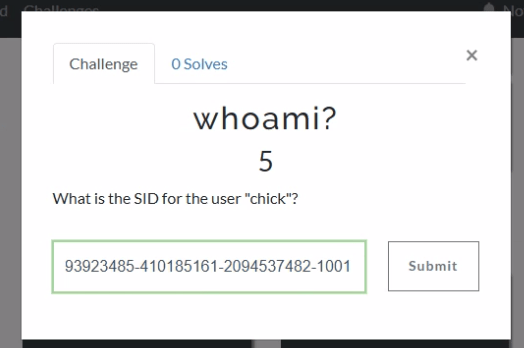
If we jump into Axiom and head to the User Accounts, we can see that the SID for chick is S-1-5-21-493923485-410185161-2094537482-1001.


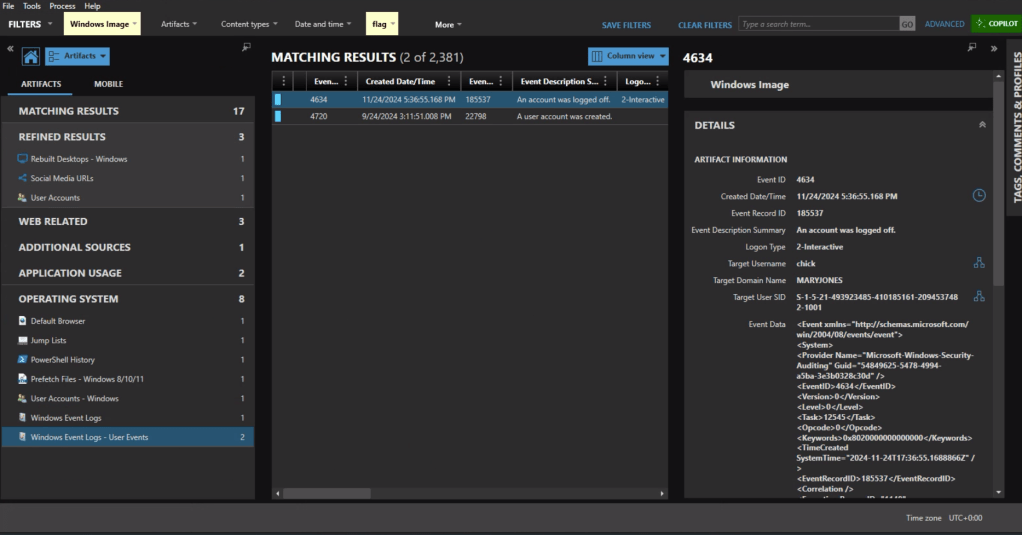
Windows Event Logs will track user login and logoff activity. The primary event IDs for Windows logoff are:
1. Event ID 4647: This is logged when a user manually initiates a logoff process. It is typically associated with interactive and remote-interactive logon types and indicates user-initiated activity.
2. Event ID 4634: This is logged when a logon session is terminated and no longer exists. It can result from system actions (e.g., idle timeout or shutdown) rather than explicit user action. It often follows Event ID 4647 if the logoff was user-initiated.

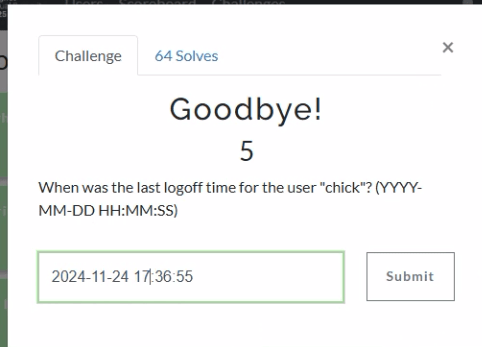
In Axiom we can find the most recent 4634 event at 11/24/2024 5:36:55 PM, formatted for the challenge as 2024-11-24 17:36:55.


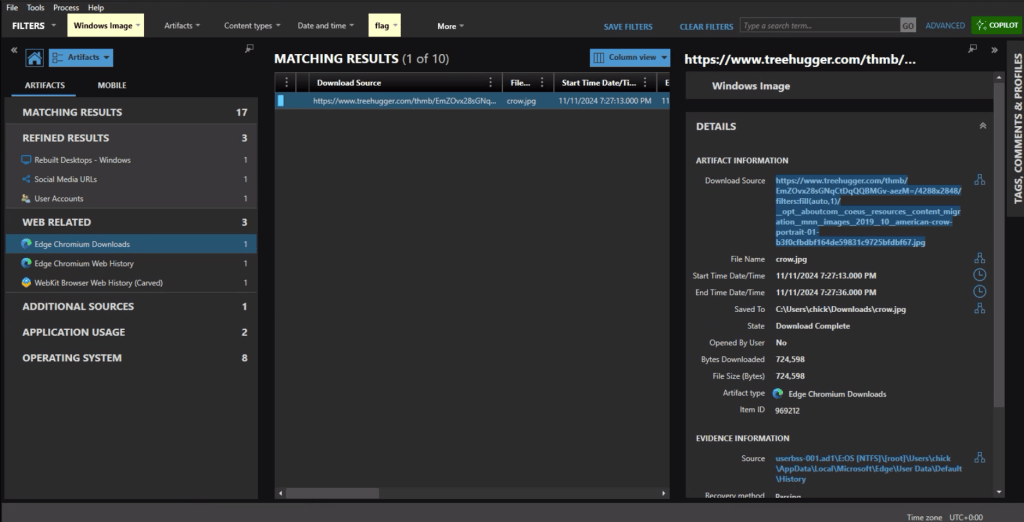
The download source from the crow.jpg URL is https://www.treehugger.com/thmb/EmZOvx28sGNqCtDqQQBMGv-aezM=/4288×2848/filters:fill(auto,1)/__opt__aboutcom__coeus__resources__content_migration__mnn__images__2019__10__american-crow-portrait-01-b3f0cfbdbf164de59831c9725bfdbf67.jpg


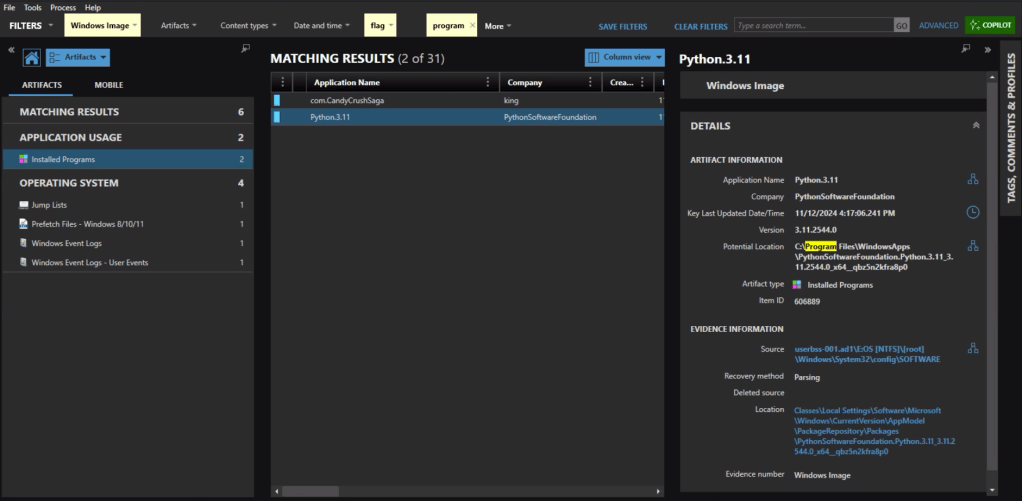
In the Installed Programs under Application Usage we can see that com.CandyCrushSaga was installed. This is the package name for Candy Crush.


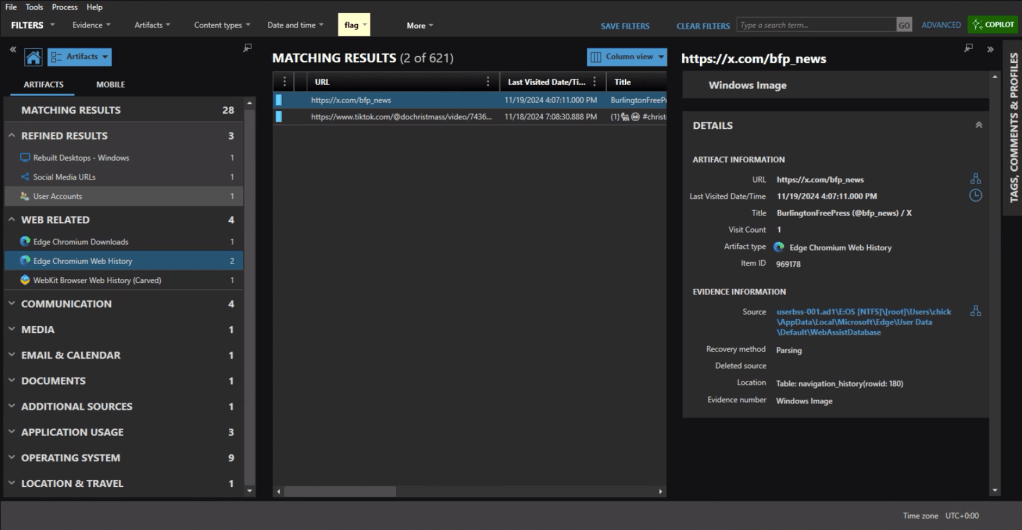
Under the Web Related artifacts, specifically Edge Chromium Web History we can see traffic to https://x.com/bfp_news which is the Twitter/X site for Burlington Free Press.


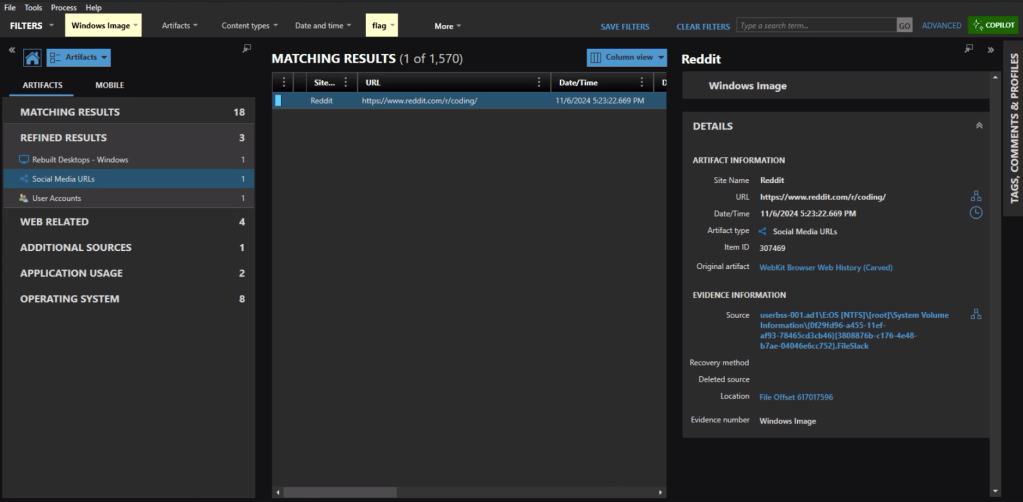
Refined Results, Social Media URLs, shows that the user visited the subreddit of https://reddit.com/r/coding.


The question itself practically gives it away, but we’ll check the Installed Programs to be safe. Sure enough the user had Python installed.


Event ID 4720 is a Windows Security Log event that is generated whenever a new user account is successfully created on a system. The creation date for Mary’s account is 2024-09-24 15:11:51.


As someone who used to geocache frequently, this question was a pleasant surprise. Already having an account on geocaching.com also helped.

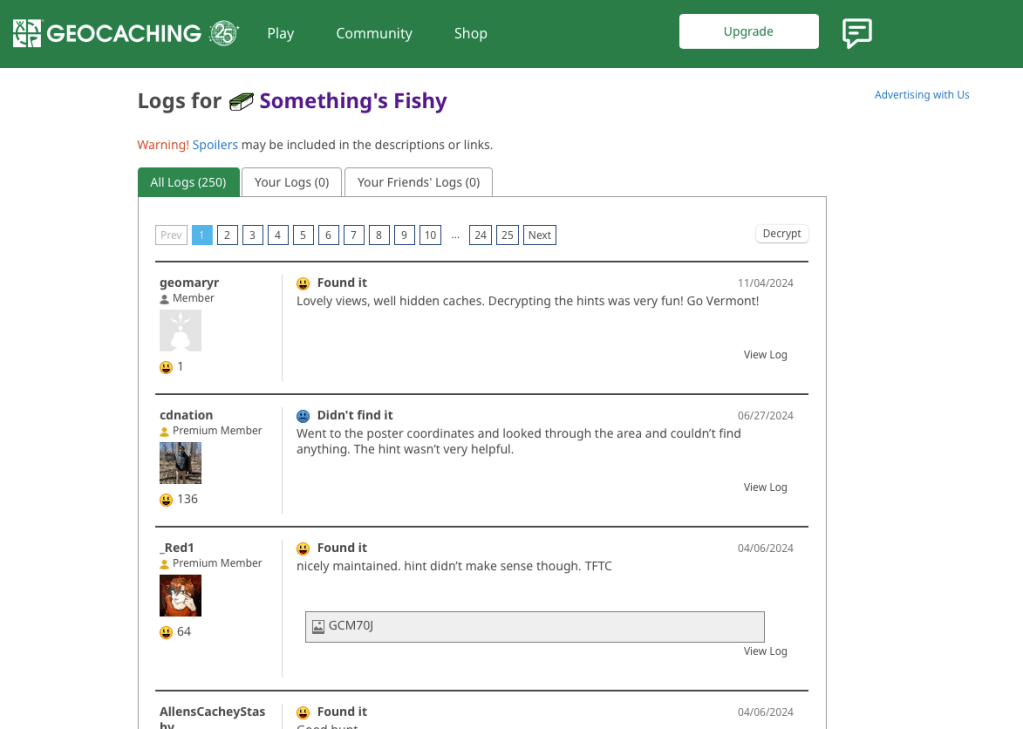
There’s a fair amount of results if you search on geocaching, but there is only reference in the history to an actual geocache location (GCM70J) titled “Something’s Fishy.”


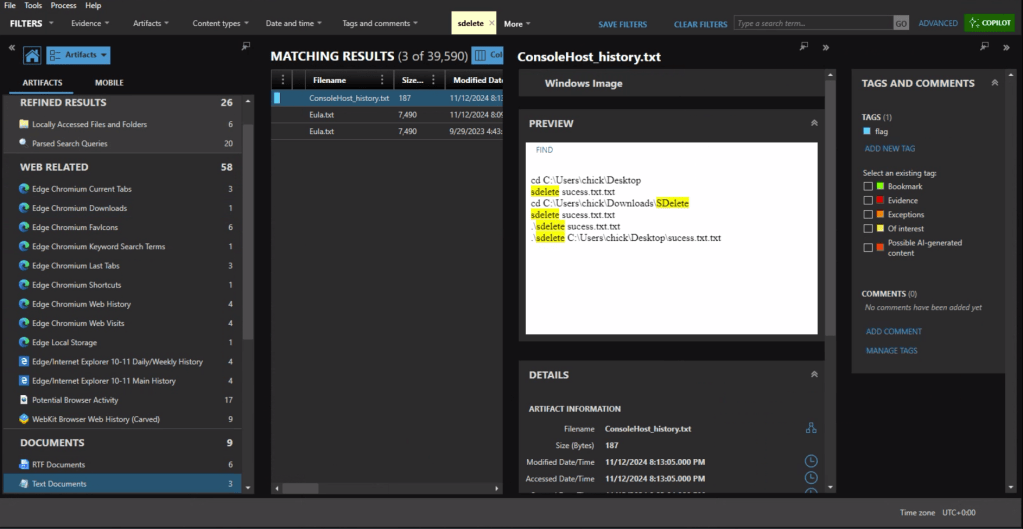
First we need to identify what counter-forensics tools may have been in use. In the user’s download activity we see that SDelete was downloaded.

If we look at the PowerShell history, ConsoleHost_history.txt, we can see that the command sdelete success.txt.txt was executed.


There are multiple evidence items indicating that the user was also using Proton Mail on the device with the account hackergotyou@proton.me.


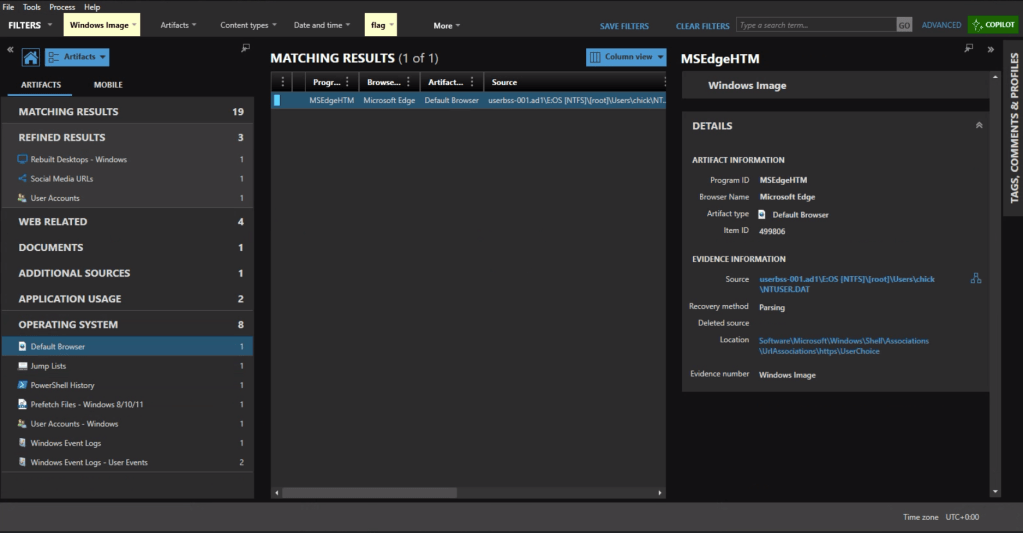
The default browser can be identified from the Registry at Software\Microsoft\Windows\Shell\Associations\UrlAssociations\https\UserChoice. In this instance the user was using Edge, the default, as their browser.


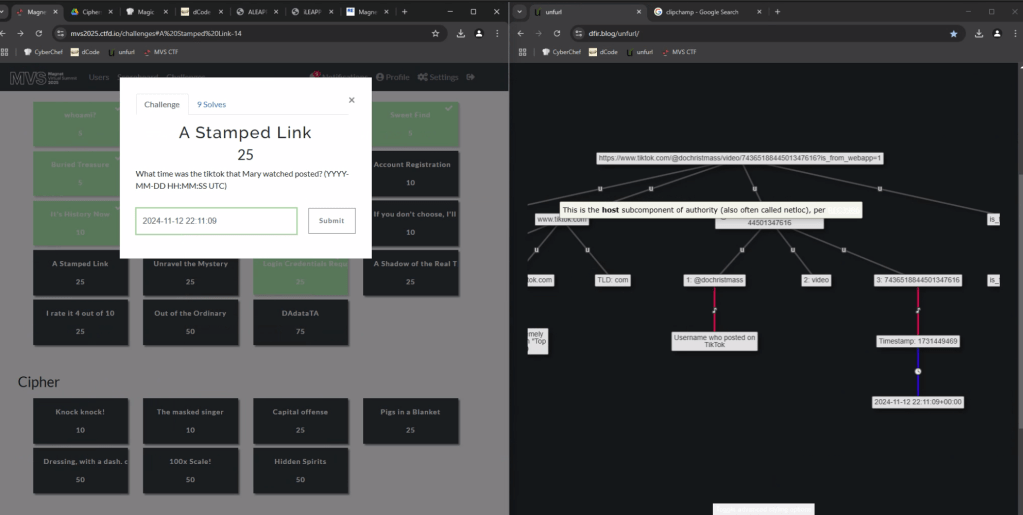
In the browser history we see that the user accessed a video at the url, https://www.tiktok.com/@dochristmass/video/7436518844501347616?is_from_webapp=1

To get the time the video was posted, we can copy the url into UNFURL. This reveals the timestamp the video was posted as 2024-11-22 22:11:09.


Again with a filter on ‘geocaching’ we see a fair amount of activity. There is a url with “join” that appears to be part of the user sign in, including username=geomaryr

We also have an entry under Edge Chromium Autofill, as the user opted to save the login ID on that page.

Lastly we can double-check the geocaching.com site with the log for “Something’s Fishy” which matches the timestamp of the web activity. geomaryr is Mary’s username on geocaching.com


The first thought would be to go to the Passwords and Tokens Refined Result. We see a hash for the chick user account. But Wait!

The key is in “Shadow.” It’s not the Windows account we’re looking for.
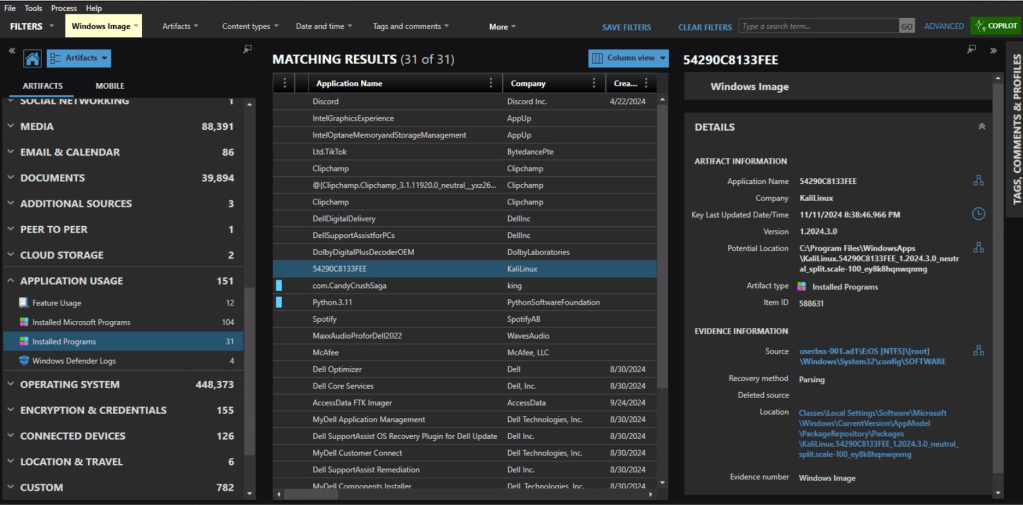
Looking at Installed Programs we identify that the user installed KALI in Windows Subsystem for Linux (WSL). I knew I wanted to get the /etc/shadow file from the KALI installation – but I was hitting a wall on how.
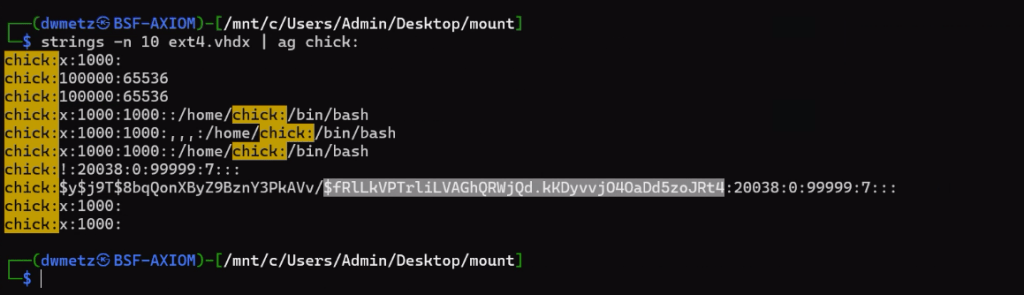
Finally I wound up exporting the ext4.vhdx (the virtual hard drive for the KALI instance) and running strings against it, and piped the results to ag (grep on steroids) with a search for ‘chick:’.

Much like the way my father would describe my shots back when we would play golf together, ugly but effective. The hash for the user account chick is $fRLLkVPTrLiLVAGhQRWjQd.kKDyvvj040aDd5zoJRt4.


There were a few more challenges under the Windows category but that was as far as I made it in the time allotted.

I hope you’ve enjoyed these walk throughs on my approach to solving the challenges.

If you’d like to access the images used for the CFT for your own training and investigation, you can find them at https://cfreds.nist.gov/all/Hexordia/2025MVSCTF. In addition to the Windows 11 image used here, there is also full file system extractions of Android and iOS, as well as two Google Takeout exports. It’s a great reference set for practicing.