Someone asked me recently how I see DFIR evolving — tooling, automation, and open-source versus enterprise platforms. It’s the kind of question that sounds like a conference panel topic, but the answer is grounded in how work actually gets done. In practice, it isn’t a binary choice. The most effective IR practitioners I’ve worked with use a combination of both commercial and open-source tools, depending on the problem in front of them.
Commercial platforms handle workflow and scale. If you’re running incident response across a large enterprise and need to triage at volume, a solid commercial solution carries weight that a collection of scripts can’t. Aggregation, case management, reporting — those layers matter when you’re briefing a CISO at 2am. Open-source, on the other hand, reacts fast. When a new artifact surfaces — a novel malware family, a Windows update exposing a new forensic data source — the OSS community often has something usable before it shows up on a vendor roadmap.
Where this gets more nuanced is support. Some vendors have excellent support — responsive, technically sharp, and genuinely useful when you’re dealing with something unusual. Others offer little more than a ticketing system and a stale knowledge base. Open-source has the same variability, some projects have highly engaged maintainers who respond quickly to well-written issues, while others are effectively one-person efforts maintained when time allows. Neither model guarantees anything.
Cost follows a similar pattern. Open-source tools remove licensing fees, but they introduce operational overhead — staying current, understanding changes, and troubleshooting issues in your own environment. That cost is real, and it tends to stay invisible until something breaks at the wrong time.
Open-source tools also serve another purpose, they’re a sanity check. When something looks significant during analysis, validating it with an independent tool that parses the same artifact differently adds confidence. This isn’t about distrust — it’s about applying defense-in-depth to analysis itself. If two independently built tools reach the same conclusion, the finding is stronger. If they don’t, that discrepancy is worth investigating before it makes its way into a report.
That ties into a broader issue, treating tools as black boxes. A result comes out, it gets documented, and it ends up in the report with very little scrutiny of how it was produced. Knowing which tools to trust means understanding what they’re actually doing under the hood. The fix is simple, but often ignored, read the release notes. Also, if a tool burned you two years ago, verify whether that’s still true. Vendors iterate. OSS projects iterate. Hanging onto an old assumption is an easy way to miss something useful. And “well-known” doesn’t mean “complete” — every tool has blind spots, and knowing where they are is part of the job.
All of this becomes more relevant when you look at how AI and automation are being positioned in DFIR. There are real capabilities being built, but there’s also a lot of noise. What’s consistently improving is automation around repeatable tasks — collection, parsing, triage. That matters. It allows a competent analyst to move faster and cover more ground. What hasn’t changed is the part that requires judgment: understanding context, recognizing when something doesn’t fit, and knowing what question to ask next. That intuition comes from experience, and there’s no real shortcut for it.
One shift that’s been more interesting is how many practitioners are now building their own tools. The barrier to entry has dropped. You don’t need to be a full-time software engineer to create something useful. If you understand the artifacts and can write a working parser in Python or Rust, you can build something that solves a real problem. That kind of domain-specific tooling — built by someone who understands what they’re looking for — is often more effective than a generic solution adapted to fit a forensic use case. It also reinforces the same principle, the more you understand the tooling, the less you rely on it blindly.
Use what works. Know its limits. Validate across tools when it matters. Don’t let a bad experience with an old version close a door. And write it down when something’s worth sharing.
In a previous post I wrote about integrating MalChela with OpenCode on REMnux and giving the AI a quick briefing on the tool suite so it could incorporate them into its analysis workflow. That was a promising proof of concept, but it raised a natural follow-up question: how do you make these integrations more robust, reproducible, and persistent?
Since that post, I’ve been experimenting with three different approaches to bringing MalChela into AI-assisted workflows — each suited to a different environment and use case. This post walks through all three.
Approach 1: The Kali MCP Server (Toby)
The first implementation started with Toby — my portable Raspberry Pi forensics toolkit running a customized Kali Linux build. Toby is designed for headless operation via SSH, which turns out to be exactly the right architecture for an MCP server. The developers of Kali recently added an update to support MCP integrations. (See https://www.kali.org/blog/kali-llm-claude-desktop/)
Model Context Protocol (MCP) is an open standard that allows AI assistants like Claude to interface with external tools and systems in a structured, reliable way. Instead of pasting instructions into a chat window each session, you define your tools once in a server configuration and the AI has consistent, persistent access to them.
The setup leverages an existing open-source mcp-kali-server that exposes Kali’s forensic and security tooling as MCP tools. On the client side (Mac), the claude_desktop_config.json simply points to Toby (or your Kali box) over SSH:
{
"mcpServers": {
"mcp-kali-server": {
"command": "ssh",
"args": [
"-i",
"/Users/dwmetz/.ssh/id_ed25519",
"dwmetz@192.168.10.89",
"mcp-server"
],
"transport": "stdio"
}
}
}
With this in place, Claude Desktop has persistent, session-independent access to Kali’s toolkit running on Toby. No need to re-brief the AI each session — the tools are always available and always described the same way.
Key prerequisite: passwordless SSH key-based auth between your Mac and Toby. If you haven’t set that up:
ssh-keygen -t ed25519
ssh-copy-id user@<toby/kali-ip>
# Then one manual SSH to accept the host key fingerprint
ssh user@<toby/kali-ip>
Adding MalChela to the Kali MCP Server
The mcp-kali-server ships with routes for Kali’s built-in security tools, but MalChela isn’t included out of the box. Adding it requires changes to two files: kali_server.py (the Flask API backend) and mcp_server.py (the FastMCP frontend). Both live at /usr/share/mcp-kali-server/.
How the architecture works:mcp_server.py is what Claude talks to — it defines MCP tool names, descriptions, and parameter schemas. When a tool is called, it POSTs to kali_server.py, which constructs the actual shell command and executes it on Toby. The critical detail is that MalChela’s binaries must be run from within the MalChela workspace directory — running them from an arbitrary working directory causes failures. The cd {MALCHELA_DIR} && prefix in every command handles this.
kali_server.py changes
Add the MALCHELA_DIR constant (update with your MalChela install path) and Flask routes after the existing tool routes, before the health check endpoint:
Important note on malhash: Unlike the other tools which take a file path, malhash takes a hash string as its argument. The route reads a hash parameter and passes it directly to the binary. Passing a filepath to malhash will fail silently — a subtle but critical distinction.
mcp_server.py changes
The MalChela tool definitions need to be added to the setup_mcp_server() function, immediately before the return mcp line.
    @mcp.tool(name="malchela_fileanalyzer")
    def malchela_fileanalyzer(filepath: str) -> Dict[str, Any]:
        """
        MalChela: Static file analysis - hashes, entropy, packing detection,
        PE metadata (imports, sections, timestamps), YARA matches, VirusTotal status.
        Best first step for any unknown file.

        Args:
            filepath: Absolute path to the file to analyze

        Returns:
            Analysis report
        """
        return kali_client.safe_post("api/tools/malchela/fileanalyzer", {"filepath": filepath})

    @mcp.tool(name="malchela_mstrings")
    def malchela_mstrings(filepath: str) -> Dict[str, Any]:
        """
        MalChela: String extraction with IOC detection and MITRE ATT&CK mapping.
        Applies Sigma-style detection rules, flags suspicious patterns (registry keys,
        encoded payloads, suspicious DLL+API combos), maps findings to ATT&CK techniques.

        Args:
            filepath: Absolute path to the file to analyze

        Returns:
            String analysis with ATT&CK mappings and IOCs
        """
        return kali_client.safe_post("api/tools/malchela/mstrings", {"filepath": filepath})

    @mcp.tool(name="malchela_malhash")
    def malchela_malhash(hash: str) -> Dict[str, Any]:
        """
        MalChela: Query a file hash against VirusTotal and MalwareBazaar.
        Returns detection ratio, AV verdicts, first/last seen dates, and sample metadata.
        Requires VT_API_KEY env var; MB_API_KEY optional.

        Args:
            hash: MD5, SHA1, or SHA256 hash string to query

        Returns:
            Threat intel results from VirusTotal and MalwareBazaar
        """
        return kali_client.safe_post("api/tools/malchela/malhash", {"hash": hash})

    @mcp.tool(name="malchela_hashit")
    def malchela_hashit(filepath: str) -> Dict[str, Any]:
        """
        MalChela: Generate MD5, SHA1, and SHA256 hashes for a single file.
        Lightweight when you need hashes without full fileanalyzer output.

        Args:
            filepath: Absolute path to the file

        Returns:
            File hashes
        """
        return kali_client.safe_post("api/tools/malchela/hashit", {"filepath": filepath})

    @mcp.tool(name="malchela_fileminer")
    def malchela_fileminer(folderpath: str) -> Dict[str, Any]:
        """
        MalChela: Scan a folder for file type mismatches and metadata anomalies.
        Classifies all files, flags executables disguised as other types.

        Args:
            folderpath: Absolute path to the folder to scan

        Returns:
            File classification and anomaly report
        """
        return kali_client.safe_post("api/tools/malchela/fileminer", {"dirpath": folderpath})

    return mcp
One parameter naming detail worth noting: mcp_server.py receives folderpath from Claude, but must pass it as dirpath in the JSON body to kali_server.py — that’s what the Flask route reads. The tool definition above handles this correctly.
After saving both files, restart the MCP server and restart Claude Desktop.
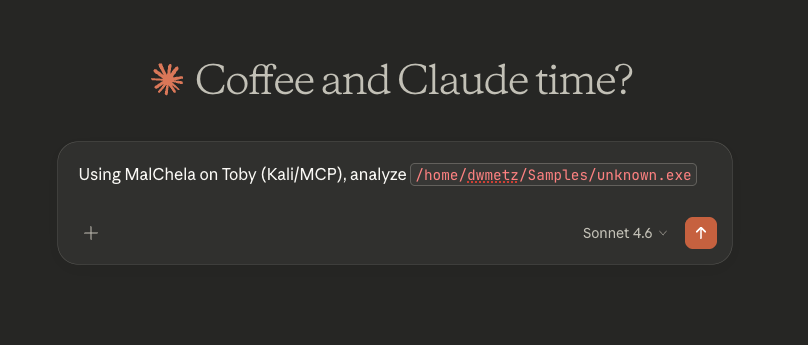
Testing on an unknown malware sample
[below is the exact response received from Claude]
I’ll run MalChela analysis on that file via Toby. Let me load the tools first.Tools loaded. Running fileanalyzer first for static analysis, then mstrings for IOC/ATT&CK mapping. Let me verify the path exists:File confirmed on Toby. The MalChela MCP tools use local paths — let me run it directly via the Kali execute_command since the MCP path routing doesn’t map Toby paths. I’ll invoke MalChela’s binaries directly:MalChela binaries found. Running the full suite now:That’s already very telling. Now running mstrings for IOC and ATT&CK mapping:Now let me pull the VirusTotal intel on the hash:That’s a solid picture. Here’s the full analysis breakdown:
5 PE sections including .ndata (atypical NSIS section, flagged as suspicious)
159 imports, including the dangerous trio:
GetProcAddress / LoadLibraryExA — dynamic API resolution (evasion)
ShellExecuteExA — process execution
🎯 MITRE ATT&CK Mappings (from mstrings)
Technique
ID
Tactic
Obfuscated Files or Information
T1027
Defense Evasion
Process Injection
T1055
Defense Evasion / Privilege Escalation
Application Layer Protocol: Web Protocols
T1071.001
Command and Control
🌐 Network IOC
http://nsis.sf.net/NSIS_Error — NSIS error handler URL (confirms NSIS wrapper), not inherently malicious but characteristic of GuLoader’s packaging
Summary
This is a live GuLoader sample — an NSIS-wrapped shellcode injector/downloader commonly used as a first-stage payload to retrieve second-stage malware (often AgentTesla, Remcos RAT, FormBook, etc.). The high entropy, dynamic API loading, and process injection indicators are all consistent with GuLoader’s known behavior. Treat this as active malware — do not execute outside an isolated sandbox.
Approach 2: Persistent MalChela Instructions in OpenCode on REMnux
The REMnux OpenCode integration I described in the previous post worked, but it had one friction point: each new session required re-pasting the MalChela context. OpenCode has a solution for this — the AGENTS.md file.
Place an AGENTS.md file in your working directory (or MalChela’s root directory) and OpenCode will automatically load it as persistent context for every session started from that location. This is the most lightweight way to make MalChela tool-aware without building any infrastructure.
Create the file at /home/remnux/Tools/MalChela/AGENTS.md:
# MalChela Tool Instructions for AI Assistants
MalChela is installed at: /home/remnux/Tools/MalChela
All tools are Rust binaries. The execution pattern is:
1. fileanalyzer - establish baseline: hashes, entropy, PE headers
2. mstrings - extract strings, look for IOCs and ATT&CK technique indicators
3. malhash - check community threat intelligence
4. nsrlquery - confirm or rule out known-good status
## Environment Notes
- API keys (VT_API_KEY, MB_API_KEY) should be set in the shell environment
- MalChela integrates with REMnux tools; use REMnux CLI tools in conjunction as needed
- Case management is available via the MalChela GUI if a graphical session is active
When you start an OpenCode session from the MalChela directory, this context is automatically loaded. No manual pasting, no re-briefing.
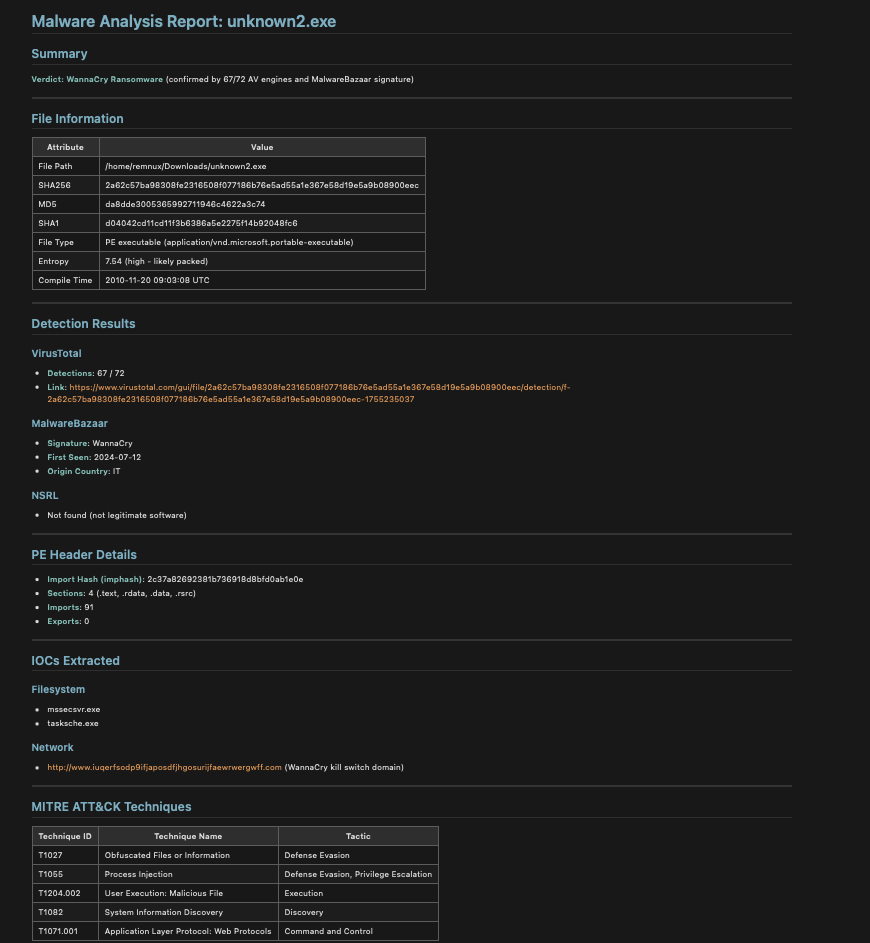
Once complete I asked it to save the results to the Desktop in markdown.
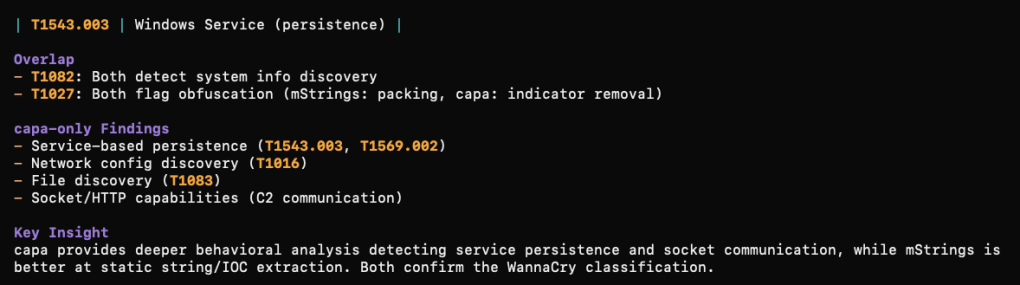
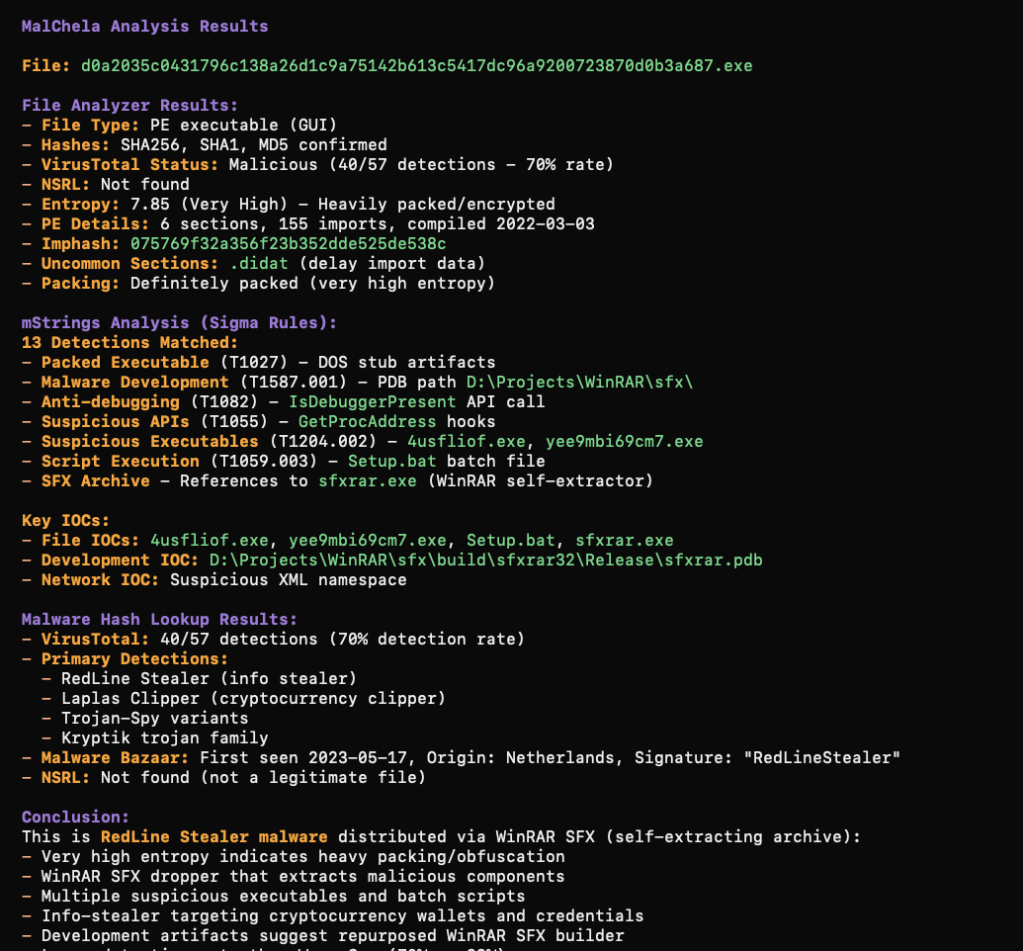
What was cool to me about this approach is that using the installed REMnux tools, you can take the analysis further after MalChela. In my testing I (OpenCode) analyzed a file with mStrings. We then followed up by running capa against the file. From there we could compare what each tool detected and missed in the sample. (screenshot truncated)
Approach 3: MalChela as a Native MCP Server (Mac)
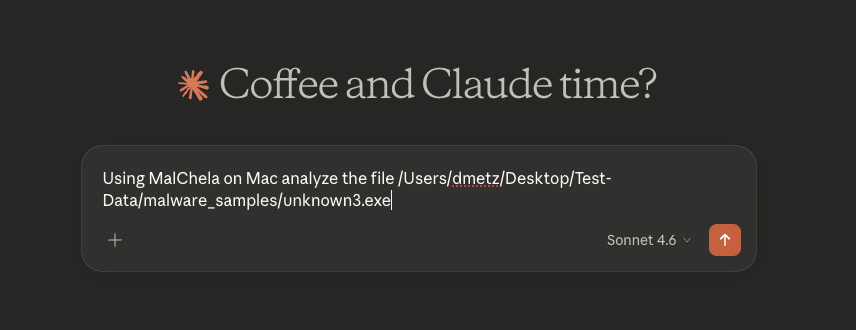
The most powerful integration is running MalChela as its own dedicated MCP server — making its tools directly available to Claude Desktop alongside the Kali server. This is what we built out as mcp-malchela.
The server is a small Node.js project that wraps MalChela’s binaries with proper MCP tool definitions. The key files are index.js (the server logic) and package.json.
package.json:
{
"name": "mcp-malchela",
"version": "1.0.0",
"description": "MCP server exposing MalChela malware analysis tools",
"main": "index.js",
"dependencies": {
"@modelcontextprotocol/sdk": "^1.0.0"
}
}
index.js — the server defines each MalChela tool with its input schema, executes the binary when called, and streams back results. Note that malhash is handled differently from the other tools — it receives a hash string rather than a filepath, so the argument routing accounts for that explicitly:
import { Server } from "@modelcontextprotocol/sdk/server/index.js";
import { StdioServerTransport } from "@modelcontextprotocol/sdk/server/stdio.js";
import { CallToolRequestSchema, ListToolsRequestSchema } from "@modelcontextprotocol/sdk/types.js";
WMI usage — likely for system enumeration pre-exfil
Bottom Line
This is a Go-compiled password/credential stealer targeting browsers (Firefox cookies, Discord tokens, Yandex Browser), using WebSocket for C2, with WMI-based discovery. It was UPX-packed (this is the unpacked copy), has a zeroed compile timestamp to defeat timestamp-based triage, and was submitted to MalwareBazaar just hours ago — very fresh sample. Do not execute in any environment without proper isolation.
All three approaches solve the same core problem from the original post: making the AI reliably aware of your tools without re-briefing it every session. The right choice depends on your primary analysis environment — or, if you’re like me, you end up running all three.
All of the configuration files discussed here — including the MCP server setup and the are available in the MalChela repository on GitHub. Clone or pull the latest and you should be ready to go. As always, if you run into issues or have ideas for where to take the MCP integration next, open an issue or drop me a note.
Those familiar with my work know that I’m a big fan of the REMnux Linux distribution for malware analysis. When I developed MalChela, I included a custom configuration that can be invoked that not only includes the MalChela tool suite but also integrates many of the CLI tools installed in REMnux, providing an easy-to-use GUI.
Recently, a new REMnux release was released on Ubuntu 24.04. This was a welcome upgrade because REMnux was previously locked to 20.04, which was becoming outdated. As soon as I noticed the release announcement, I downloaded the latest version and installed the MalChela suite. Everything ran smoothly, and the GUI interface even appeared slightly sharper without any changes on my part.
While reviewing the release notes for the new version, I discovered that REMnux now includes integration with Opencode AI. In REMnux, several models are preconfigured to recognize the tools included in the distribution and their capabilities and syntax. You can use natural language prompts, and the system will interpret the request, execute the appropriate tools against the file, and provide a summary of the results. As mentioned in the documentation:
The AI uses the REMnux MCP server to run the appropriate REMnux tools automatically. The MCP server offers guidance regarding the tools that the AI should consider, but it’s up to the AI agent to decide on the analysis workflow. And, of course, your interactions, requests, and observations can also direct the AI regarding the analysis steps.
Key capabilities available to AI assistants through the REMnux MCP server:
Analyze files based on detected type (PE, PDF, Office docs, scripts, ELF, etc.)
Get tool recommendations for a specific file without running them
Run specific REMnux tools directly, including piped commands
Extract indicators of compromise (IOCs) from text
Get usage help for any installed REMnux tool
I experimented with a few of the usual suspects in my corpus and provided pretty generic prompts like “analyze (file-xyz)” and “what are the IOCs?” The results were very positive – but I’ve only scratched the surface in testing.
Then I decided to see how adaptive this AI was and how easy it would be to make it aware of new tools and syntax. I provided the following:
MalChela tool suite is  installed in /home/remnux/Tools/MalChela
All are rust based tools so cd to the MalChela directory, and then ./target/release/fileanalyzer (path to executable) would be the syntax.
The 4 tools below are the primary tools for static analysis.
  File Analyzer       |  Get the hash, entropy, packing, PE info, YARA and VT match status for a file
  mStrings            |  Analyzes files with Sigma rules (YAML), extracts strings, matches ReGex.
  NSRL Hash Lookup    |  Query an MD5 or SHA1 hash against NSRL
  Malware Hash Lookup |  Query a hash value against VirusTotal & Malware Bazaar
Immediately it began running the tools in MalChela against the malware file I was previously analyzing and provided a summary of the different tool results.
I plan to do a lot more testing but so far things are looking very promising.
So what do you think? Are you using AI in your malware analysis workflows? What capabilities of AI do you think are most useful when it comes to malware analysis? Let me know in the comments.
This was a change of pace from what a lot of the CTF has been; lots of malware and deobfuscation. In this challenge we’re tasked with figuring out which faces are real and which have been AI generated.
Before starting the challenge, I familiarized myself with
It gave me good ideas of things to look for regarding teeth, glasses, earrings, other faces in photos, etc.
Eventually, I was able to get 5 right in a row.
Operation Eradication
Let’s take a look at the configuration file.
This looks like a config file for rclone.
Using this information, and the url provided from the challenge, we can update our rclone config file.
Now using rclone we can connect to the remote location and hopefully start deleting these ‘sensitive’ files. If only it were so easy.
I was able to get a directory listing, so I knew that my credentials were successfully connecting.
I was all over the command options at https://rclone.org. Every DELETE or SYNC operation I could think of was failing.
At my wit’s end I pinged a friend who suggested trying to overwrite the files with a 0 bit file. If successful the files would still be there, but the content gone – so essentially, they’d be safe again.
Using the file listing from the server, I wrote a PowerShell script that would touch, or create a 0 byte file, locally for each file names.
Next the script would run the rclone copy command to copy the local 0 byte files to the network location.
I run the PowerShell script and then return to the webpage and refresh…
DOH! There was a typo in one line of the script. I’ll re-run the file listing command again. All but one file have the 0 byte file size.
Run the copy command one more time to take care of our errant file and…
Success!
Use the tag #HuntressCTF on BakerStreetForensics.com to see all related posts and solutions for the 2023 Huntress CTF.






 Baker Street Forensics