Adding RAM collections to KAPE Triage

If you’re utilizing KAPE to collect triage collections, are you also collecting a RAM image with the operating system artifacts?
Included in the Modules section of KAPE there are three modules that can create a RAM image. The modules for DumpIt and Winpmem have been available for a while. (I wrote the DumpIt module and Eric Capuano wrote the Winpmem module.) Now you also have the option of using Magnet Ram Capture as an option. As with any of the KAPE modules if you’re calling an executable, you need to ensure the .exe is present in the \modules\bin directory. KAPE does not distribute any 3rd party executables so you need to bring your own. You can download Magnet Ram Capture from the Magnet Free Tools site at Free Tools – Magnet Forensics.

Speaking of Magnet, I should say that I am, as of recent, an employee of Magnet Forensics. All views here, demented and otherwise, are my own and don’t reflect the views or opinions of my employer. Now that all the lawyers are smiling, let’s continue.

When utilizing KAPE you can either run the Memory collection module by itself…

Magnet Ram Capture module in KAPE


Or more likely, as part of a triage collection so you can get the necessary artifacts, as well as a RAM dump.

KAPE Triage Collection along with Magnet Ram Capture


While this does work to get both the artifacts and RAM capture, there are a couple issues with the process.

  • Best practices for forensics suggest imaging the RAM before making any other changes to the target
  • KAPE executes the Targets first and then proceeds to Modules (RAM collection)
  • After the KAPE memory collection completes the memory image will be included in the specified KAPE output (zip).
  • A copy of the memory image (raw) file stays on the computer, even if KAPE is transferring the data off to a remote location. This appeared to be the case regardless of which memory capture utility is used.

CSIRT-Collect v3

CSIRT-Collect is a PowerShell script that I wrote to automate to collection of a RAM image as well as a KAPE triage collection. I wanted to preserve the order of volatility and capture the RAM before any other artifact collection occurs. Version 3 by default leverages Magnet Ram Capture to collect the memory. You can utilize Winpmem or DumpIt with a minor code modification.


CSIRT-Collect
Prerequisites:

Network share location with “Collections” folder. Within ‘Collections’, 2 subdirectories:

  • Memory, containing Magnet Ram Capture (MRC.exe) and command line version of 7zip (7za.exe)
  • KAPE (default directory as installed)

The script will:

  • map a drive to the “Collections” share, (update the script to reflect the network share for your environment)
  • capture a memory image with Magnet Ram Capture,
  • capture a triage collection with KAPE,
  • transfer the output back to the network share,
  • create a text flag when the process has completed.
Beginning of script. Temp directory on host is empty. Memory and KAPE folder available on Collections share.
Tools copied from server. RAM collection initiated.
Once the RAM Capture is completed, the script captures the Windows build info to a text file, and then zips up that with the raw image file to memdump (7zip).
The memdump zip file containing the RAM and build info is renamed to reflect the hostname of the target. The zip file is transferred to the network into a folder named for the target.
After the zipped memory image (seen here as 18GB compressed to 4.2GB) is transferred to the network, the KAPE triage collection is initiated. Note the C:\Temp\IR directory is gone and collection artifacts saved to C:\Temp\KAPE.
At the end of the KAPE collection, the artifacts are saved to a VHDX file and then compressed as a zip.
Script completes with zipped VHDX and KAPE console logs, transferred to server location.
The zipped memory collection with the windows build text file.
Windows build info in text file. Use this value to assist in selecting Windows profile for processing with Volatility. (Save the long time required when running kdbgscan).

At the very end of the script a “transfer complete” text file is written to the directory. This is an easy way to know that all the collection activity has completed. If being used for automation, the presence of this file can be used as a trigger to initiate further automation activities.

Contents of transfer-complete.txt.

And that’s it. One script to capture RAM, capture a triage image, and then transfer the collections back to the network.

CSIRT-Collect can be initiated on the endpoint manually, invoked by EDR tools, as well as larger collection scenarios where the script can be pushed out via Group Policy.

Grab your copy of CSIRT-Collect here:

https://github.com/dwmetz/CSIRT-Collect

VS Code Interactive Notebooks

I’ve been using Visual Studio Code as my go to editor for PowerShell, JSON, plain text, and recently even a dash of Python. VS Code is very extensible and much like the App Stores we’ve come to know, there’s an extension marketplace to broaden its capabilites.

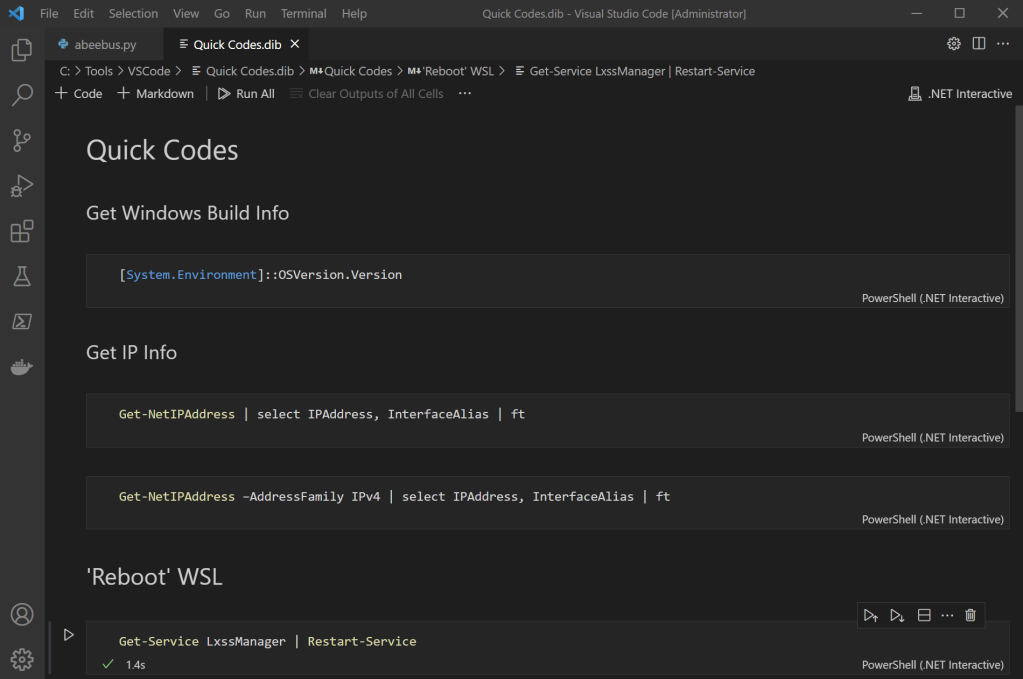
One of my favorite extensions is the .NET Interactive Notebooks. Notebooks combine markdown text and code snippets that you can run right within the notebook. This can be very useful for designing playbooks for a SOC or Junior Analyst to execute as you can describe and provide guidance on how to utilize the code functions.

An easy way to get started with Interactive Notebooks is to create a “Quick Codes” notebook. Title it as you choose. For this particular notebook, I’ve got a number of commands saved that I may reference semi-frequently, but due to limited space in my mind palace I wind up googling them anyway, even if it’s googling my own site.

Trying to remember a specific PowerShell syntax

Note before installing:
As your scripts and notebooks develop, there is a likelihood that you will want to run some either as Administrator or using another user credential. One way to do so simply launch VS code (right click) as Admin, or use the Run As feature when you launch the application.

  1. Download and install VS Code.
    Note – as you may be running this with multiple credentials, the “System” installer is recommended.
    https://code.visualstudio.com/Download#
  2. Install the latest .Net SDK
    https://dotnet.microsoft.com/download/dotnet/6.0
  3. When inside VS code, bring up the Extensions view by clicking on the Extensions icon in the Activity Bar on the side of VS Code, or the View: Extensions command (Ctrl+Shift+X).
    Search for “interactive”
    Select .NET Interactive Notebooks and choose install

Once everything is all set, relaunch VS Code.

Hit Ctrl+Shift+P and select .NET Interactive – Create New Blank Notebook.

That’s it. Now start adding blocks for text and code. You can use simple markup codes for Heading (#), Heading 2 (##), Heading 3 (###), etc.

To execute the code snippet, just click on the small ‘play’ arrow to the left.

Do you have any novel uses for Interactive Notebooks? If so, please share in the comments area.

HTCIA International Conference

I had the fortunate opportunity of presenting to the 2021 HTCIA (High Tech Crime Investigators Association) this week. I’d originally hoped to attend in person but we’ve still got travel restrictions in place so it was virtual attendance for me. There was a lot of good speakers and content through the week (triggering my imposter syndrome more and more as the week went on) 😉 In the end I think it went off pretty well. Somehow I managed to see around the “screen sharing” label that for whatever reason (narrator: it was nerves) that I never dismissed.

I don’t know yet if the recordings will remain available after the conference, however I promised to share my slides from the event so if you’d like to review, head on over to the GitHub and grab a copy. While you’re there check out the main feature of my presentation – CSIRT-Collect.

Forensic Imaging Station – Steampunk Edition

I’ve worked remotely for the past 6 years which means I spend a lot of time in my home office.  Last year we moved into a new house with much better space for my office, and I’ve been shaping it more and more to my tastes.

I do a lot of forensic imaging. I’ve got a pretty basic but rock solid setup that works for me (see Forensic Imaging a Microsoft Surface Pro).  Since I use it frequently I’m hesitant to put it away, but at the same point I don’t like looking at a pile of wires and devices when not in use. That brings us to the latest home office update, the Forensic Imaging Station (Steampunk Edition).

For this project I grabbed a small wooden box from Hobby Lobby.  A good cigar box will also work.  That was going to be my first choice but the only spare box I had on hand said “Corona” on the face and… you know. This box looks nice but it’s composed of mostly particle board, so go slow drilling.

I drilled four holes in the box. A 1/2 inch hole on the front face under the locking clasp for the USB-C cable, and three 5/8 inch holes – 2 on the side and one on the back, to accommodate the rest.

Inside the box I’ve arranged a USB hub connecting:

  • Paladin flash drive
  • External WD hard drive 
  • Keyboard (USB)
  • RF dongle for mouse.
  • Pass through for “universal” laptop power adapter
Cheap wood makes for messy holes.

This box had plenty of space to arrange the components. The laptop power adapter comes in the back of the box and then back out on the side.  The USB connector for the hub is also passed through the side. The cable for the keyboard passes through the front.

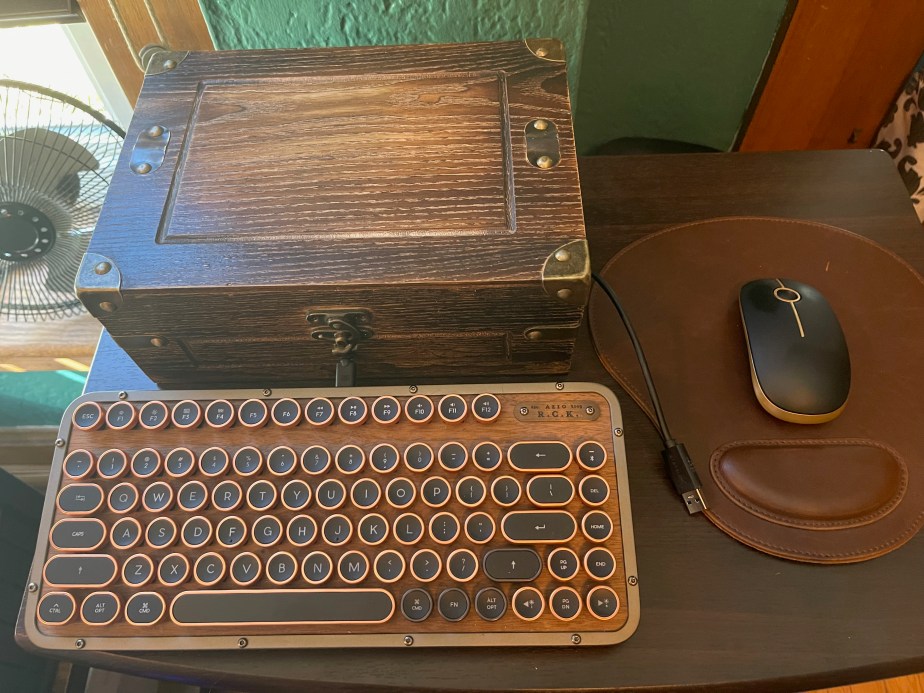
The finished set-up

The setup is completed with an Azio Retro Compact keyboard, (with replacement copper-edged keys) and a sort of matching mouse.

When it’s time to image, just sit the laptop on top, connect the USB cable and power, and you’re good to go.

Post Update:

Because I’ve come to learn that a project is really ever finished at version 1 – a close up view after details added. (Rubber grommets for the cable holes and decorative details and rubber feet on the top for laptop.