I had the fortunate opportunity of presenting to the 2021 HTCIA (High Tech Crime Investigators Association) this week. I’d originally hoped to attend in person but we’ve still got travel restrictions in place so it was virtual attendance for me. There was a lot of good speakers and content through the week (triggering my imposter syndrome more and more as the week went on) 😉 In the end I think it went off pretty well. Somehow I managed to see around the “screen sharing” label that for whatever reason (narrator: it was nerves) that I never dismissed.
I don’t know yet if the recordings will remain available after the conference, however I promised to share my slides from the event so if you’d like to review, head on over to the GitHub and grab a copy. While you’re there check out the main feature of my presentation – CSIRT-Collect.
I’ve worked remotely for the past 6 years which means I spend a lot of time in my home office. Last year we moved into a new house with much better space for my office, and I’ve been shaping it more and more to my tastes.
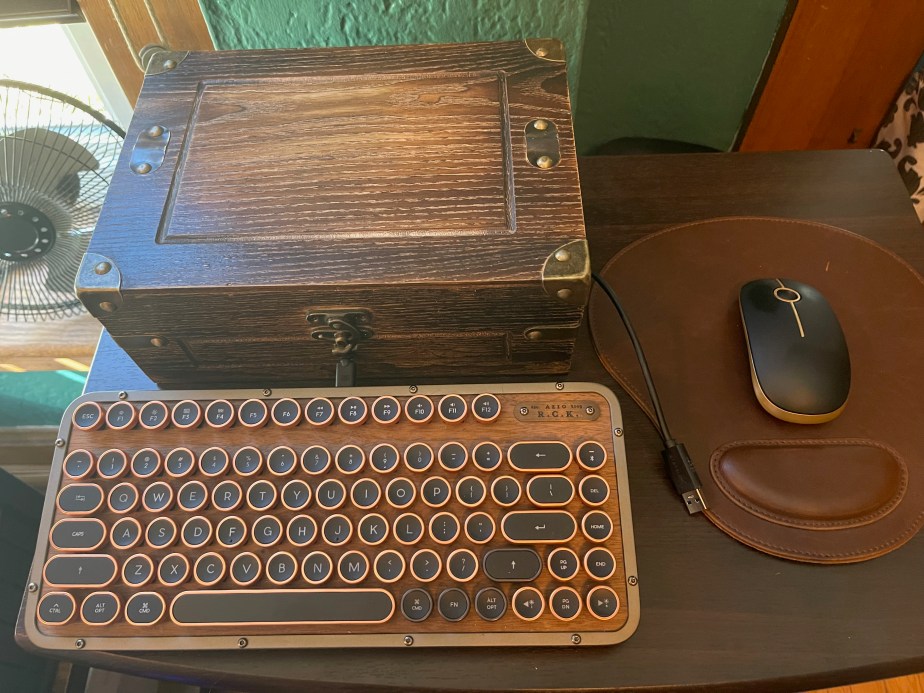
I do a lot of forensic imaging. I’ve got a pretty basic but rock solid setup that works for me (see Forensic Imaging a Microsoft Surface Pro). Since I use it frequently I’m hesitant to put it away, but at the same point I don’t like looking at a pile of wires and devices when not in use. That brings us to the latest home office update, the Forensic Imaging Station (Steampunk Edition).
For this project I grabbed a small wooden box from Hobby Lobby. A good cigar box will also work. That was going to be my first choice but the only spare box I had on hand said “Corona” on the face and… you know. This box looks nice but it’s composed of mostly particle board, so go slow drilling.
I drilled four holes in the box. A 1/2 inch hole on the front face under the locking clasp for the USB-C cable, and three 5/8 inch holes – 2 on the side and one on the back, to accommodate the rest.
Inside the box I’ve arranged a USB hub connecting:
Paladin flash drive
External WD hard drive
Keyboard (USB)
RF dongle for mouse.
Pass through for “universal” laptop power adapter
Cheap wood makes for messy holes.
This box had plenty of space to arrange the components. The laptop power adapter comes in the back of the box and then back out on the side. The USB connector for the hub is also passed through the side. The cable for the keyboard passes through the front.
The finished set-up
The setup is completed with an Azio Retro Compact keyboard, (with replacement copper-edged keys) and a sort of matching mouse.
When it’s time to image, just sit the laptop on top, connect the USB cable and power, and you’re good to go.
Post Update:
Because I’ve come to learn that a project is really ever finished at version 1 – a close up view after details added. (Rubber grommets for the cable holes and decorative details and rubber feet on the top for laptop.
I’ve been a fan of the SIFT Linux distribution from my very first SANS class. I think back then Ed Skoudis was teaching Nmap subnetting on an abacus, but still it’s been a loyal companion ever since. I’ve got an archive of all the distributions (with their class specific tweaks) from all the courses I’ve taken throughout my career. Recently, I’ve been using REMnux, another SANS Linux distribution, specifically for Volatility 3 for memory analysis and some of the other tools for malicious document examinations.
Through all these years of use, it was almost all leveraging virtual machine (VM) images. Often there was at least one machine in my home lab that had SIFT running as the native OS – for when I had something processor or memory intensive to run. The challenge with VM’s is that they’re competing with the host system for resources. As Moore’s Law has advanced so have the clock cycles at my disposal – but there’s still always going to be a trade-off, so scale your systems appropriately.
A little over a year ago, I started using the “packages only” or “server mode” of the SIFT distribution, running under Windows Subsystem for Linux (WSL) on a Windows 10 machine. The installation wasn’t always smooth but once it was running – good times. I now had all my favorite Linux forensics tools running side by side on my Windows system.
The SIFT distribution was recently updated with full support for the latest LTS version of Ubuntu (20.04). REMnux as a standalone has been on 20.04 for a while. What I’m going to walk you through here is how to install both SIFT and REMnux within WSL, and how to backup and share your customized install.
On the first boot, Ubuntu will have you specify a username and password. Forensicator works for me and doesn’t present any OpSec issues if I have to include screenshots in reports (or intriguing blog posts).
Before installing SIFT, ensure the OS is up to date by running sudo apt update && sudo apt upgrade
Elevate to root to for the installation, otherwise there may be permissions issues during the install. sudo su
Install SIFT within WSL using the syntax sift install –mode=server
The process could take a while depending on both your hardware resources and internet speeds. Feel free to browse other posts here at Baker Street while you wait. Just make sure you come back as there’s more to do.
Adding REMnux to SIFT
Once the SIFT distribution is installed, we’re going to add the REMnux distribution over the top. Doing so will provide you the full toolset of both distributions, all running in one WSL instance.
Note: After the install, REMnux will suggest you reboot the pc. How do you reboot an Ubuntu instance in WSL? Open a PowerShell window as Administrator and type Get-Service LxssManager | Restart-Service
**update – If you’re running WSL 2, the command to ‘reboot’ WSL is
wsl --shutdown
When you launch the instance the next time wsl will start.
Great! Now we’ve got the full tool stack from both – running within our Windows environment. I prefer using WSL over a VM when I have the opportunity as the overhead resources used to run the 2nd OS (Ubuntu) in WSL is less intensive than booting up a full VM.
Just one more step and we’ll be able to backup, copy and reload the customized build.
Exporting your SIFT-REMnux Distro
Exporting your build will enable a number of things. If your environment gets corrupted for any reason you can reload the build from a known good state. You can also use this format to share the installation with members of your team so you’re all working from the same toolset. This also works well to add this customized build to a system that may have restricted or limited internet access and cannot access all the necessary repositories to pull down the tools.
In a PowerShell window as Administrator, wsl -l will list the installed WSL distributions. In this case the only installation is the Ubuntu installation we just customized.
In this example I’m exporting the instance to a location on a D:\ drive with the filename of SIFT-REMnux.tar. The syntax is wsl –export [name of WSL instance] [export file path and file name]. Tar is the required format for backing up and restoring WSL instances.
Voila! You’ve now got a backup of your SIFT and REMnux WSL installation. On the last step I’ll show you have you can import the customized distro to another Windows 10 system.
Importing your SIFT-REMnux Distro
Note: the new system will need to have WSL enabled as discussed in the beginning of the post. The Ubuntu distro does NOT need to be installed.
To import the distro use the syntax wsl –import [desired name for distro] [file path where distro will live] [tar file being imported]. In this case I have the .tar file in C:\WSL and will be installing to C:\WSL\SIFT-Linux folder. Once again you want to use an elevated PowerShell session to perform the import.
That’s it. You’ve now added the customized SIFT-REMnux WSL instance to your system.
Once the process completes you can verify the distro was loaded using the wsl -l command
In this case I had a previous Ubuntu 18.04 instance, and now the new SIFT-REMnux instance is visible as well.
To invoke your SIFT-REMnux instance wsl –distribution SIFT-REMnux
To validate the running version numbers for SIFT and REMnux use sift -v and remnux -v respectively.
There are two means by which to ingest Microsoft Teams information into Magnet Axiom for processing. The first approach uses Axiom Process. If you’re collecting in this manner you will need to have the credentials of the user you are collecting from. Axiom will use those credentials to log into O365 and retrieve the user’s data. Depending on the conditions of the investigation, you may have the option of resetting the password to gain access.
Magnet Axiom Cyber Teams Collection
If you don’t have the user’s credentials, but you do have administrative access to the Exchange environment, you can run a search from the Microsoft Security and Compliance center. Once the search completes you can export/download the results as a PST. To ingest the PST into Axiom just ‘add evidence’ , ‘files & folders’ and then browse to the PST file.
To speed up the process, I’ve written a small PowerShell script to build and run the Compliance Center search. The script depends on the ExchangeOnlineManagment module being installed. In this script we’re connecting to Security & Compliance PowerShell using MFA and modern authentication.
TeamsSearch.ps1
The script prompts for:
the identity (admin ID) of the investigator
a name to save the Compliance search
the email address of the user to collecting
Once this information is provided the script will build and run the Compliance Search in O365. From this point you can log into Compliance Center, navigate to the search and then export the contents as a PST.
<# MS Teams Security & Compliance Search
author: Doug Metz https://github.com/dwmetz
Note this script requires previous installation of the ExchangeOnlineManagement PowerShell module
See https://docs.microsoft.com/en-us/powershell/exchange/connect-to-scc-powershell?view=exchange-ps for more information.#>
[string]$user = Read-Host -Prompt 'Exchange Credentials'
Connect-IPPSSession -UserPrincipalName $user
[string]$name = Read-Host -Prompt 'Enter a name for the search'
[string]$email = Read-Host -Prompt 'Enter the users email address'
new-compliancesearch -name $name -ExchangeLocation $email -ContentMatchQuery 'kind=microsoftteams','ItemClass=IPM.Note.Microsoft.Conversation','ItemClass=IPM.Note.Microsoft.Missed','ItemClass=IPM.Note.Microsoft.Conversation.Voice','ItemClass=IPM.Note.Microsoft.Missed.Voice','ItemClass=IPM.SkypeTeams.Message'
Start-ComplianceSearch $name
Get-ComplianceSearch $name
New-ComplianceSearchAction -SearchName $name -Export
Write-Host "Search initiated"-ForegroundColor Blue
Write-Host "Proceed to https://protection.office.com/ to download the results."-ForegroundColor Blue
Either copy the code from here, or download from my GitHub repository.