CyberPipe v5.1 is out with a few targeted improvements to make live response a bit smoother.
What’s New:
Collection profiles can now be passed directly as arguments using -CollectionProfile. No need to modify the script or hardcode anything — just run with the profile you need.
Improved support for saving to network shares, ideal for remote collections triggered by EDR.
Better error handling and logging, including clearer messages when tools are missing or when BitLocker key recovery fails.
The default profile still covers the most common triage needs:
✔️ Memory dump (RAM)
✔️ Pagefile
✔️ Volatile data (network config, hives, running procs)
✔️ System artifacts
But now, you can swap that out on the fly:
Usage Examples:
.\CyberPipe.ps1 ## default profile, capture RAM, Pagefile, Volatile and System Files

.\CyberPipe.ps1 -CollectionProfile RAMOnly ## just the RAM

.\CyberPipe.ps1 -CollectionProfile RAMSystem ## just the RAM and System Files (triage lite)

.\CyberPipe.ps1 -CollectionProfile RAMPage ## RAM & Pagefile

.\CyberPipe.ps1 -CollectionProfile Volatile ## Just Volatile data
Useful for tailoring collections based on available time, scope, or system stability — especially during incident response where conditions change quickly.
CyberPipe still captures memory with DumpIt or RAM Capture, grabs volatile system data, checks for encryption, and recovers the BitLocker key when possible. But now it’s just a bit easier to tailor to the job at hand — whether you’re responding interactively or invoking it remotely via EDR integration.
As always, no dependencies beyond what’s in the Tools folder, and no assumptions about the system you’re collecting from.
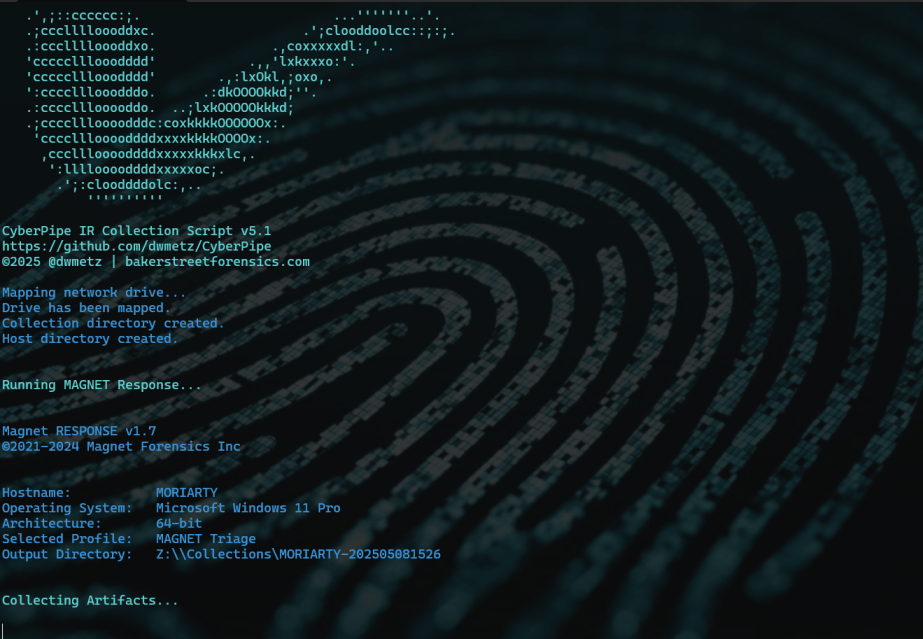
The latest update to CyberPipe (the code formerly known as CSIRT-Collect), has been revised to leverage the free triage collection tool, MAGNET Response. As with previous versions it also runs Encrypted Disk Detector, another free tool from MAGNET.
Script Functions:
Capture a memory image with MAGNET DumpIt for Windows, (x32, x64, ARM64), or MAGNET RAM Capture on legacy systems,
Create a Triage collection* with MAGNET Response,
Check for encrypted disks with Encrypted Disk Detector,
Recover the active BitLocker Recovery key,
Save all artifacts, output and audit logs to USB or source network drive.
The setup is simple. Save the CyberPipe script to a USB drive. Next to the script is a Tools folder with the executables for MAGNET Response & EDD. Before running, customize the script to select a collection profile. Run the script from the USB drive and collect away. Move on to the next PC and run it again.
Network Usage:
CyberPipe 5 also has the capability to write captures to a network repository. Just un-comment the # Network section and update the \\server\share line to reflect your environment.
In this configuration it can be included as part of automation functions like a collection being triggered from an event logged on the EDR.
Prior Version (KAPE Support):
If you’re a prior user of CyberPipe and want to use the previous method where KAPE facilitates the collection with the MAGNET tools, or have made other KAPE modifications, use v4.01.
Download:
Download the latest release of CyberPIpe on GitHub.
On August 2, join me on behalf of Magnet Forensics, to learn how to build your own ‘Windows to Go’ drive to support offline collections with Magnet OUTRIDER & Magnet ACQUIRE, as well as free tools for live collections like Magnet RESPONSE, Magnet DumpIt, & Magnet RAM Capture. Registration link below.
If you’re looking for the hard drive referrenced in the talk: [amazon] Samsung T7 SSD
Virtual machines are a godsend when it comes to malware analysis. Granted there a many malware samples that may have capabilities to detect if they are operating in a virtualized environment and thus respond differently. Many, though not all of these, can be mitigated by patching the malware binary, or tricking it into a false result before needing to look at the sample on a bare-metal system.
When I’m looking at a piece of malware, I’ll run it through a number of environments, gradually permitting external access once I have an idea of what the malware’s capabilities look like. Initially when detonating samples, I’ll have the target endpoint and a REMnux virtual machine running inetsim operating on an isolated network. Rather than re-invent the wheel, here’s a solid article on setting up an isolated network on VMware ESXi.
At some point I want to enable access to the internet to observe command and control (C2) and any dropper activity. I don’t want there to be an avenue for the malware to be able to interact with any other assets whether on my lab network, or outside it. One way to solve this would be networking and introducing a router to broker the network access. It’s been a while since I had my CCNA and I had some hesitations about getting it right without impacting other services in a very internet dependent household. What I wound up going with instead is a completely separate internet connection for the malware network utilizing a LTE hot-spot.
I run my lab environment on ESXi environment using an Intel NUC. The model I have only has one onboard NIC. The easiest way to add another physical adapter was with a USB Gigabit Ethernet adapter for a measly $13 on amazon. ESXi will not detect this adapter out of the box. Follow the process on this article to configure the USB network adapter for ESXi. You will need to download the USB Network Native Driver for ESXi. Be sure to select the appropriate version to match the version of ESXi you’re running. I’m sure there’s an interesting story on why VMWare calls these ‘Flings’ but that knowledge escapes me.
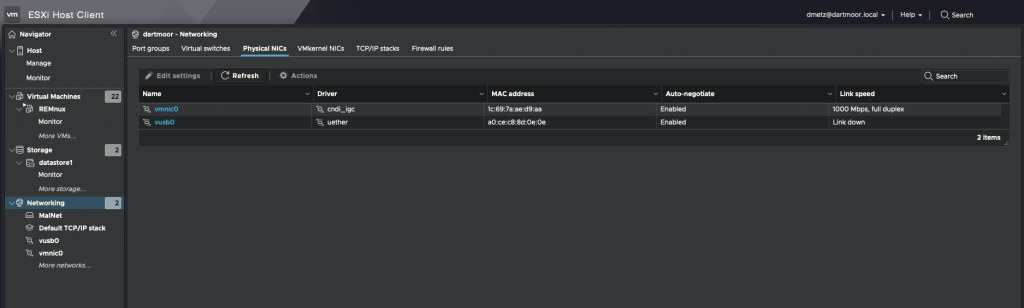
If all goes as it should, and doesn’t it always, you should see second physical adapter (vusb0) in the ESXi console.
USB network adapter shown as vusb0
For the secondary internet access, I wound up going with a Netgear LM1200 LTE Hotspot. I like this device because you can configure it to use an LTE connection as a backup if your primary wired internet service is down. I may utilize that in the future but for now it’s only used on the malware network without any connection to the primary LAN. Based on my current cellular plan I was able to add the minimum hotspot plan for $10/mo. A worthy investment for me for the peace of mind that I’m (less likely) to compromise the rest of my network when experimenting with live malware. It will also (one would hope) keep my home IP off any watchlists for malware beacons, or anyone else tracking where different samples are detonated from. As Mr. Heller sagely said, “Just because you’re paranoid doesn’t mean they aren’t after you.”
The same setup could be very useful for responding to compromises in isolated enterprise or manufacturing environments. If you need to have the device access the internet (maybe to upload evidence to you Forensics Service Provider (FSP)), but don’t want to maintain a connection to the corporate LAN due to suspected compromise, this solution would work for that.
Once I had the hotspot up and running, the LAN connection on the hotpot gets connected to the USB ethernet adapter. Then go back to ESXi to the isolated network you created before, the one that you were warned “NO UPLINK”, and use the ‘Add uplink’ function and add the vusb0 device. You can adjust the settings on the LTE hotspot for DHCP if needed as long as the device is in Router (not Bridged) mode.
Malware network with external internet access
That’s it. Now when the infected computer needs to get to the internet, all traffic will go through the LTE connection and the infected systems remain isolated from the primary network.
Release the hounds and observe
If I’m in a situation where I absolutely need to run the malware on a bare-metal system I can connect using the LTE modem without threat to any of the other physical systems.





 Baker Street Forensics