
MalChela 2.2 “REMnux” Release

MalChela’s 2.2 update is packed with practical and platform-friendly improvements. It includes native support for REMnux, better tool settings, and deeper integrations with analysis tools like YARA-X, Tshark, Volatility3, and the newly improved fileanalyzer module.

🦀 REMnux Edition: Built-In Support, Zero Tweaks

When the GUI loads a REMnux-specific tools.yaml profile, it enters REMnux mode.

Screenshot of yaml configuration applying REMnux mode

Native binaries and Python scripts like capa, oledump.py, olevba, and FLOSS are loaded into the MalChela tools menu, allowing you to mix and match operations with the embedded MalChela utilities and the full REMnux tool stack. No manual configuration needed—just launch and go. MalChela currently supports the following REMnux programs right out of the box:

Tool Name Description
binwalkFirmware analysis and extraction tool
capaIdentifies capabilities in executable files
radare2Advanced reverse engineering framework
Volatility 3Memory forensics framework for RAM analysis
exiftoolExtracts metadata from images, documents, and more
TSharkTerminal-based network packet analyzer (Wireshark CLI)
mraptorDetects malicious macros in Office documents
oledumpParses OLE files and embedded streams
oleidIdentifies features in OLE files that may indicate threats
olevbaExtracts and analyzes VBA macros from Office files
rtfobjExtracts embedded objects from RTF documents
zipdumpInspects contents of ZIP files, including suspicious payloads
pdf-parserAnalyzes structure and contents of suspicious PDFs
FLOSSReveals obfuscated and decoded strings in binaries
clamscanOn-demand virus scanner using ClamAV engine
stringsExtracts printable strings from binary files
YARA-XNext-generation high-performance YARA rule scanner

If you only need a subset of tools you can easily save and restore that a custom profile.


TShark Panel with Built-In Reference
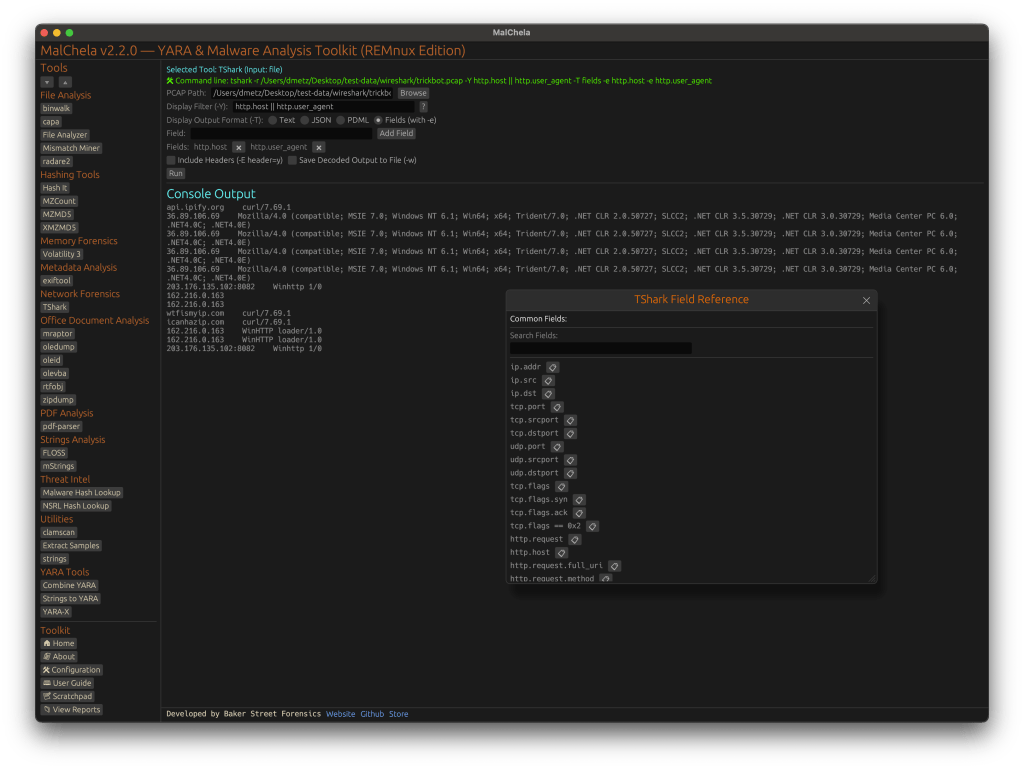
Tshark and the integrated field reference

A new TShark integration exposes features including:

  • A filter builder panel
  • Commonly used fields reference
  • Tooltip hints for each example (e.g., `ip.addr == 192.168.1.1` shows “Any traffic to or from 192.168.1.1”)
  • One-click copy support

This helps analysts build and understand filters quickly—even if TShark isn’t something they use every day. Using the syntax builder in MalChela you can use the exact commands directly in Tshark or Wireshark.


YARA-X Support (Install Guide Included)
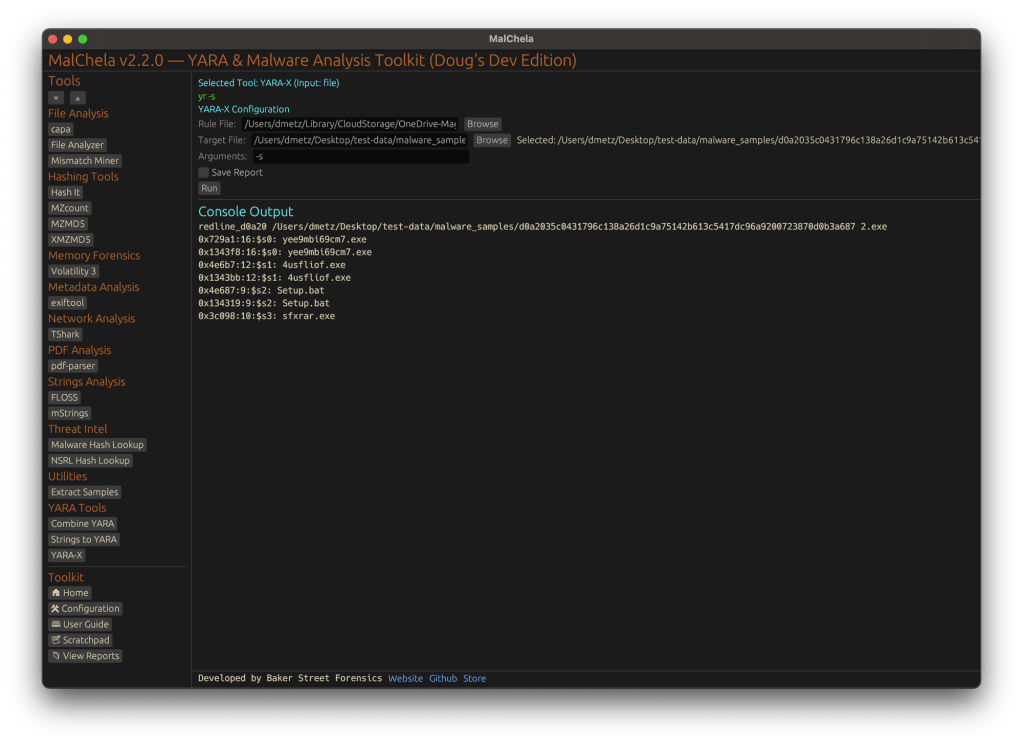
YARA-X module in MalChela

Support for YARA-X (via the `yr` binary) is now built in. YARA-X is not bundled with REMnux by default, but install instructions are included in the User Guide for both macOS and Linux users.

Once installed, MalChela allows for rule-based scanning from the GUI,and with YARA-X, it’s faster than ever.


fileanalyzer: Fuzzy Hashing, PE Metadata, and More
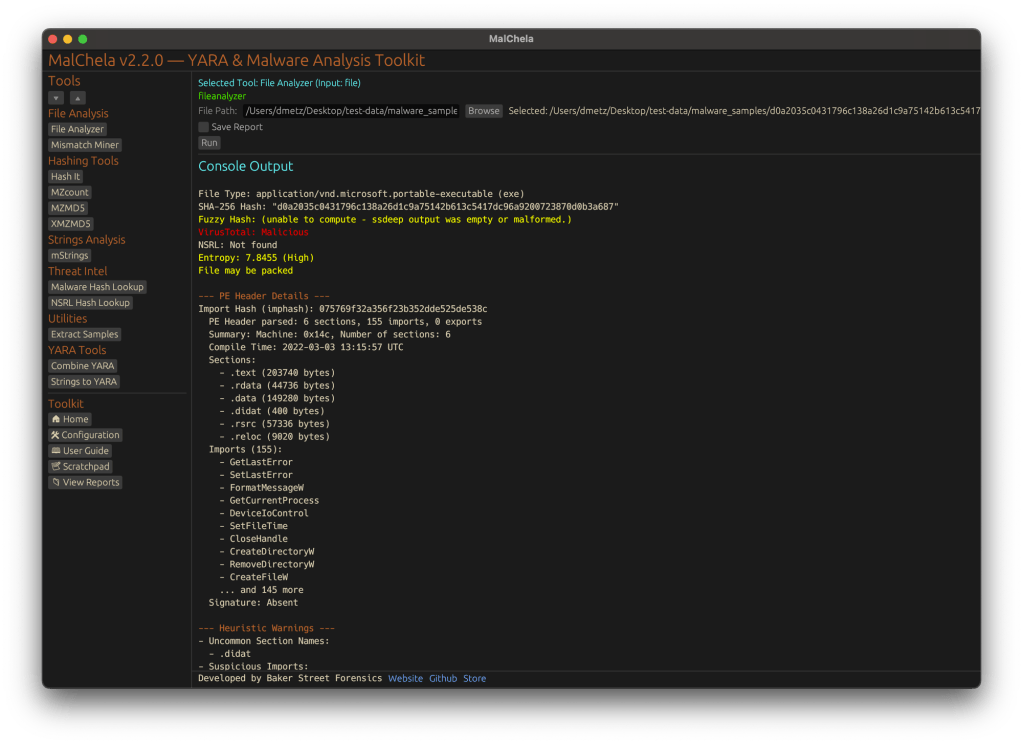
Updated FileAnalyzer Module

MalChela’s fileanalyzer tool has also been updated to include:

  • Fuzzy hashing support via `ssdeep`
  • BLAKE3 hashing for fast, secure fingerprints
  • Expanded PE analysis, including:
  • Import and Export Table parsing (list of imported and exported functions)
  • Compilation Timestamp (for detection of suspicious or forged build times)
  • Section Characteristics (flags like IMAGE_SCN_MEM_EXECUTE, IMAGE_SCN_CNT_CODE, etc., for detecting anomalous sections)

These improvements provide deeper insight into executable structure, helping analysts detect anomalies such as packers, suspicious timestamps, or unexpected imports/exports. Useful for everything from sample triage to correlation, fileanalyzer now digs deeper—without slowing down.


Memory Forensics Gets a Boost: Volatility 3 Now Supported

With the 2.2 release, MalChela introduces support for Volatility 3, the modern Python-based memory forensics framework. Whether you’re running MalChela in REMnux or on a customized macOS or Linux setup, you can now access the full power of Volatility directly from the MalChela GUI.

Volatility 3 in MalChela

There’s an intuitive plugin selector that dynamically adjusts available arguments based on your chosen plugin,. You can search, sort, and browse available plugins, and even toggle output options like –dump-dir with ease.

Like Tshark, there is an added plugin reference panel with searchable descriptions and argument overviews — a real time-saver when navigating Volatility’s deep and often complex toolset.
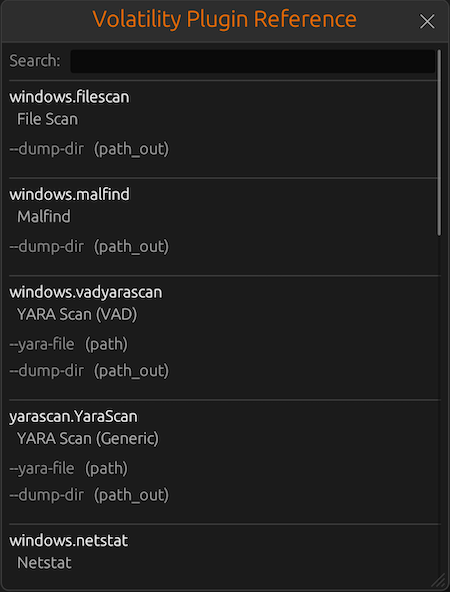
Volatility Plugin Reference

Smarter Tool Configuration via YAML

The tool configuration system continues to evolve:

  • Tools now declare their input type (file, folder, or hash)
  • The GUI dynamically adjusts the interface to match
  • Alternate profiles (like REMnux setups) can be managed simply by swapping `tools.yaml` files via the GUI
  • Easily backup or restore your custom setups
  • Restore the default toolset to get back to basics

This structure helps keep things clean—whether you’re testing, teaching, or deploying in a lab environment.


Embedded Documentation Access

The GUI now includes a link to the full MalChela User Guide in PDF. You can also access the documentation online.

From tool usage and CLI flags to configuration tips and install steps, it’s all just a click away—especially useful in offline environments or when onboarding new analysts. I’ll be honest, this is likely the most comprehensive user guide I’ve ever written.


Whether you’re reviewing binaries, building hash sets, or exploring network captures—MalChela 2.2 is designed bring together the tools you need, and make it easier to interoperate between them.

The new REMnux mode makes it even easier to get up and running with dozens of third party integrations.

Have an idea for a feature or application you’d like to see supported — reach out to me.


GitHub: REMnux Release

MalChela User Guide: Online, PDF, Web

Shop: T-shirts, hats, stickers, and more

Magnet RESPONSE PowerShell

I’m excited to share with you a new script I’ve written, Magnet RESPONSE PowerShell.

Magnet RESPONSE is a free tool from Magnet Forensics that makes it easy for investigators as well as non-technical operators to collect triage collections quickly and consistently.

Released initially as a GUI tool for law-enforcement investigators, it’s a single executable that requires no installation. The available command line syntax also makes it very flexible for enterprise use.

So what do I do when there’s a command line interface available, I PowerShell the hell out of it.

If you’ve been following my CyberPipe project, you’ll definitely want to check this one out.

MagnetRESPONSEPowerShell.ps1

Functions:
  • 💻 Capture specified triage artifacts using profiles with Magnet RESPONSE,
  • 🐏 Capture a memory image with DumpIt for Windows or Magnet RAM Capture,
  • 💾 Save all artifacts, output, and audit logs to network drive.
  • 🪟 Supports x86, x64 and ARM64 versions of Windows
Prerequisites:
  • Magnet RESPONSE
  • Web server where you can host MagnetRESPONSE.zip that’s accessible to endpoints.
  • File server repository to save the file collections to.

Please note this is not a Magnet supported product. This script is open source. If you have comments, updates, or suggestions – please do so here or on GitHub via discussion or pull request.


There are two areas of the script for you to customize.

  • The Variable Setup contains the case identification, file server and web server locations.
  • The second section, Collection Profiles, define which artifact groups you want to collect. You can see all the options available in the Magnet RESPONSE CLI Guide.

VARIABLE SETUP

$caseID = "demo-161" # no spaces

$outputpath = "\\Server\Share" # Update to reflect output destination.

$server = "192.168.4.187" # "192.168.1.10" resolves to http://192.168.1.10/MagnetRESPONSE.zip

COLLECTION PROFILES

Within the script we need to have at least one set of collection arguments defined. In this case I’ve built multiple profiles, which are simply un-commented to mark the profile as active. You only want to have one profile enabled at a time. You can design your own collection profiles using any of the available CLI options, just follow the format below.

#### Extended Process Capture

$profileName = "EXTENDED PROCESS CAPTURE"

$arguments = "/capturevolatile /captureextendedprocessinfo /saveprocfiles"

Execution

Once your environment and collection variables are defined, go ahead and run the script on your endpoints. Every host that executes the script will download RESPONSE from the web server, run the specified collection profile, and then save the output to the file server. All data defined in the collection profile will be collected and organized by case name, hostname and timestamp of collection in the central location. The returned files can be examined manually, using open source tools, or products like Magnet AXIOM Cyber.

If you’d like to learn more about the script, and how I integrated it with AXIOM Cyber and Magnet AUTOMATE, you can register for my webcast, Responding at Scale with Magnet RESPONSE. I hope to see you there.

You can download the script at https://github.com/MagnetForensics/Magnet-RESPONSE-PowerShell

DIY Home Network Rack – the Lack Rack


I’ve got an abundance of equipment in my home office/lab. I’d been contemplating doing a rack setup for a while but all of the options I was looking at were above budget for what I wanted to spend. Also, while I liked the idea of the functionality of a rack I wasn’t too keen on how a tower of metal would go with the décor. Then I stumbled across the “Lack Rack.

Here’s what I used: (All in it was about $110.)

Depending on how many tiers you want to do you can adjust the number of tables. Remember you’ll need one extra for the base.

The Plan:

There’s the expression, “Measure twice, cut once.” With me it’s more like measure 4 times. Measure the components you plan to include, adding in room for the rack shelves as well.

the original design plan.

Assembly:

Secure the casters to the bottom of one of the tabletops. Casters should be about 3/4 inch from the corners. Center them over where the mounting holes for the legs are.

For the lowest level, I used the full length of the table legs. So just build the table as per the instructions (screw in the legs).

Next, start stacking. I used a little bit of Gorilla glue on the bottom of the legs and attached it to the wheeled base. 4 steel braces were also used to secure the legs to the base.

The next set of legs are going to be cut shorter. Wrapping the area where you’re cutting with painters tape helps the edges from getting brittle. Power saw is probably easier but in this case a hack saw sufficed.

Add the shortened legs to the next top. Attach the short table to the previous level with steel braces. Note due to the legs being hollow at the bottom there is no glue securing the upper tiers.

Secure the metal rack shelves to the legs of below the table tops. You’ll want to keep them pretty close to the top as only about the top 2″ of the legs are solid to drill into.

Stack and secure.

Add another table stack to the top and it’s all done.

Here it is all loaded up. There’s a lot of space to add components still. There’s a switch on one of the shelves between the tiers. Also, though not currently utilized as such, all the shelves can support full 19″ network/rack hardware so as resources grow, I’ll have plenty of room to accommodate.