MalChela v3.0: Case Management, FileMiner, and Smarter Triage

With the release of MalChela v3.0, I’m introducing features that shift the focus from tool-by-tool execution to a more structured investigative workflow. While the core philosophy of lightweight, file-first analysis remains unchanged, this version introduces smarter ways to manage investigations, track findings, and automate common analysis patterns, all with minimal fuss.

In this post, I’ll walk through the new Case Management system, the replacement of MismatchMiner with FileMiner, and the ability to identify and launch suggested tools — even in batch — based on file characteristics. These changes aim to reduce friction in multi-tool workflows and help analysts move faster without losing visibility or control.

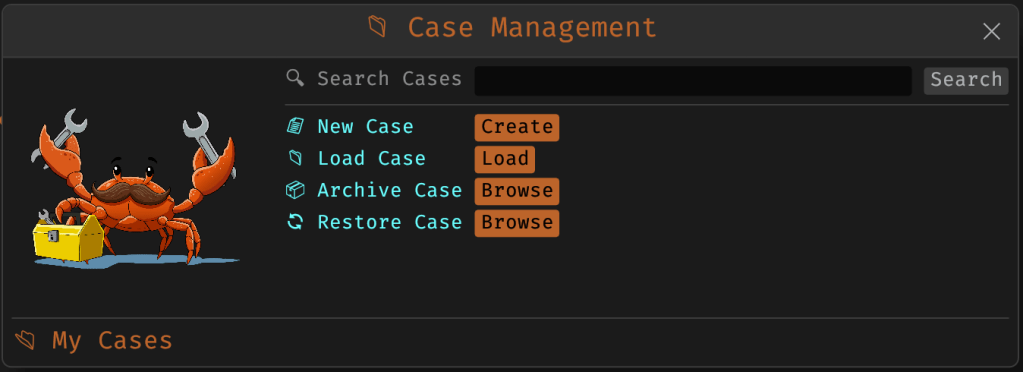
Cases: A Lightweight Way to Stay Organized

Until now, MalChela has operated in an ephemeral mode. You selected a tool, pointed it at a file or folder, and reviewed the output. Any saved results would be grouped by tool, but without much context.

Cases change that. In v3.0, you can start a new case from a file or folder — and everything from that point forward is grouped under that case. Tool outputs are saved to a dedicated case folder, file hashes are tracked, and metadata is preserved for review or reanalysis.

Case Management

You don’t need to create a case for every run — MalChela still supports standalone tool execution. But when you’re working with a malware sample set, an incident directory, or a disk image extract, cases give you the ability to:

  • Save tool results in a consistent location
  • Track analysis history per file
  • Reopen previous sessions with full context
  • Add notes, tags, and categorization (e.g., “suspicious”, “clean”, “needs review”)

Hello FileMiner: Goodbye MismatchMiner

The MismatchMiner tool was originally designed to surface anomalies between file names and actual content — a common trick in malicious attachments or script dropper chains. It worked well, but its scope was narrow.

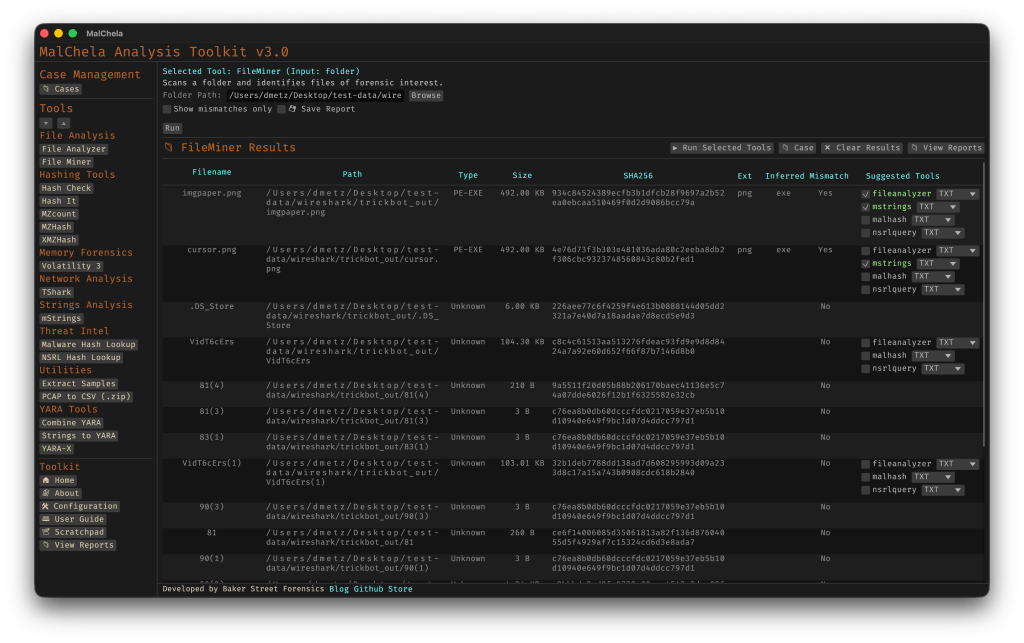
FileMiner replaces it, expanding the logic to support full file-type classification and metadata inspection across an entire folder. It still flags mismatches, but now it also:

  • Detects embedded file types using magic bytes
  • Groups files by class (e.g., images, documents, executables, archives)
  • Calculates hashes for correlation and NSRL comparison
  • Extracts size, extension, and other key metadata
  • Saves both a human-readable .txt summary and a structured .json report

The output is designed to be used both manually and programmatically — which brings us to one of v3.0’s most important additions: tool suggestions.

The new FileMiner app

Suggested Tools and Batch Execution

Once FileMiner runs, it doesn’t just stop at reporting. Based on each file’s type and characteristics, it can now suggest one or more appropriate tools from the MalChela suite.  These suggestions are surfaced right in the GUI — or in the CLI if you’re running FileMiner interactively. From there, you can choose to launch the recommended tool(s) on a per-file basis or queue up several for batch execution.

This makes it much faster to pivot from triage to deeper inspection. No more switching tools manually or copying paths. You stay within the flow — and more importantly, you reduce the risk of skipping important analysis steps.

CLI and GUI Improvements Aligned

These features are available in both the CLI and GUI editions of MalChela. In the CLI, FileMiner presents an interactive table of results. You can pick a file, see its suggested tools, and choose which one to run. When you’re done, you can return to the table and continue with the next file.

The GUI extends this even further, allowing you to:

  • View and scroll through full case history
  • Run tools with live output streaming
  • Reopen previous FileMiner runs from saved reports
  • Run all suggested tools on all files with one click (if desired)

These features let you treat MalChela more like a toolbox with memory, not just a launcher.


CLI Enhancements:

The command-line interface has also received a quiet but meaningful upgrade. Tool menus are now organized with clear numeric indexes and shortcodes, making it faster to navigate and launch tools without needing to retype full names. This small change goes a long way during repetitive tasks or when working in a time-constrained triage setting.

FileMiner supports an interactive loop: after running a tool on a selected file, you’re returned to the main results table — no need to restart the scan or re-navigate the menu. This allows you to run additional tools on different files within the same dataset, making FileMiner feel more like a lightweight control center for follow-up actions. It’s a subtle shift, but one that significantly reduces friction in batch-style or exploratory workflows.


Closing Thoughts

MalChela 3.0 reflects a steady evolution — not a revolution. It’s built on real-world feedback and a desire to make forensic and malware analysis a little less scattered. Whether you’re a one-person IR team or just trying to stay organized during a reverse engineering exercise, the new case features and smarter triage capabilities should save you time.

If you’ve been using MalChela already, I think this update will feel like a natural (and welcome) extension. And if you haven’t tried it yet, there’s never been a better time to start.

Download: https://github.com/dwmetz/MalChela/releases

User Guide: https://dwmetz.github.io/MalChela/

Hashes for the Masses: Finding What Matters in a Sea of Samples

A short while back, I released a pair of tools for building MD5 hash sets — one targeting known-good gold builds, the other designed for scanning malware corpora. The goal was simple: generate hash sets that could be used in forensics tools like Axiom Cyber to flag IOC matches during case processing.

Recently, I hit a familiar problem: I had a hash and wanted to know if that file existed in my malware library. Step one was updating my tooling to support SHA256 — the modern standard for hash sharing — and regenerating the hash sets. That part worked. I could search for a hash and confirm whether it appeared in my set.

But what if I got a match?

At that point, I realized: I had no way to correlate the match back to the original file. With ~30,000 samples in the library, “just eyeballing it” wasn’t an option.

As I’ve been coding up new tools — or revisiting earlier ones — I’ve discovered that rabbit holes have rabbit holes.

So I updated the SHA256 tool to not only generate a hash set, but also produce a .tsv lookup table mapping each hash to its full file path. This made the sets usable both in forensics platforms and for custom lookups in more ad hoc workflows. As they say: necessity is the mother of intention.

Of course, that led to another realization. I now had four hashing tools — two for MD5 (MZ and non-MZ), and two for SHA256. The “Hashing Tools” section in MalChela was getting a bit crowded.

Back to the drawing board.


The Result: Three Unified Tools

I consolidated and upgraded everything into three tools — all of which support both CLI and GUI usage.

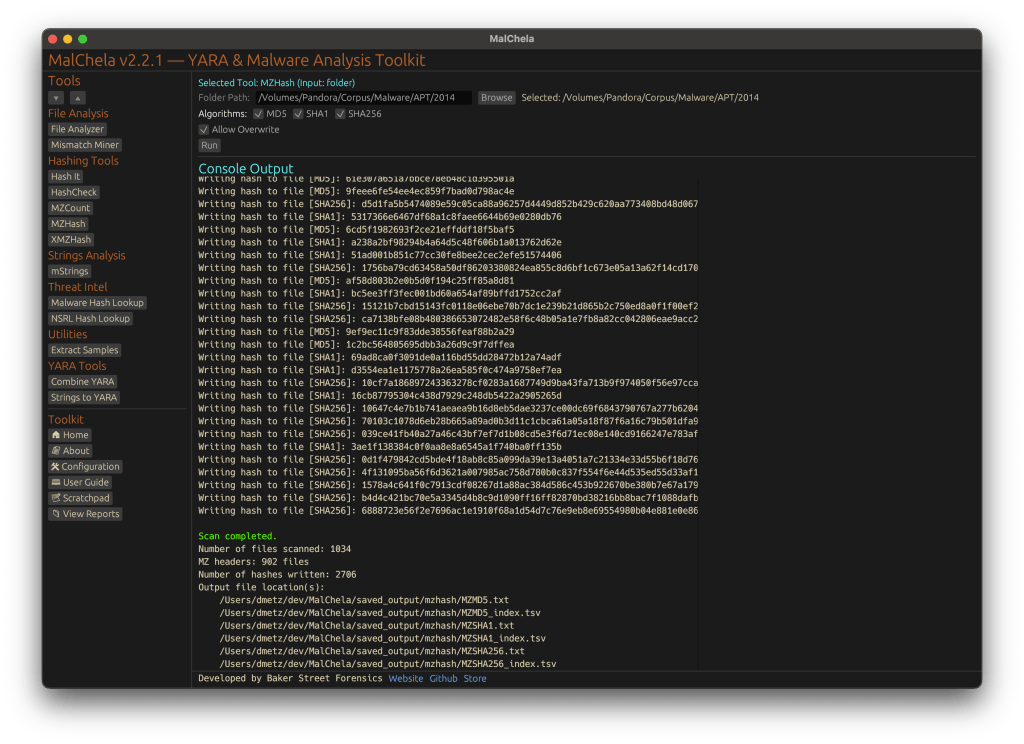
#️⃣ MZHash (replaces mzmd5)

• Uses YARA to recursively scan for files with an MZ header (i.e., Windows executables and DLLs)

• Generates one hash file per selected algorithm: MD5, SHA1, SHA256

• Also creates a .tsv lookup file for each, mapping hashes to paths

cargo run -p mzhash /directory/to/scan -- -a MD5 -a SHA1 -a SHA256

Via GUI, you can browse to the folder and check boxes for each algorithm.


🌐 XMZHash (replaces xmzmd5)

• Uses YARA to skip over files with MZ, ZIP, or PDF headers

• Hashes everything else — ideal for surfacing Linux, Mac, or unusual samples from a mixed malware corpus

• Also supports .tsv lookup file generation

cargo run -p xmzhash /directory/to/scan -- -a MD5 -a SHA1 -a SHA256

The idea: hash what’s not obviously Windows, document-related, or un-extracted samples.

XMZHash

🔍 HashCheck

Okay, so naming might not be my strong suit. But this tool’s direct.

• Provide a hash value and a .txt or .tsv hash set

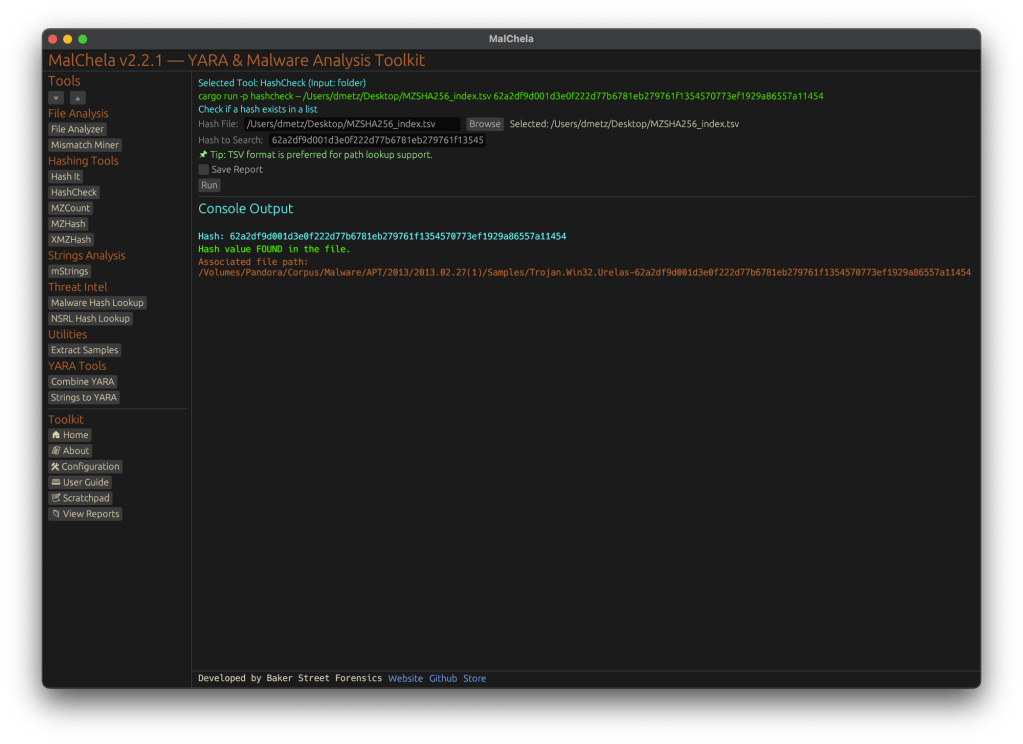
• It checks for matches, and if you’re using a .tsv, it shows the file path of the match

• Great for live triage, corpus hunting, or checking known-bads

cargo run -p hashcheck ./hashes.tsv 44d88612fea8a8f36de82e1278abb02f
Hash Check

In Summary

MalChela 2.2.1 expands its hashing toolkit with the introduction of HashCheck, MZHash, and XMZHash — giving analysts faster ways to flag known-good, isolate unknowns, and build actionable sets. In this release, we’ve also said goodbye to legacy tools, standardized output saving, and doubled down on clarity across both CLI and GUI workflows.

Download: https://github.com/dwmetz/MalChela/releases

User Guide: https://dwmetz.github.io/MalChela/

MalChela GUI: Visualizing Malware Analysis with Ease

A New Face for MalChela

MalChela, a Rust based toolkit for YARA and malware analysis, was released as a set of command-line apps just a few months ago. Now, it steps into a new realm with the introduction of a graphical user interface (GUI), bringing its powerful features to a broader audience.

The transition from command-line to GUI isn’t just a cosmetic upgrade; it’s a strategic move to make malware analysis more accessible. The GUI version retains all the robust functionalities of its predecessor while offering an intuitive interface that caters to both seasoned analysts and newcomers.

Key Features at a Glance

File Analyzer Module

The updated fileanalyzer module provides a comprehensive overview of suspect files. By simply providing the path to a file, users receive:

  • SHA-256 Hash,
  • Entropy analysis,
  • Regular expression detection for packing,
  • PE header information (for PE files),
  • File metadata,
  • Suspicious API calls,
  • YARA rule matches (against your local library)
  • and VirusTotal hash matches.

This module serves as an excellent first step in static analysis, offering a detailed snapshot of the file’s characteristics.

mStrings Integration

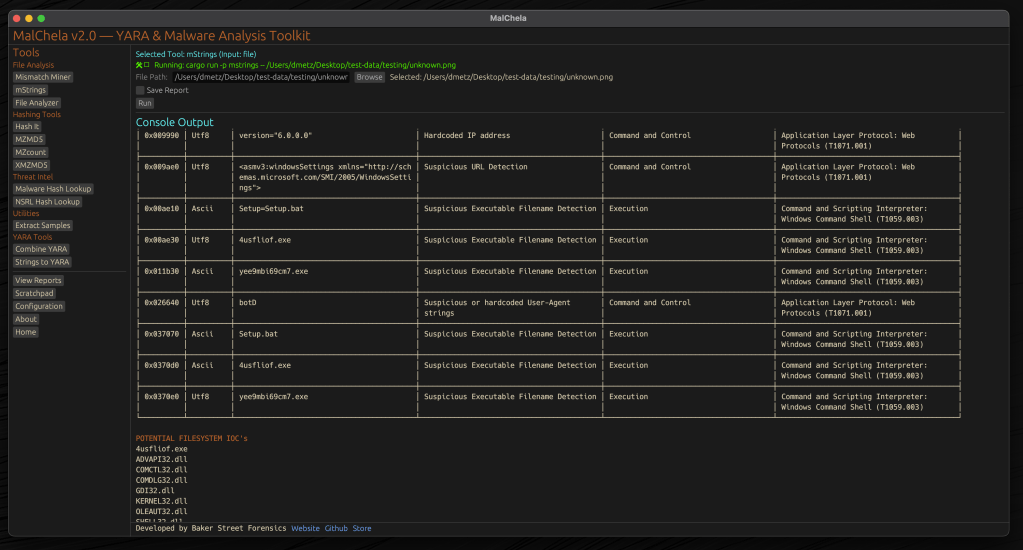
One of MalChela’s standout features, mstrings, is seamlessly integrated into the GUI. This function extracts strings from files and applies Sigma rules defined in YAML to evaluate threats, aligning results with the MITRE ATT&CK framework. It’s a powerful tool for identifying indicators of compromise (IOCs) and understanding malware behavior. Users of MalChela can easily customize their own detection rules in YAML. About 15 new detection rules were added in this release.

Other Tools in the MalChela Suite

Beyond mstrings and fileanalyzer, the MalChela suite includes a range of focused utilities designed to support malware triage and forensic workflows.

malhash lets you quickly query both Virus Total and Malware Bazaar via API calls. The GUI includes an API configuration utility. The CLI will walk you through it.

mismatchminer walks a directory or volume looking for executables disguised as other file types.

mzmd5 and xmzmd5 generate MD5 hash sets—useful for building known-good or known-bad reference hash sets for matching against large corpora.

mzcount provides a quick census of file types in a directory.

strings_to_yara lets you transform suspicious strings into functional YARA rules.

extract_samples recursively unpacks directories of password protected archives often used in malware distribution.

nsrlquery lets you quickly check a hash against the CIRCL hash database.

MalChela’s modular approach with support for custom rule generation, gives analysts what they need without unnecessary overhead. Each tool is designed to run independently but plays well within the broader GUI ecosystem.

Output for any included tool can be saved or skipped at runtime with a simple toggle in the GUI. Structured tools support exporting results in plain text and JSON formats, while YARA rule creation and notes can also be saved in YAML or Markdown.

The Scratchpad:

Notes, YARA Strings, and Analyst Flow

Analysis often involves scattered notes, pasted IOCs, potential YARA strings, and fleeting insights. The MalChela GUI brings structure to that chaos with a built-in scratchpad — a minimalist text editor embedded directly in the interface.

The scratchpad supports live note-taking during tool runs, temporary storage of strings for strings_to_yara, manual IOC tracking and observation logging, and a copy/paste buffer for hashes, commands, or decoded payloads.

Auto-Save & Formats

By default, the scratchpad auto-saves your content every 10 seconds to prevent loss during intense analysis sessions. A simple dropdown lets you export your notes in .txt, .yaml, or .md formats—ideal for integrating with reports or detection development pipelines.

VS Code Integration

For those who prefer a full-featured editor, the “Open in VS Code” button sends your current note directly to a VS Code window, assuming it’s installed and on your system path. This bridges the gap between in-tool triage and deeper rule crafting or documentation workflows.

Bonus Tip: strings_to_yara Compatibility

Lines in the scratchpad that begin with hash: are ignored by the strings_to_yara tool. This allows analysts to keep reference hashes or tagging metadata in the same document without interfering with rule generation. You can import your scratchpad into strings_to_yara in one click.

This feature isn’t just a notepad—it’s a tactical workspace. Whether you’re building detections, jotting notes mid-investigation, or scripting quick ideas, the scratchpad keeps yourn workflow grounded and your thoughts collected.

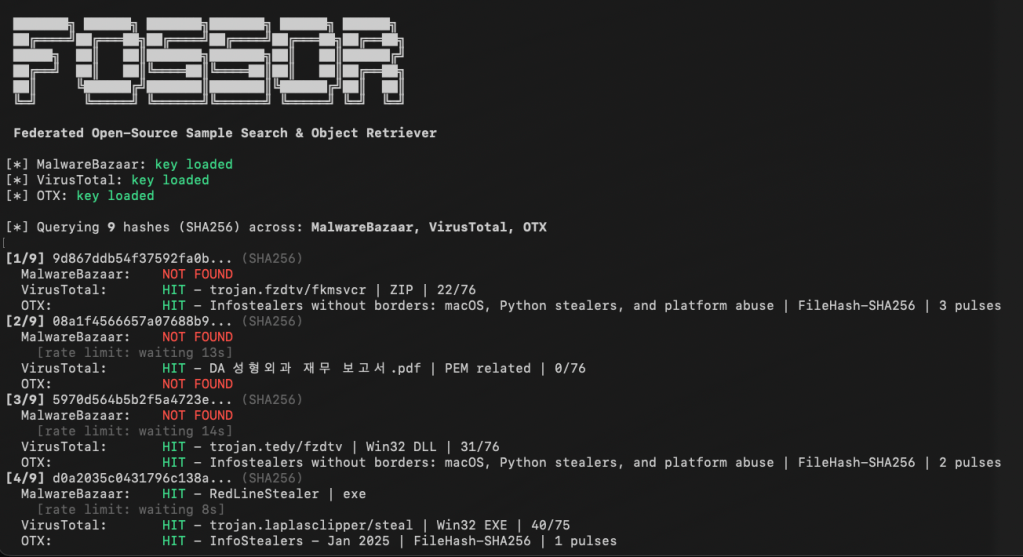
Last but not least, a crab with karma

Update Checker

The GUI includes a function to automatically check the GitHub repository for updates, encouraging users to pull the latest changes and ensure they have the most current tools at their disposal. 🦀

Enhancing the Analysis Workflow

The GUI version of MalChela doesn’t just replicate CLI functionalities; it enhances the overall workflow. The visual interface allows for easier navigation between modules, quick access to results, and a more streamlined analysis process.

For instance, after walking a directory with mismatchminer you find a suspect file. You run fileanalyzer and can directly proceed to mstrings if the initial findings warrant deeper investigation. From there VirusTotal and Malware Bazaar information can be queried with malhash. Drop your notes in the scratchpad as you go and then use strings_to_yara to draft a YARA rule without worrying about a single tab or indent.

But wait, there’s more

Integrating Third-Party Tools with YAML

The MalChela GUI supports third-party tool integration using a simple tools.yaml configuration file. This makes MalChela not just a toolkit, but a flexible launchpad for your broader forensic workflow.

Each entry in tools.yaml defines the command, input type, and category for a tool. MalChela parses this file at startup, populating the GUI dynamically. Analysts can add their own utilities—whether it’s a custom script, a Python tool, or an external binary—without needing to recompile the application.

- name: Extract Samples
  command: ["extract_samples"]
  input_type: folder
  category: "Utilities"
- name: File Analyzer
  command: ["fileanalyzer"]
  input_type: file
  category: "File Analysis"
# Example 3rd party integration:
# Below is a disabled example for capa
# Uncomment to enable if capa is in your PATH
#
# - name: capa
#   command: "capa"
#   input_type: "file"
#   category: "External"
#   optional_args: []

Once added, the tool appears in the GUI under its specified category, ready to be launched with a single click. Tools must be available in the system PATH, and input types must be one of: file, folder, or hash.

This keeps the interface clean, configurable, and analyst-driven—allowing teams to tailor MalChela to fit their exact needs without touching a single line of Rust.

MalChela is built with the belief that collaboration fuels innovation. I welcome contributions from the broader security and forensics community—whether it’s crafting new detection logic, enhancing YARA rule coverage, refining the GUI, or integrating additional tools via YAML. If you have an idea, patch, or workflow improvement, I’d love to see it. Together, we can make MalChela a more powerful and adaptable tool for every analyst.

Getting Started

👉 MalChela on GitHub

To explore the GUI version of MalChela, visit the official GitHub repository:

Installation instructions and a user guide are available to help you get started. Whether you’re a seasoned analyst or just beginning your journey in malware analysis, the GUI version of MalChela offers a user-friendly yet powerful tool to aid your investigations.

MalChela GUI runs on Mac and Linux (with extra love for Mac users). For use on Windows the entire MalChela CLI toolset is supported under WSL 2.

Mining for Mismatches: Detecting Executables Disguised as Image Files

Malware authors often use file masquerading—disguising malicious executables as seemingly harmless files—to bypass both user scrutiny and automated defenses. A classic example is an executable file with an image extension, such as `.png`, that actually contains a Windows PE binary. To help address this challenge, the Mismatch Miner utility, written in Rust and part of the MalChela malware analysis toolkit, introduces a practical approach for uncovering these deceptive files using YARA rules.

Why File Masquerading Matters

File extension spoofing remains a simple yet effective evasion tactic. Users and some security tools may trust files based on their extensions, ignoring the underlying content. Attackers exploit this by renaming executables with extensions like `.jpg` or `.png`, hoping to slip past defenses. While this technique is not new, it continues to be relevant due to its effectiveness and the limitations of extension-based filtering.

That said, this method should be seen as one component of a broader detection strategy. While it is effective for catching executables disguised as images or documents, it does not address more sophisticated evasion tactics, such as fileless malware or executables embedded within other file formats. Additionally, some legitimate software may use unconventional file extensions, so results should be reviewed with context in mind.

Mismatch Miner: Approach and Implementation

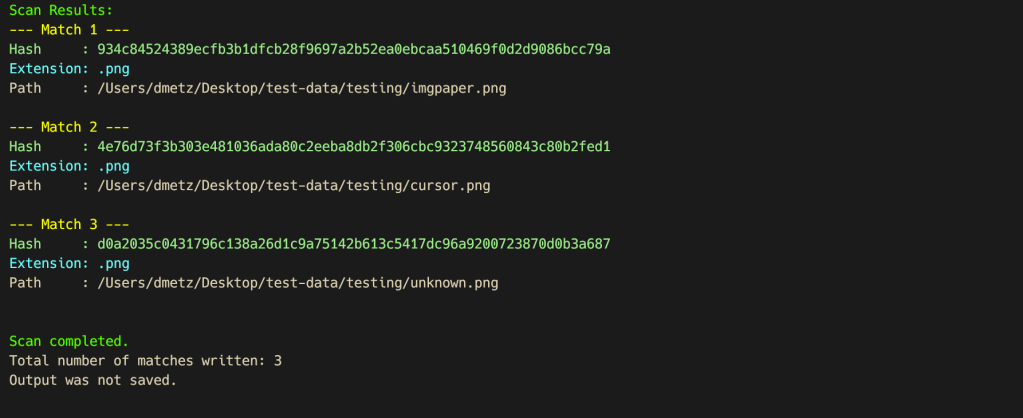
Mismatch Miner is designed to scan a directory for files with extensions that are commonly abused for masquerading, including popular image formats. For each candidate file, it leverages YARA—a widely used pattern-matching tool in malware analysis—to check for the presence of the “MZ” header, which marks the start of Windows executable files. If a file’s extension suggests it is an image, but its header indicates it is an executable, the tool flags the file and reports its name, full path, and SHA256 hash, to support further investigation.

Mismatch Miner screenshot

Mismatch Miner offers a practical solution for identifying a common malware evasion technique: executables disguised as benign files. By combining Rust’s performance with YARA’s pattern-matching, it provides security analysts with a reliable tool for uncovering hidden threats. While not a panacea, header-based mismatch detection is a useful addition to any malware analysis workflow, helping to close a gap that attackers continue to exploit.

Mismatch Miner is bundled with MalChela, the YARA & Malware Analysis toolkit. If you’ve already installed it, a ‘git pull’ from your workspace directory should get you the new feature.

https://github.com/dwmetz/MalChela