Sharper Strings and Smarter Signals: MalChela 3.0.1

It’s a strange but satisfying feeling to hit version 3.0, then realize soon after you’re already back in the weeds fixing, refining, and optimizing. That’s what this 3.0.1 release is all about — a tight round of updates aimed at boosting clarity and cutting noise, especially when running mStrings or working within the FileMiner panel. Additionally, a number of optimizations came about in getting MalChela to run smoothly on Toby, and to minimize any unnecessary re-building of the binaries. This post walks through what’s new and improved.


🧠 Smarter Detections in mStrings

The mstrings tool — one of the most feature-rich in the toolkit — got a round of refinements:

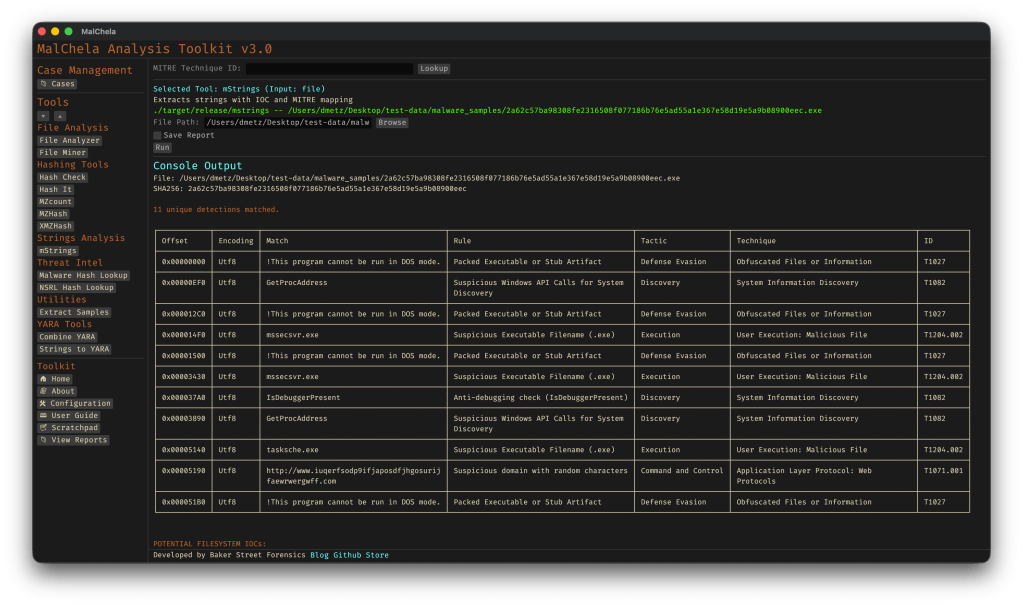
  • Generic Executable detection removed: This was too noisy and matched a lot of clean files. It’s been replaced by more focused patterns.
  • Suspicious DLLs now detected more precisely: Legit Windows DLLs like ole32.dll and gdiplus.dll are now excluded unless they’re paired with indicators like GetProcAddress, LoadLibrary, or manual syscall patterns.
  • Rule cleanup and expansion: Several detections were removed, refined, or added (like packer stubs and dropper markers) to better target actual malicious behavior.
  • Tighter MITRE mapping: Each detection is now carefully aligned to a corresponding MITRE ATT&CK technique, often down to the sub-technique level.

If you’ve ever run mstrings and felt unsure which hits mattered most — or got buried in generic noise — this update should feel much cleaner.

Reminder: You can easily update the detection criteria by modifying detections.yaml.

Have a detection to contribute to the project? Submit a pull request.


🔍 Built-In MITRE Lookup (GUI)

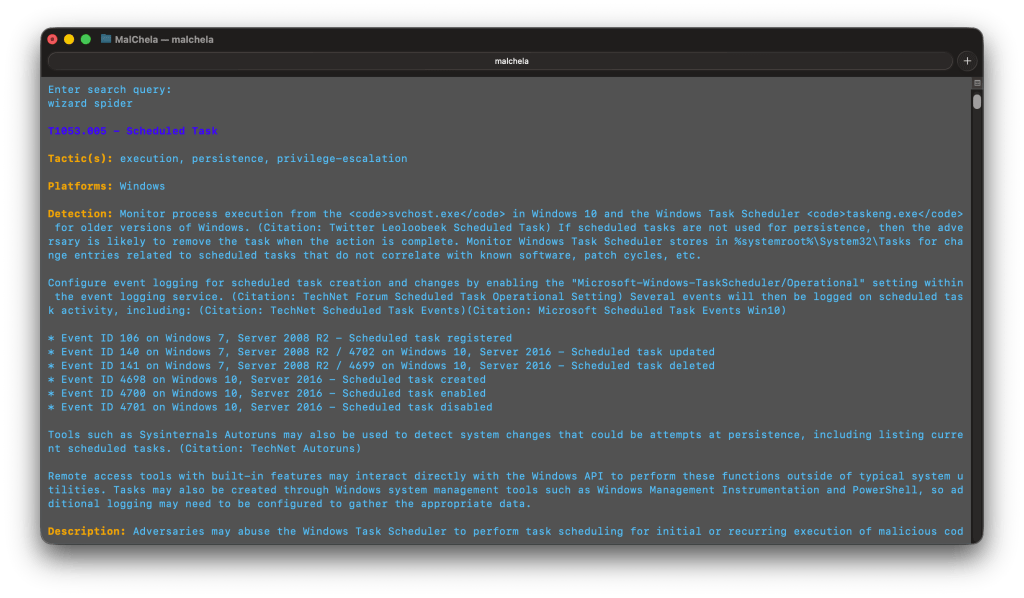
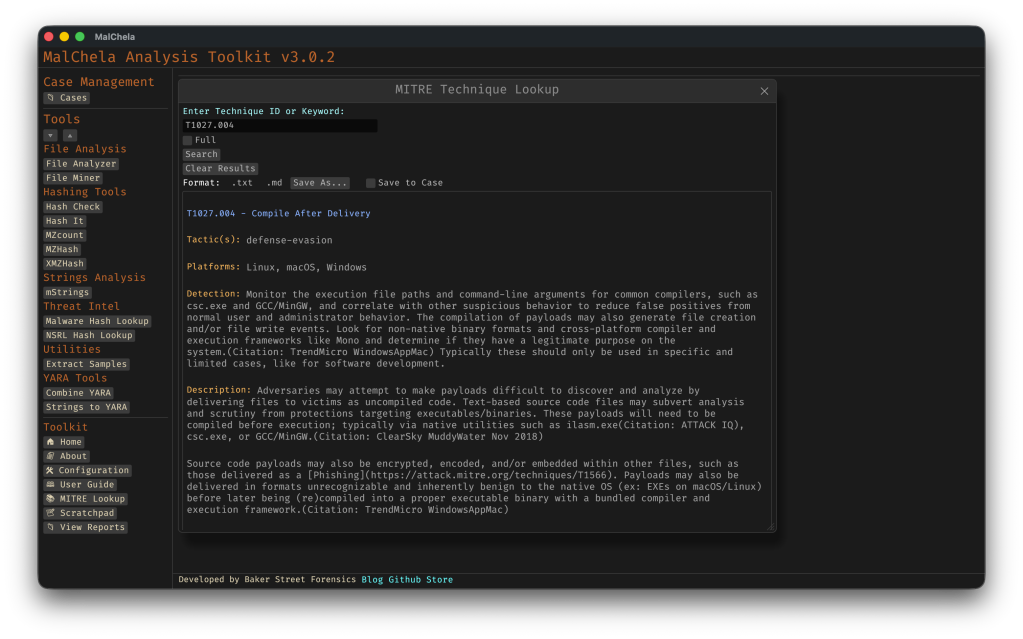
If a detection shows a MITRE ID like T1082, you can now look it up directly inside the GUI. The new MITRE Lookup Bar sits at the top of the config panel (only when running mstrings). Paste a technique ID, hit Lookup, and it’ll open the official MITRE ATT&CK page in your browser.


🗂️ FileMiner Improvements

The FileMiner GUI panel saw some polish too:

  • “Select All” functionality: You can now batch-run tools across multiple matching files in a case — a huge time-saver during triage.

🧰 Build and Setup Updates

Two quick notes for folks cloning the repo for the first time:

  • The release.sh script now builds all binaries in release mode — one command to build everything cleanly.
  • Docs and README were updated to recommend building in –release mode from the start, especially for smoother GUI usage.

🧪 Platform Testing

Confirmed functional on:

  • macOS (Silicon)
  • Ubuntu (Desktop and minimal)
  • REMnux (custom REMnux tools.yaml)
  • Raspberry Pi (Zero 2W and 4B)
  • Windows via WSL (CLI)

Still some quirks with native Windows support due to YARA compatibility and pathing, but if you’re a Windows power user and want to pitch in, I’d love your help.


💭 Final Thoughts

MalChela isn’t trying to replace your favorite tools — it’s trying to bundle them in ways that save time, reveal context, and give you clarity during analysis. The 3.0.1 release doesn’t bring sweeping new features, but it does make the experience tighter, more predictable, and more useful where it counts.

As always, thanks to those who’ve tested it, given feedback, or just watched quietly from the shadows. 🕵️‍♂️ If you want to contribute — whether it’s rules, regex, docs, or bugs — you’ll find me at dwmetz/MalChela.

Happy hunting.


MalChela v3.0: Case Management, FileMiner, and Smarter Triage

With the release of MalChela v3.0, I’m introducing features that shift the focus from tool-by-tool execution to a more structured investigative workflow. While the core philosophy of lightweight, file-first analysis remains unchanged, this version introduces smarter ways to manage investigations, track findings, and automate common analysis patterns, all with minimal fuss.

In this post, I’ll walk through the new Case Management system, the replacement of MismatchMiner with FileMiner, and the ability to identify and launch suggested tools — even in batch — based on file characteristics. These changes aim to reduce friction in multi-tool workflows and help analysts move faster without losing visibility or control.

Cases: A Lightweight Way to Stay Organized

Until now, MalChela has operated in an ephemeral mode. You selected a tool, pointed it at a file or folder, and reviewed the output. Any saved results would be grouped by tool, but without much context.

Cases change that. In v3.0, you can start a new case from a file or folder — and everything from that point forward is grouped under that case. Tool outputs are saved to a dedicated case folder, file hashes are tracked, and metadata is preserved for review or reanalysis.

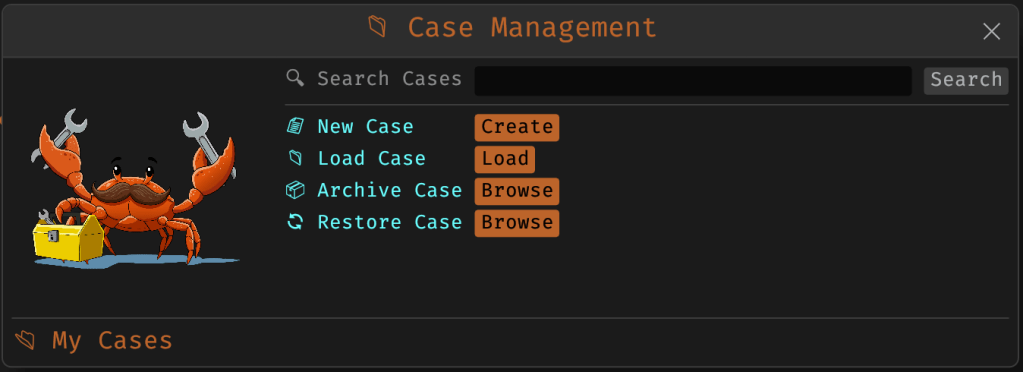
Case Management

You don’t need to create a case for every run — MalChela still supports standalone tool execution. But when you’re working with a malware sample set, an incident directory, or a disk image extract, cases give you the ability to:

  • Save tool results in a consistent location
  • Track analysis history per file
  • Reopen previous sessions with full context
  • Add notes, tags, and categorization (e.g., “suspicious”, “clean”, “needs review”)

Hello FileMiner: Goodbye MismatchMiner

The MismatchMiner tool was originally designed to surface anomalies between file names and actual content — a common trick in malicious attachments or script dropper chains. It worked well, but its scope was narrow.

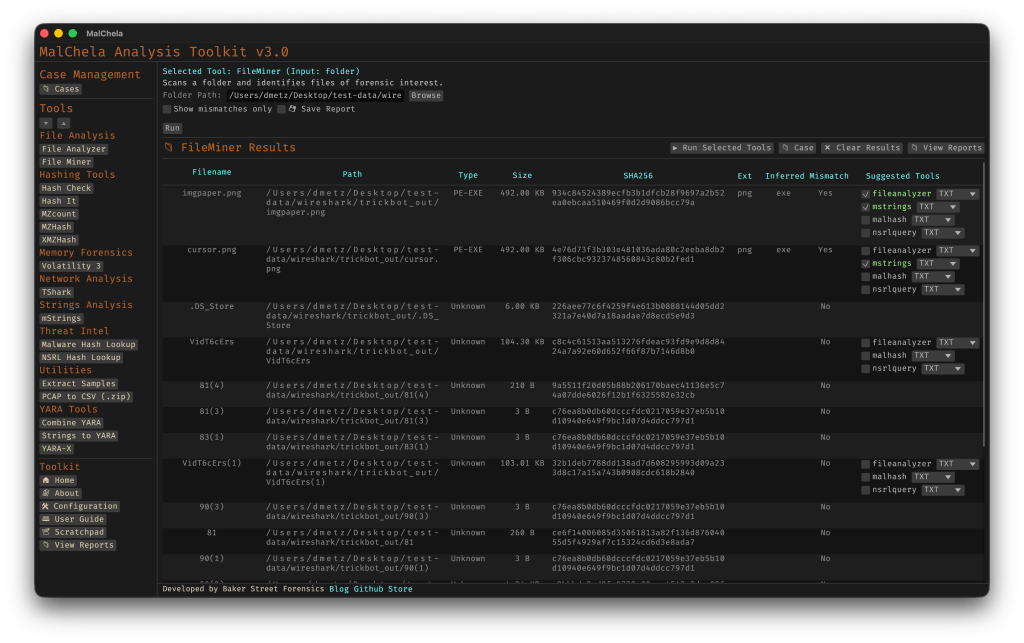
FileMiner replaces it, expanding the logic to support full file-type classification and metadata inspection across an entire folder. It still flags mismatches, but now it also:

  • Detects embedded file types using magic bytes
  • Groups files by class (e.g., images, documents, executables, archives)
  • Calculates hashes for correlation and NSRL comparison
  • Extracts size, extension, and other key metadata
  • Saves both a human-readable .txt summary and a structured .json report

The output is designed to be used both manually and programmatically — which brings us to one of v3.0’s most important additions: tool suggestions.

The new FileMiner app

Suggested Tools and Batch Execution

Once FileMiner runs, it doesn’t just stop at reporting. Based on each file’s type and characteristics, it can now suggest one or more appropriate tools from the MalChela suite.  These suggestions are surfaced right in the GUI — or in the CLI if you’re running FileMiner interactively. From there, you can choose to launch the recommended tool(s) on a per-file basis or queue up several for batch execution.

This makes it much faster to pivot from triage to deeper inspection. No more switching tools manually or copying paths. You stay within the flow — and more importantly, you reduce the risk of skipping important analysis steps.

CLI and GUI Improvements Aligned

These features are available in both the CLI and GUI editions of MalChela. In the CLI, FileMiner presents an interactive table of results. You can pick a file, see its suggested tools, and choose which one to run. When you’re done, you can return to the table and continue with the next file.

The GUI extends this even further, allowing you to:

  • View and scroll through full case history
  • Run tools with live output streaming
  • Reopen previous FileMiner runs from saved reports
  • Run all suggested tools on all files with one click (if desired)

These features let you treat MalChela more like a toolbox with memory, not just a launcher.


CLI Enhancements:

The command-line interface has also received a quiet but meaningful upgrade. Tool menus are now organized with clear numeric indexes and shortcodes, making it faster to navigate and launch tools without needing to retype full names. This small change goes a long way during repetitive tasks or when working in a time-constrained triage setting.

FileMiner supports an interactive loop: after running a tool on a selected file, you’re returned to the main results table — no need to restart the scan or re-navigate the menu. This allows you to run additional tools on different files within the same dataset, making FileMiner feel more like a lightweight control center for follow-up actions. It’s a subtle shift, but one that significantly reduces friction in batch-style or exploratory workflows.


Closing Thoughts

MalChela 3.0 reflects a steady evolution — not a revolution. It’s built on real-world feedback and a desire to make forensic and malware analysis a little less scattered. Whether you’re a one-person IR team or just trying to stay organized during a reverse engineering exercise, the new case features and smarter triage capabilities should save you time.

If you’ve been using MalChela already, I think this update will feel like a natural (and welcome) extension. And if you haven’t tried it yet, there’s never been a better time to start.

Download: https://github.com/dwmetz/MalChela/releases

User Guide: https://dwmetz.github.io/MalChela/

Hashes for the Masses: Finding What Matters in a Sea of Samples

A short while back, I released a pair of tools for building MD5 hash sets — one targeting known-good gold builds, the other designed for scanning malware corpora. The goal was simple: generate hash sets that could be used in forensics tools like Axiom Cyber to flag IOC matches during case processing.

Recently, I hit a familiar problem: I had a hash and wanted to know if that file existed in my malware library. Step one was updating my tooling to support SHA256 — the modern standard for hash sharing — and regenerating the hash sets. That part worked. I could search for a hash and confirm whether it appeared in my set.

But what if I got a match?

At that point, I realized: I had no way to correlate the match back to the original file. With ~30,000 samples in the library, “just eyeballing it” wasn’t an option.

As I’ve been coding up new tools — or revisiting earlier ones — I’ve discovered that rabbit holes have rabbit holes.

So I updated the SHA256 tool to not only generate a hash set, but also produce a .tsv lookup table mapping each hash to its full file path. This made the sets usable both in forensics platforms and for custom lookups in more ad hoc workflows. As they say: necessity is the mother of intention.

Of course, that led to another realization. I now had four hashing tools — two for MD5 (MZ and non-MZ), and two for SHA256. The “Hashing Tools” section in MalChela was getting a bit crowded.

Back to the drawing board.


The Result: Three Unified Tools

I consolidated and upgraded everything into three tools — all of which support both CLI and GUI usage.

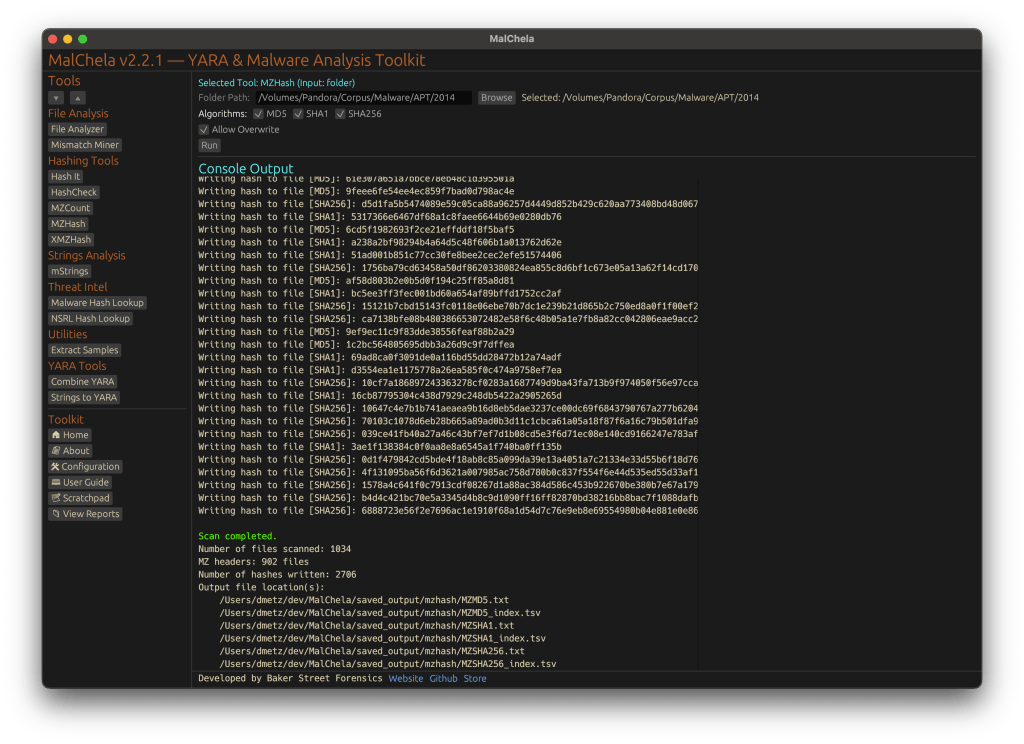
#️⃣ MZHash (replaces mzmd5)

• Uses YARA to recursively scan for files with an MZ header (i.e., Windows executables and DLLs)

• Generates one hash file per selected algorithm: MD5, SHA1, SHA256

• Also creates a .tsv lookup file for each, mapping hashes to paths

cargo run -p mzhash /directory/to/scan -- -a MD5 -a SHA1 -a SHA256

Via GUI, you can browse to the folder and check boxes for each algorithm.


🌐 XMZHash (replaces xmzmd5)

• Uses YARA to skip over files with MZ, ZIP, or PDF headers

• Hashes everything else — ideal for surfacing Linux, Mac, or unusual samples from a mixed malware corpus

• Also supports .tsv lookup file generation

cargo run -p xmzhash /directory/to/scan -- -a MD5 -a SHA1 -a SHA256

The idea: hash what’s not obviously Windows, document-related, or un-extracted samples.

XMZHash

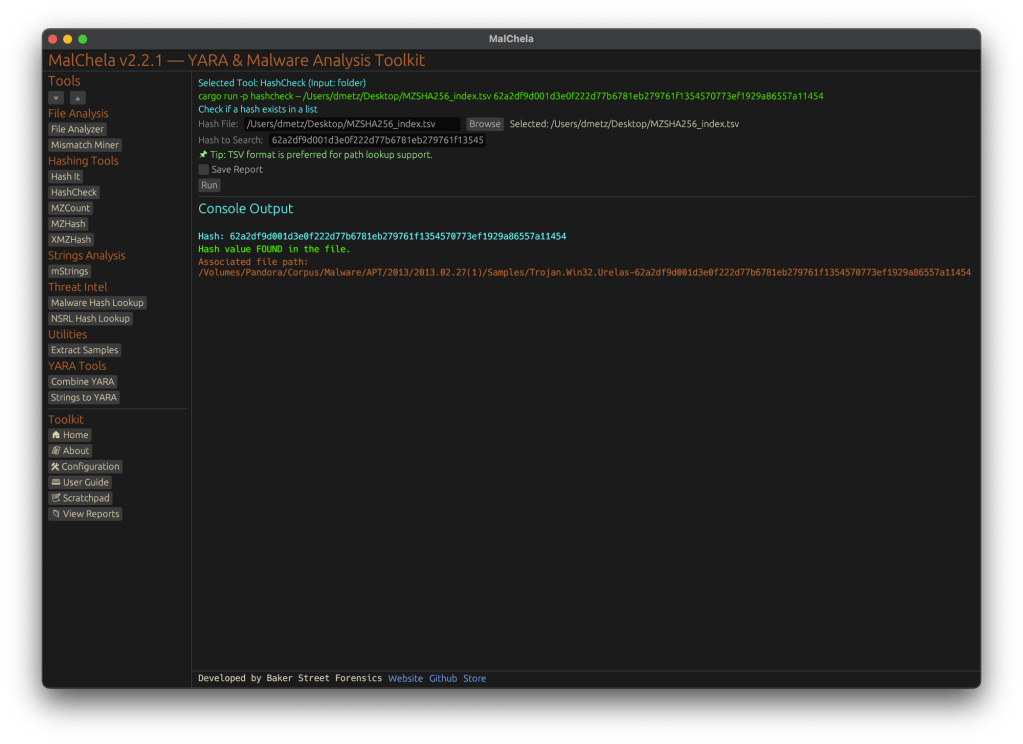
🔍 HashCheck

Okay, so naming might not be my strong suit. But this tool’s direct.

• Provide a hash value and a .txt or .tsv hash set

• It checks for matches, and if you’re using a .tsv, it shows the file path of the match

• Great for live triage, corpus hunting, or checking known-bads

cargo run -p hashcheck ./hashes.tsv 44d88612fea8a8f36de82e1278abb02f
Hash Check

In Summary

MalChela 2.2.1 expands its hashing toolkit with the introduction of HashCheck, MZHash, and XMZHash — giving analysts faster ways to flag known-good, isolate unknowns, and build actionable sets. In this release, we’ve also said goodbye to legacy tools, standardized output saving, and doubled down on clarity across both CLI and GUI workflows.

Download: https://github.com/dwmetz/MalChela/releases

User Guide: https://dwmetz.github.io/MalChela/

MalChela 2.2 “REMnux” Release

MalChela’s 2.2 update is packed with practical and platform-friendly improvements. It includes native support for REMnux, better tool settings, and deeper integrations with analysis tools like YARA-X, Tshark, Volatility3, and the newly improved fileanalyzer module.

🦀 REMnux Edition: Built-In Support, Zero Tweaks

When the GUI loads a REMnux-specific tools.yaml profile, it enters REMnux mode.

Screenshot of yaml configuration applying REMnux mode

Native binaries and Python scripts like capa, oledump.py, olevba, and FLOSS are loaded into the MalChela tools menu, allowing you to mix and match operations with the embedded MalChela utilities and the full REMnux tool stack. No manual configuration needed—just launch and go. MalChela currently supports the following REMnux programs right out of the box:

Tool Name Description
binwalkFirmware analysis and extraction tool
capaIdentifies capabilities in executable files
radare2Advanced reverse engineering framework
Volatility 3Memory forensics framework for RAM analysis
exiftoolExtracts metadata from images, documents, and more
TSharkTerminal-based network packet analyzer (Wireshark CLI)
mraptorDetects malicious macros in Office documents
oledumpParses OLE files and embedded streams
oleidIdentifies features in OLE files that may indicate threats
olevbaExtracts and analyzes VBA macros from Office files
rtfobjExtracts embedded objects from RTF documents
zipdumpInspects contents of ZIP files, including suspicious payloads
pdf-parserAnalyzes structure and contents of suspicious PDFs
FLOSSReveals obfuscated and decoded strings in binaries
clamscanOn-demand virus scanner using ClamAV engine
stringsExtracts printable strings from binary files
YARA-XNext-generation high-performance YARA rule scanner

If you only need a subset of tools you can easily save and restore that a custom profile.


TShark Panel with Built-In Reference

Tshark and the integrated field reference

A new TShark integration exposes features including:

  • A filter builder panel
  • Commonly used fields reference
  • Tooltip hints for each example (e.g., `ip.addr == 192.168.1.1` shows “Any traffic to or from 192.168.1.1”)
  • One-click copy support

This helps analysts build and understand filters quickly—even if TShark isn’t something they use every day. Using the syntax builder in MalChela you can use the exact commands directly in Tshark or Wireshark.


YARA-X Support (Install Guide Included)

YARA-X module in MalChela

Support for YARA-X (via the `yr` binary) is now built in. YARA-X is not bundled with REMnux by default, but install instructions are included in the User Guide for both macOS and Linux users.

Once installed, MalChela allows for rule-based scanning from the GUI,and with YARA-X, it’s faster than ever.


fileanalyzer: Fuzzy Hashing, PE Metadata, and More

Updated FileAnalyzer Module

MalChela’s fileanalyzer tool has also been updated to include:

  • Fuzzy hashing support via `ssdeep`
  • BLAKE3 hashing for fast, secure fingerprints
  • Expanded PE analysis, including:
  • Import and Export Table parsing (list of imported and exported functions)
  • Compilation Timestamp (for detection of suspicious or forged build times)
  • Section Characteristics (flags like IMAGE_SCN_MEM_EXECUTE, IMAGE_SCN_CNT_CODE, etc., for detecting anomalous sections)

These improvements provide deeper insight into executable structure, helping analysts detect anomalies such as packers, suspicious timestamps, or unexpected imports/exports. Useful for everything from sample triage to correlation, fileanalyzer now digs deeper—without slowing down.


Memory Forensics Gets a Boost: Volatility 3 Now Supported

With the 2.2 release, MalChela introduces support for Volatility 3, the modern Python-based memory forensics framework. Whether you’re running MalChela in REMnux or on a customized macOS or Linux setup, you can now access the full power of Volatility directly from the MalChela GUI.

Volatility 3 in MalChela

There’s an intuitive plugin selector that dynamically adjusts available arguments based on your chosen plugin,. You can search, sort, and browse available plugins, and even toggle output options like –dump-dir with ease.

Like Tshark, there is an added plugin reference panel with searchable descriptions and argument overviews — a real time-saver when navigating Volatility’s deep and often complex toolset.

Volatility Plugin Reference

Smarter Tool Configuration via YAML

The tool configuration system continues to evolve:

  • Tools now declare their input type (file, folder, or hash)
  • The GUI dynamically adjusts the interface to match
  • Alternate profiles (like REMnux setups) can be managed simply by swapping `tools.yaml` files via the GUI
  • Easily backup or restore your custom setups
  • Restore the default toolset to get back to basics

This structure helps keep things clean—whether you’re testing, teaching, or deploying in a lab environment.


Embedded Documentation Access

The GUI now includes a link to the full MalChela User Guide in PDF. You can also access the documentation online.

From tool usage and CLI flags to configuration tips and install steps, it’s all just a click away—especially useful in offline environments or when onboarding new analysts. I’ll be honest, this is likely the most comprehensive user guide I’ve ever written.


Whether you’re reviewing binaries, building hash sets, or exploring network captures—MalChela 2.2 is designed bring together the tools you need, and make it easier to interoperate between them.

The new REMnux mode makes it even easier to get up and running with dozens of third party integrations.

Have an idea for a feature or application you’d like to see supported — reach out to me.


GitHub: REMnux Release

MalChela User Guide: Online, PDF, Web

Shop: T-shirts, hats, stickers, and more