VS Code Interactive Notebooks

I’ve been using Visual Studio Code as my go to editor for PowerShell, JSON, plain text, and recently even a dash of Python. VS Code is very extensible and much like the App Stores we’ve come to know, there’s an extension marketplace to broaden its capabilites.

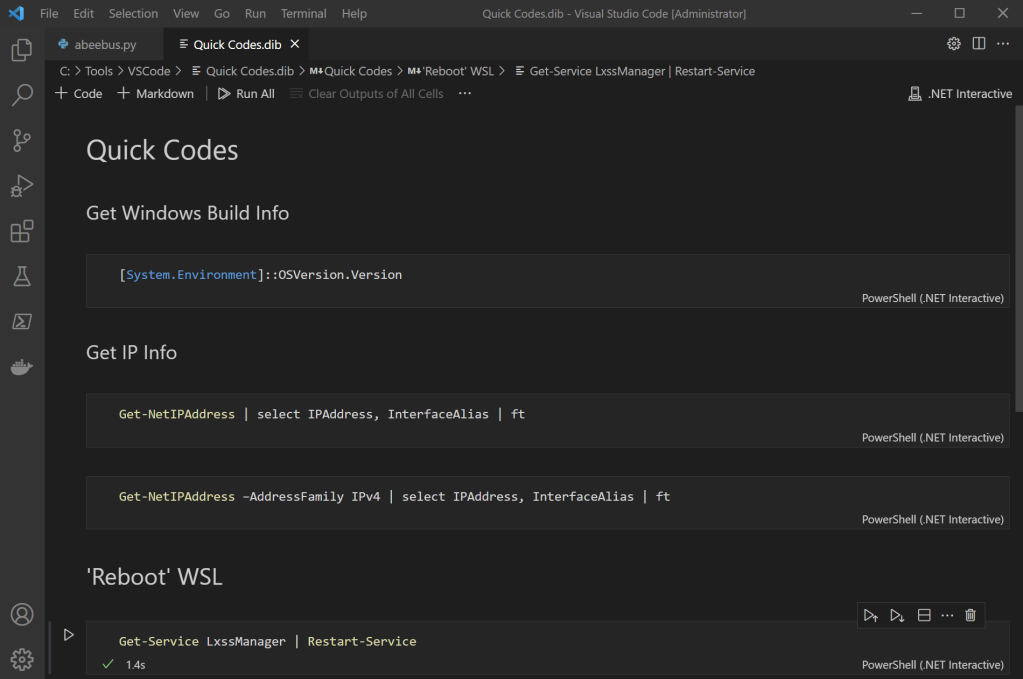
One of my favorite extensions is the .NET Interactive Notebooks. Notebooks combine markdown text and code snippets that you can run right within the notebook. This can be very useful for designing playbooks for a SOC or Junior Analyst to execute as you can describe and provide guidance on how to utilize the code functions.

An easy way to get started with Interactive Notebooks is to create a “Quick Codes” notebook. Title it as you choose. For this particular notebook, I’ve got a number of commands saved that I may reference semi-frequently, but due to limited space in my mind palace I wind up googling them anyway, even if it’s googling my own site.

Trying to remember a specific PowerShell syntax

Note before installing:
As your scripts and notebooks develop, there is a likelihood that you will want to run some either as Administrator or using another user credential. One way to do so simply launch VS code (right click) as Admin, or use the Run As feature when you launch the application.

  1. Download and install VS Code.
    Note – as you may be running this with multiple credentials, the “System” installer is recommended.
    https://code.visualstudio.com/Download#
  2. Install the latest .Net SDK
    https://dotnet.microsoft.com/download/dotnet/6.0
  3. When inside VS code, bring up the Extensions view by clicking on the Extensions icon in the Activity Bar on the side of VS Code, or the View: Extensions command (Ctrl+Shift+X).
    Search for “interactive”
    Select .NET Interactive Notebooks and choose install

Once everything is all set, relaunch VS Code.

Hit Ctrl+Shift+P and select .NET Interactive – Create New Blank Notebook.

That’s it. Now start adding blocks for text and code. You can use simple markup codes for Heading (#), Heading 2 (##), Heading 3 (###), etc.

To execute the code snippet, just click on the small ‘play’ arrow to the left.

Do you have any novel uses for Interactive Notebooks? If so, please share in the comments area.

Forensic Imaging Station – Steampunk Edition

I’ve worked remotely for the past 6 years which means I spend a lot of time in my home office.  Last year we moved into a new house with much better space for my office, and I’ve been shaping it more and more to my tastes.

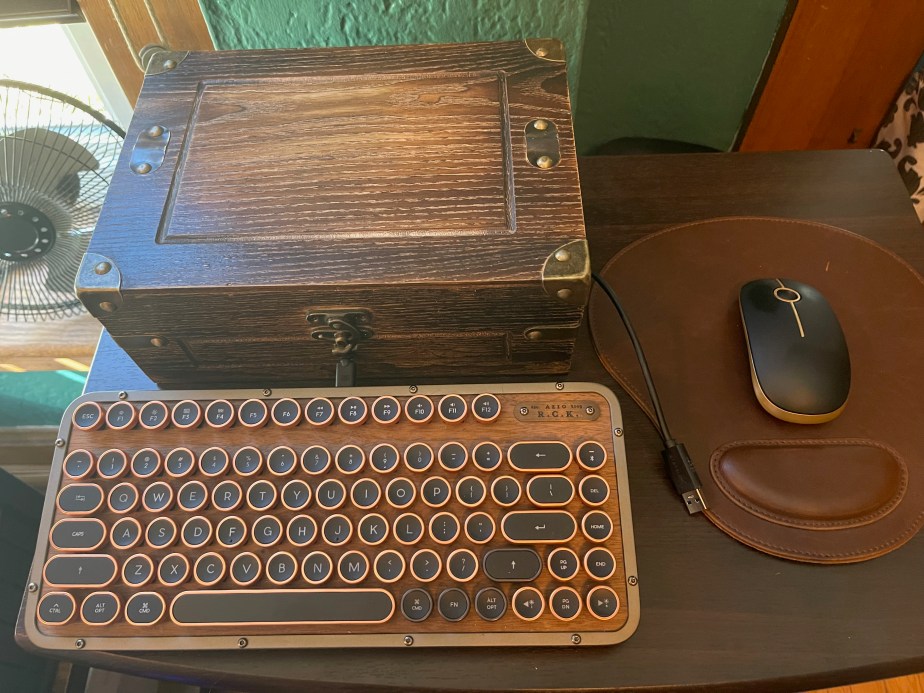
I do a lot of forensic imaging. I’ve got a pretty basic but rock solid setup that works for me (see Forensic Imaging a Microsoft Surface Pro).  Since I use it frequently I’m hesitant to put it away, but at the same point I don’t like looking at a pile of wires and devices when not in use. That brings us to the latest home office update, the Forensic Imaging Station (Steampunk Edition).

For this project I grabbed a small wooden box from Hobby Lobby.  A good cigar box will also work.  That was going to be my first choice but the only spare box I had on hand said “Corona” on the face and… you know. This box looks nice but it’s composed of mostly particle board, so go slow drilling.

I drilled four holes in the box. A 1/2 inch hole on the front face under the locking clasp for the USB-C cable, and three 5/8 inch holes – 2 on the side and one on the back, to accommodate the rest.

Inside the box I’ve arranged a USB hub connecting:

  • Paladin flash drive
  • External WD hard drive 
  • Keyboard (USB)
  • RF dongle for mouse.
  • Pass through for “universal” laptop power adapter
Cheap wood makes for messy holes.

This box had plenty of space to arrange the components. The laptop power adapter comes in the back of the box and then back out on the side.  The USB connector for the hub is also passed through the side. The cable for the keyboard passes through the front.

The finished set-up

The setup is completed with an Azio Retro Compact keyboard, (with replacement copper-edged keys) and a sort of matching mouse.

When it’s time to image, just sit the laptop on top, connect the USB cable and power, and you’re good to go.

Post Update:

Because I’ve come to learn that a project is really ever finished at version 1 – a close up view after details added. (Rubber grommets for the cable holes and decorative details and rubber feet on the top for laptop.

Collecting from Microsoft Teams using PowerShell

There are two means by which to ingest Microsoft Teams information into Magnet Axiom for processing. The first approach uses Axiom Process. If you’re collecting in this manner you will need to have the credentials of the user you are collecting from. Axiom will use those credentials to log into O365 and retrieve the user’s data. Depending on the conditions of the investigation, you may have the option of resetting the password to gain access.

Magnet Axiom Cyber Teams Collection

If you don’t have the user’s credentials, but you do have administrative access to the Exchange environment, you can run a search from the Microsoft Security and Compliance center. Once the search completes you can export/download the results as a PST. To ingest the PST into Axiom just ‘add evidence’ , ‘files & folders’ and then browse to the PST file.

To speed up the process, I’ve written a small PowerShell script to build and run the Compliance Center search. The script depends on the ExchangeOnlineManagment module being installed. In this script we’re connecting to Security & Compliance PowerShell using MFA and modern authentication.

TeamsSearch.ps1

The script prompts for:

  • the identity (admin ID) of the investigator
  • a name to save the Compliance search
  • the email address of the user to collecting

Once this information is provided the script will build and run the Compliance Search in O365. From this point you can log into Compliance Center, navigate to the search and then export the contents as a PST.

<# MS Teams Security & Compliance Search
author: Doug Metz https://github.com/dwmetz
Note this script requires previous installation of the ExchangeOnlineManagement PowerShell module
See https://docs.microsoft.com/en-us/powershell/exchange/connect-to-scc-powershell?view=exchange-ps for more information.#>
[string]$user = Read-Host -Prompt 'Exchange Credentials'
Connect-IPPSSession -UserPrincipalName $user
[string]$name = Read-Host -Prompt 'Enter a name for the search'
[string]$email = Read-Host -Prompt 'Enter the users email address'
new-compliancesearch -name $name -ExchangeLocation $email -ContentMatchQuery 'kind=microsoftteams','ItemClass=IPM.Note.Microsoft.Conversation','ItemClass=IPM.Note.Microsoft.Missed','ItemClass=IPM.Note.Microsoft.Conversation.Voice','ItemClass=IPM.Note.Microsoft.Missed.Voice','ItemClass=IPM.SkypeTeams.Message'
Start-ComplianceSearch $name
Get-ComplianceSearch $name
New-ComplianceSearchAction -SearchName $name -Export
Write-Host "Search initiated"-ForegroundColor Blue
Write-Host "Proceed to https://protection.office.com/ to download the results."-ForegroundColor Blue

Either copy the code from here, or download from my GitHub repository.

Getting Started with a PowerShell Menu

We’re often using PowerShell within the Incident Response team. I’m a big practitioner of spending 5 hours coding something to automate a 5 minute job. At first the math may not compute, but when that 5 minute job may be requested hundreds of times – and with it scripted it takes 30 seconds… that’s where it pays off. It also enforces consistency and removes some of the possibility for human error.

We have a collection of internal scripts that we use frequently. As more scripts (or scriptlets) are added to the frequently used, I wanted a means to expose all the scripts to the team and to put some organization to it. I also wanted to easily support changes or additions to the referenced scripts. What I wound up building was a simple PowerShell menu structure.

Each individual script is referenced by a 2 letter code in the menu. Right now in our environment there’s 38 scripts in the menu. Many of those are proprietary (can’t share), however I gathered a handful to share here to illustrate the concept of the menu process.

https://github.com/dwmetz/PSHero

Once you’ve downloaded and unzipped the repository, you’ll want to edit the PSHero.ps1 file to ensure that the paths for the scripts reflect where you’ve got them saved to.

To add or remove scripts from the menu, there are 2 modifications:
In the top section is the menu listing

Write-Host "EX: MX Header Analysis"

Which pairs with

'EX' {
D:\PowerShell\PSHero\Parse-EmailHeader.ps1
}

in the lower section. Use the other scripts as examples and add what you like. Just watch your brackets.

The scripts included in this demo menu include:

Have a favorite PS script you use? Post a recommendation in the comments below.