Mining for Mismatches: Detecting Executables Disguised as Image Files

Malware authors often use file masquerading—disguising malicious executables as seemingly harmless files—to bypass both user scrutiny and automated defenses. A classic example is an executable file with an image extension, such as `.png`, that actually contains a Windows PE binary. To help address this challenge, the Mismatch Miner utility, written in Rust and part of the MalChela malware analysis toolkit, introduces a practical approach for uncovering these deceptive files using YARA rules.

Why File Masquerading Matters

File extension spoofing remains a simple yet effective evasion tactic. Users and some security tools may trust files based on their extensions, ignoring the underlying content. Attackers exploit this by renaming executables with extensions like `.jpg` or `.png`, hoping to slip past defenses. While this technique is not new, it continues to be relevant due to its effectiveness and the limitations of extension-based filtering.

That said, this method should be seen as one component of a broader detection strategy. While it is effective for catching executables disguised as images or documents, it does not address more sophisticated evasion tactics, such as fileless malware or executables embedded within other file formats. Additionally, some legitimate software may use unconventional file extensions, so results should be reviewed with context in mind.

Mismatch Miner: Approach and Implementation

Mismatch Miner is designed to scan a directory for files with extensions that are commonly abused for masquerading, including popular image formats. For each candidate file, it leverages YARA—a widely used pattern-matching tool in malware analysis—to check for the presence of the “MZ” header, which marks the start of Windows executable files. If a file’s extension suggests it is an image, but its header indicates it is an executable, the tool flags the file and reports its name, full path, and SHA256 hash, to support further investigation.

Mismatch Miner screenshot

Mismatch Miner offers a practical solution for identifying a common malware evasion technique: executables disguised as benign files. By combining Rust’s performance with YARA’s pattern-matching, it provides security analysts with a reliable tool for uncovering hidden threats. While not a panacea, header-based mismatch detection is a useful addition to any malware analysis workflow, helping to close a gap that attackers continue to exploit.
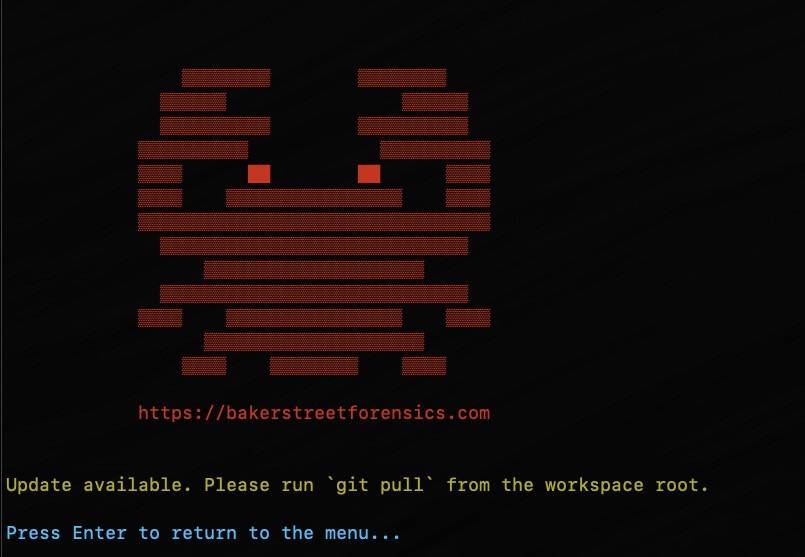
Mismatch Miner is bundled with MalChela, the YARA & Malware Analysis toolkit. If you’ve already installed it, a ‘git pull’ from your workspace directory should get you the new feature.

https://github.com/dwmetz/MalChela

Ginsu: A tool for repackaging large collections to traverse Windows Defender Live Response

Screenshot of Ginsu.ps1

Enterprise customers running Windows Defender for Endpoint have a lot of capability at their fingertips. This includes the Live Response console, a limited command shell to interact with any managed Defender assets that are online. Besides its native commands you can also use the console to push scripts and executables to endpoints.

Note: there is a specific security setting in the Defender console if you want to allow unsigned scripts.

Microsoft has its own triage package capability, but you can also push your own tools like Magnet RESPONSE or KAPE. With a little bit of PowerShell mojo you can use your favorite collection utilities using the Defender Live Response console as your entry point into the remote asset.

The console enables you to pull back files from the remote endpoint, even when it’s been quarantined. One limitation of this console function is that you’re limited to retrieving files of 3GB or less.

For many triage collections this could be under the limit, but depending on the artifacts you’re collecting you might exceed that. So what do you do when you have an isolated endpoint but you need to pull back files over 3GB? That’s where Ginsu comes in.

Ginsu is a PowerShell script that you can upload to your Defender console along with the command line version of 7zip. You configure the script with the directory with the contents you want to transfer. The script acts as a wrapper for 7zip and will create a multipart archive, splitting the files into 3GB segments.

Once you pull the archives back to your workstation, you can use 7zip to extract the files back into their original properties.

In testing, the file transfer capabilities were a bit buggy, whether it was transferring 3GB Ginsu files or other smaller files from the asset. I’m hoping this improves as the Defender console matures. If you’re able to text Ginsu in your environment, I’d love to hear how it performs.

You can download Ginsu from my GitHub repo at https://github.com/dwmetz/Ginsu

CSIRT-Collect USB

CSIRT-Collect USB can be found in the main repository for CSIRT-Collect. CSIRT-Collect is a PowerShell script to collect memory and (triage) disk forensics for incident response investigations.

CSIRT-Collect USB is designed to run directly from a USB device. While a network deployment certainly supports automation, as an Incident Responder I can think of several examples where that wouldn’t be an option:

  • An air-gapped manufacturing environment
  • Hospital/Medical Environments
  • Ransomware incidents when the assets have been detached from the network

Preparation is the first phase of the Incident Response lifecycle. (PICERL) Once you’ve tested and/or adapted the collection for your environment, consider prepping a handful of drives and having them pre-deployed to sites where you’re likely to need them.

The Setup

First off you’re going to need a high-capacity USB device. Larger sized flash drives will work. Personally I’m a fan of Samsung (T series) SSD drives, both for their size and their write speeds during acquisitions.

On the root of the USB device:

  • A (initially empty) folder named ‘Collections’
  • KAPE directory from default KAPE installation
  • EDD.exe in \KAPE\Modules\bin\EDD (Encrypted Disk Detector)
  • CSIRT-Collect_USB.ps1
  • MRC.exe (Magnet RAM Capture)

Launch

To run the script, open an elevated PowerShell prompt and browse to the USB device. Then simply

.\CSIRT-Collect_USB.ps1
CSIRT-Collect_USB.ps1 starting

What it Captures

The first process the script runs is Magnet RAM Capture. Once the RAM has been captured, the windows build (profile) is captured. The RAM image and the build info are named to reflect the asset hostname being collected.

The next process is the KAPE Triage collection. Host artifacts are acquired and then assembled as a .vhdx (portable hard disk) image. After the KAPE Targets portion completes, KAPE calls the Encrypted Disk Detector module which checks the local physical drives on a system for TrueCrypt, PGP, VeraCrypt, SafeBoot, or Bitlocker encrypted volumes. This information is saved into the Collections directory, as well as displayed to the responder to identify other volumes that may need to be collected while the system is live.

Lastly, if BitLocker is enabled for the OS drive the script will capture that information as well and back-up the recovery key.

Disk Encryption Check

Collection Contents

Inside the Collections folder, a subfolder will be created for each asset collected. The size of the USB device will determine how many collections can be captured before the results need to be offloaded.

The \Collections\%hostname% directory will include:

  • Console log capturing all KAPE targets activity
  • .vhdx of the host artifacts
  • collection complete date/time .txt
  • Memory acquisition .raw
  • Windows profile (build information) .txt

In the \Collections\%hostname%\Decrypt folder you will find

  • console log for KAPE modules (EDD)
  • recovery key for BitLocker (C) volume .txt
  • Live Response directory with the output of EDD .txt

###

https://github.com/dwmetz/CSIRT-Collect

###