There’s a moment every analyst knows — the one where an unknown file lands on your desk and the clock starts ticking. You need answers, and you need them fast. MalChela was built for exactly that moment.
Today I’m excited to announce the MalChela Video Series on YouTube — a growing collection of tutorial episodes walking through real malware analysis workflows using MalChela, the open-source Rust-based toolkit I’ve been building for the DFIR community. Whether you’re new to the tool or already running it in your lab, there’s something here for you.
Four episodes are available right now in the playlist.
What’s in the Playlist
Ep0 | Installation & First Run
Every case starts somewhere. Episode 0 is your onboarding — installing MalChela, walking through its dependencies, and getting oriented with both the CLI and GUI modes. If you’ve been curious about the tool but weren’t sure where to start, this is the episode to bookmark.
Ep1 | First Contact: Hash, Inspect, Identify
You’ve just been handed a suspicious file. What do you do first?
This episode covers the first three tools in a malware triage workflow — the exact sequence I reach for every time I encounter an unknown file:
hashit — generate MD5, SHA1, and SHA256 hashes to protect chain of custody and enable deduplication
fileanalyzer — static inspection: entropy analysis, PE header fields, compile timestamps, and import tables
malhash — simultaneous lookup against VirusTotal and MalwareBazaar to identify known malware families
By the end of this episode, you’ll take an unknown file from zero to confirmed malware family identification in under five minutes — no sandboxing required.
Ep2 | From Strings to Signatures
Continuing from Episode 1, we go deeper into the confirmed RedLine info-stealer sample using mStrings — MalChela’s string extraction engine. Unlike the traditional strings utility, mStrings runs every extracted string through a detection ruleset and MITRE ATT&CK mapping layer simultaneously, turning raw output into actionable intelligence.
We walk through 62 detections, including PDB path artifacts, hard-coded dropper filenames, WMI queries, credential harvesting patterns, anti-debug checks, and a code injection setup. We then feed the extracted IOCs into Strings2YARA to auto-generate a structured YARA rule — and confirm it fires against the sample using File Analyzer.
By the end, you’ll be reading a malware file not as a pile of strings, but as a window into the attacker’s tradecraft.
Ep3 | REMnux Mode & Custom Tools
MalChela doesn’t work in isolation. Episode 3 covers how to extend the toolkit through the tools.yaml config file and how enabling REMnux mode surfaces an entire distro’s worth of malware analysis utilities directly within MalChela’s interface.
We also explore three built-in integrations: Volatility 3 with a dynamic plugin builder, T-Shark with a searchable reference, and YARA-X — a faster, Rust-native rewrite of YARA.
What’s Coming
The series is ongoing. Future episodes will push further into advanced workflows — think directory-scale triage, corpus management, and the AI-assisted analysis capabilities introduced in MalChela’s MCP integration. Stay subscribed and you won’t miss them.
Get Involved
If MalChela is useful in your work, the best thing you can do is help spread the word:
📺 Subscribe to the YouTube channel — Subscribe to the channel and save the playlist so you don’t miss new episodes as they land.
📖 Follow Baker Street Forensics — Writeups, major releases, and workflow deep dives live here.
💬 Share and comment — If an episode clicks for you, pass it along to a colleague or drop a comment on the video. That feedback genuinely shapes what comes next.
The game is afoot. Let’s get to work.
MalChela is open-source and freely available. Find the project on GitHub.
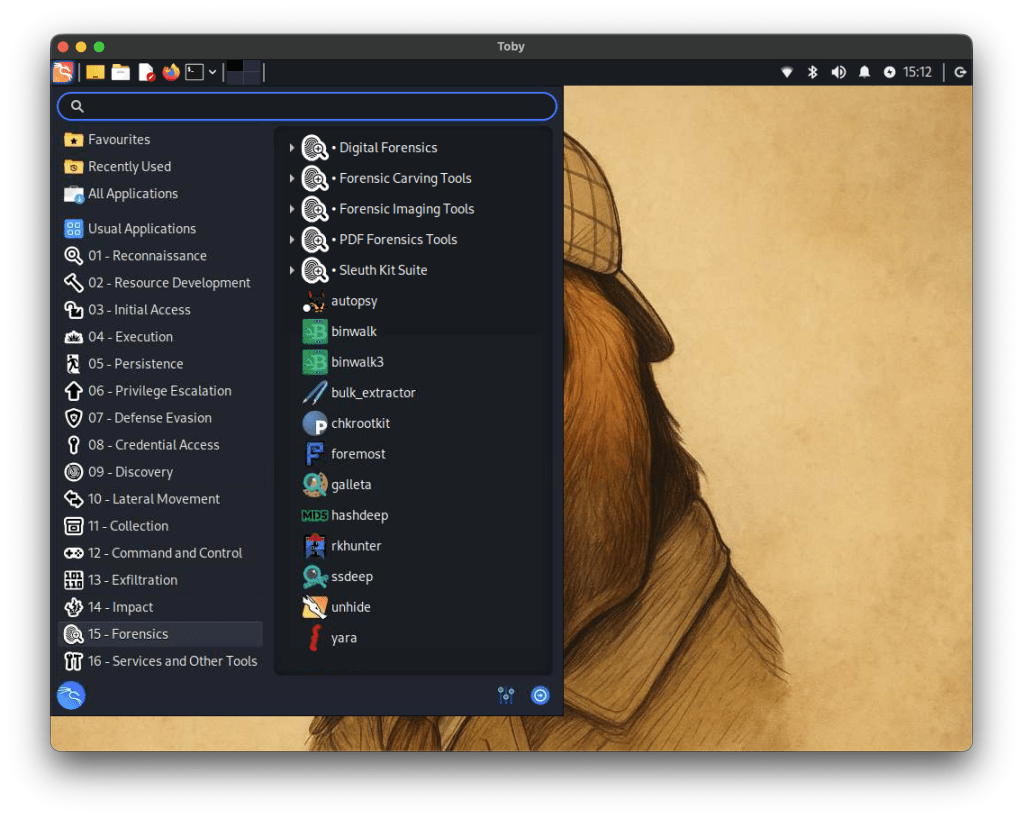
In digital forensics, we often take a toolbox approach — success hinges on having the right tool for the job. Some tools offer broad functionality, while others are deeply specialized. Distributions like KALI and REMnux do a fantastic job bundling a wide range of forensic and security tools, but keeping track of what’s actually installed can be a challenge.
If you’re using a graphical interface, browsing through available packages is fairly intuitive. But when you’re living in the terminal — as many analysts do — that discoverability disappears. There’s no built-in index of command-line tools or how to invoke them.
The first version of Toby-Find was born out of necessity. I teach a Network Forensics course at the university, using a custom VM loaded with tools like Zeek, Tshark, Suricata, and more. I wanted students to have an easy, searchable way to see what CLI tools were available and how to run them — without needing to memorize commands or dig through man pages.
Later, when I built Toby (a forensic-focused Raspberry Pi rig running a customized KALI install), I updated Toby-Find to include the complete CLI toolset geared toward forensics and malware analysis from the KALI ecosystem.
And because I can’t leave well enough alone, I decided to build a REMnux-compatible version too.
⸻
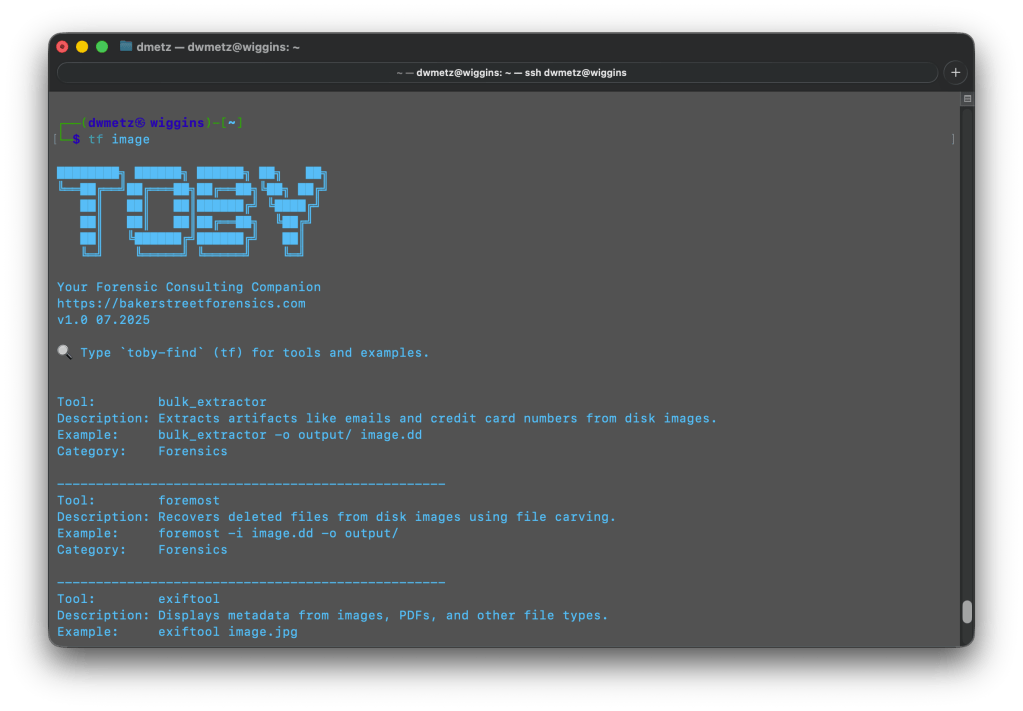
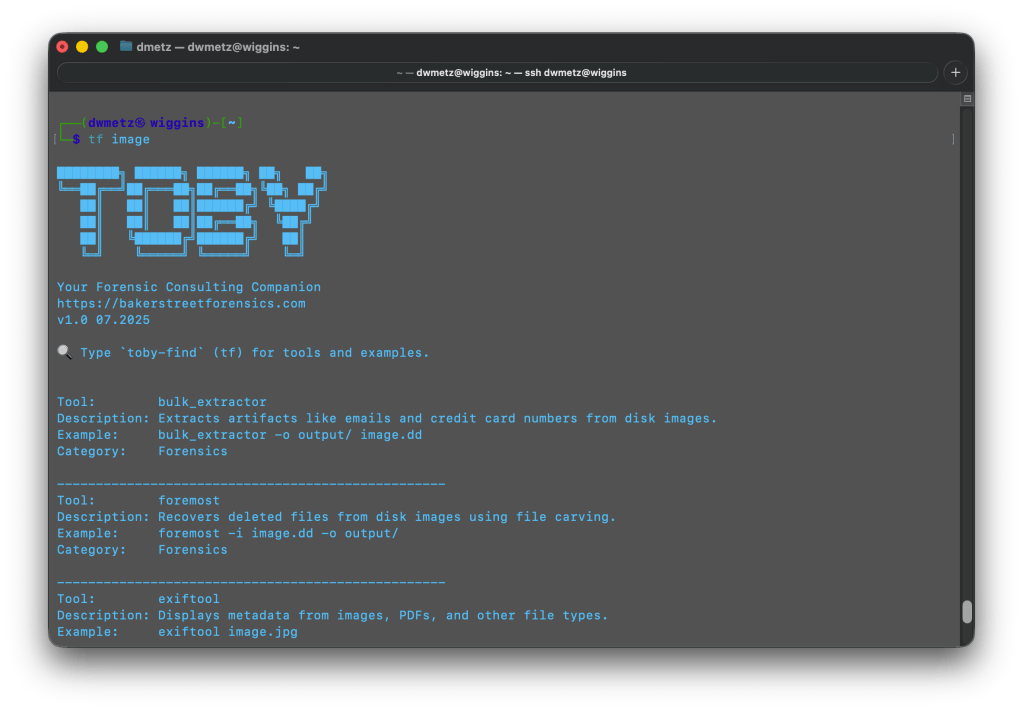
Once installed, you can launch Toby-Find (via tf, toby-find, or tf-help) from any terminal and instantly search for tools, descriptions, examples, and more.
Toby-Find on REMnux
Toby-Find on Kali
⸻
📦 Installation
1. Clone the repository:
git clone https://github.com/dwmetz/Toby.git
2. Make the install script executable:
cd Toby
chmod +x install.sh
3. Run the installer:
./install.sh
4. Follow the prompt to choose your environment (KALI or REMnux) 5. Open a new terminal or run:
source ~/.bashrc # or ~/.zshrc depending on shell
🚀 Usage
tf [keyword]
Examples:
tf yara
tf volatility
tf hash
To view the full list:
tf-help
Whether you’re working from a custom VM, a rugged Pi, or a hardened REMnux box, Toby-Find gives you a fast, terminal-friendly way to surface the tools at your disposal — without breaking focus. It’s lightweight, portable, and easy to extend for your own lab or classroom.
You can grab the full installer from GitHub, and contributions are always welcome. If you find it helpful — or build on it — I’d love to hear about it.
Whether teaching, investigating, or tinkering on the road, there’s an undeniable appeal to a device that’s self-contained, headless, and versatile enough to support forensic analysis, malware triage, and field acquisition. That idea became the seed for Toby — a Raspberry Pi Zero 2 W–based micro-rig that can be managed from an iPad or mobile device.
It started off with a “what could I do with at Raspberry Pi” and the final result: a fully functional, go-anywhere forensics toolkit that fits in the palm of your hand, carefully packed into a Grid-It travel kit and loaded with purpose.
Why Build Toby?
Toby wasn’t born from necessity. It came from a blend of curiosity, constraint, and the spirit of joyful overengineering. The goal wasn’t just to get Kali Linux running on a Pi — that’s been done. The challenge was in how much capability could be packed into a minimalist footprint without compromising on control, security, or style.
Some driving goals from the outset:
Headless-first: Must be operable via SSH, or VNC — no screen needed.
Kali-based: Full access to familiar forensic and pentest tooling.
Discreet and functional: Everything should be secure, practical, and stowable.
Modular connectivity: USB OTG, video capture, remote keyboard/mouse, and VPN support all needed to be viable.
Portable power: Run from a battery pack for field ops or demo use without dependency on AC power.
Hardware Selection
Raspberry Pi Zero 2 W
The Pi Zero 2 W hits a sweet spot. It has enough power to run full Kali and perform triage analysis, especially with swap and careful headless tuning. It supports USB OTG and can be powered over micro-USB, making it ideal for lightweight builds.
Grid-It Travel Kit: The Physical Layout
Instead of housing the components in a fixed enclosure, I opted for flexibility: a Grid-It organizer sleeve. It allows each cable and tool to remain accessible and secured via elastic straps — perfect for quick swaps or field reconfiguration.
The current loadout includes:
Raspberry Pi Zero 2 W
HDMI mini to full adapter (for display recovery if needed)
USB micro to USB-C adapter combo (for powering Pi from laptop, iPad, or battery pack)
Anker battery pack (portable, long runtime)
Wireless keyboard (compact; paired via Bluetooth or USB receiver)
USB capture device (used for teaching, demoing webcam/VNC sessions)
Short USB OTG cable
The setup is light, self-contained, and TSA-friendly — a true digital go-bag for the forensically inclined.
Portable Power
Toby can be powered from the USB port of an iPad or from a battery pack or AC adapter, making it extremely flexible for field use.
Toby powered from iPad Pro
Toby powered from portable battery
Software
The OS is a clean, headless Kali Linux image configured specifically for ARM on the Pi Zero 2 W. Rather than trying to turn it into a desktop experience (even though it can), it boots fast, runs lean, and drops me directly into a terminal where I can get to work — whether over SSH or local keyboard.
Core Components:
• Base image: Raspbian (Debian-based) with Kali tools manually installed
Metapackages:
kali-linux-forensic
kali-linux-desktop
core/default Kali utilities and command-line tools, incrementally layered until the system was functionally equivalent to a full Kali install (minus unnecessary services)
One of Toby’s handiest features isn’t a tool you run—it’s a tool to remember tools. toby-find is a simple but powerful command-line helper built into the system. It gives you fast access to a curated list of CLI forensics tools available on Toby, along with short descriptions and usage tips.
It’s like having a searchable cheat sheet, always available—perfect for field use when memory is fuzzy or connectivity is limited.
toby-find utility
What It Does
When you run:
toby-find [keyword]
it will search the help file for any tool(s) mentioning the keyword in name or description, and provide back a simple command syntax for each tool.
Example:
dwmetz@toby:~$ toby-find strings

Tool:        mstrings
Description: Extracts printable strings from files and maps them to MITRE ATT&CK techniques.
Example:     mstrings suspicious.exe
Category:    Malware
--------------------------------------------------
Tool:        strings_to_yara
Description: Generates a basic YARA rule from strings gathered manually or via mstrings.
Example:     strings_to_yara
Category:    Malware
--------------------------------------------------
Tool:        floss
Description: Extracts obfuscated strings from malware binaries.
Example:     floss suspicious.exe
Category:    Forensics
--------------------------------------------------
Tool:        rephrase
Description: Analyzes and reformats strings from documents or binaries.
Example:     rephrase input.txt
Category:    Forensics
--------------------------------------------------
Installed Tools:
Many of the tools are native to Kali, but some, including MalChela, were compiled manually or added through custom scripts. (Bold == MalChela tools or custom scripts.)
Tool Name
Description
bat
Cat replacement with syntax highlighting and Git integration.
binwalk
Scans binaries for embedded files and executable code.
bulk_extractor
Extracts artifacts like emails and credit card numbers from disk images.
combine_yara
Combines multiple YARA rule files into a single merged rule set.
dff
Digital Forensics Framework with CLI and GUI modes.
dig
Performs DNS lookups to retrieve domain IPs and records.
exiftool
Displays metadata from images, PDFs, and other file types.
extract_samples
Extracts files from password-protected ZIP and RAR archives.
fileanalyzer
Analyzes file metadata, headers, and hashes to assist triage and detection.
fileminer
Recursively scans a directory for files of interest based on extensions and type.
floss
Extracts obfuscated strings from malware binaries.
foremost
Recovers deleted files from disk images using file carving.
hashcheck
Computes multiple cryptographic hashes and prints them side-by-side.
hashdeep
Generates and verifies file hashes for entire directories.
hashit
Quickly generate MD5, SHA1, SHA256, and SHA512 hashes of a file.
htop
Interactive system monitor showing real-time process usage.
ipcalc
Performs subnet calculations for IP ranges.
ipstatus
Shows interface configuration and public IP address.
malchela
Main CLI launcher for the MalChela forensic toolkit, with a menu-driven interface.
malhash
Looks up file hashes using VirusTotal and MalwareBazaar.
mosh
SSH replacement that maintains session state during roaming.
mstrings
Extracts printable strings from files and maps them to MITRE ATT&CK techniques.
mzcount
Tallies file extensions and MIME types in a directory.
mzhash
Recursively hash all files in a directory using MD5.
ncdu
Disk usage analyzer with an interactive interface.
nmap
Performs host discovery and port scanning on a network.
nsrlquery
Checks file hashes against the National Software Reference Library.
p0f
Performs passive OS fingerprinting from live network traffic.
reglookup
Queries Windows Registry hives from the command line.
regripper
Extracts and parses registry artifacts using Perl-based plugins.
rephrase
Analyzes and reformats strings from documents or binaries.
rifiuti2
Parses Windows Recycle Bin INFO2 files for forensic analysis.
rkhunter
Scans the system for known rootkits and suspicious behavior.
rsakeyfind
Searches RAM dumps for RSA private key patterns.
safecopy
Recovers data from damaged or unstable storage media.
samdump2
Extracts password hashes from Windows SAM files.
scalpel
Performs file carving on disk images using headers/footers.
screen
Terminal window manager similar to tmux.
scrounge-ntfs
Recovers deleted files from NTFS file systems.
speed
Performs a network speed test from the command line.
ssh
Standard secure shell for remote command-line access.
Generates a basic YARA rule from strings gathered manually or via mstrings.
tcpdump
Captures and displays raw network packets in real time.
tmux
Terminal multiplexer for managing multiple sessions.
toby-find
Lists available tools and examples installed on the Toby system.
truecrack
Attempts to brute-force passwords for TrueCrypt volumes.
tshark
Terminal version of Wireshark for packet capture and filtering.
undbx
Extracts messages from Outlook Express DBX mailboxes.
unar
Extracts files from .rar and other archives.
unhide
Detects hidden processes and tasks in Linux systems.
upx
Compresses or decompresses executable files.
uptime
Displays system uptime and load averages.
vinetto
Parses thumbnail caches from Internet Explorer and Firefox.
vnc-off
Stops the running VNC session.
vnc-on
Starts a VNC server session for remote desktop access.
volatility3
Memory forensics framework for analyzing RAM dumps.
vpn-off
Stops the active OpenVPN session.
vpn-on
Starts the OpenVPN client using the configured lab connection.
winregfs
Mounts Windows Registry hives as a read-only virtual filesystem.
xmount
Converts between forensic image formats (e.g. EWF to RAW).
xmzhash
Recursively hash all files in a directory using MD5, SHA1, and SHA256.
This setup enables lightweight static analysis, file triage, memory inspection, and network capture — all from a Pi that fits in a Altoids case.
Build Process (Step by Step)
1. Flashing and First Boot
Using the Raspberry Pi Imager, I selected the ARM64 Raspbian image, added SSH and Wi-Fi credentials, and flashed the SD card.
Tip: The “advanced” options in Raspberry Pi Imager let you configure headless behavior up front, saving time on first boot.
2. Swap, Networking, and System Setup
The Pi Zero 2 W is modest on RAM — just 512MB — so swap is essential. I configured a persistent 2GB file-based swap at /swapfile, which gave the system enough breathing room to compile, run heavier tools, and avoid out-of-memory crashes during extended sessions.
Networking is Wi-Fi-only, so multiple SSIDs were configured using wpa_supplicant.conf for home and hotspot SSIDs. VPN has also been configured for remote access to my home malware lab.
3. Building and Installing MalChela
I cloned the full MalChela repository directly and compiled tool-by-tool:
cd MalChela
for tool in fileanalyzer mstrings hashcheck extract_samples ...; do
  cargo build --release -p $tool
done
4. Screen Choices
In addition to headless-mode, you can use a typical keyboard/monitor/mouse setup, for either cli mode or full gui.
The Pi Zero 2 W supports HDMI output via its mini-HDMI port, so you can plug it directly into any monitor or TV using a mini-HDMI to HDMI cable or adapter. For true portability, I needed something more flexible that didn’t require me packing a separate screen.
Toby running in desktop mode
To solve this, I added a compact USB-based HDMI capture device to the kit. It effectively turns any mobile device into a live monitor. By connecting Toby’s HDMI out to the capture card and plugging it into my iPad or iPhone, I can preview the Pi’s screen on the go. This setup also works with OBS, QuickTime, or dedicated capture apps for recording demos or screen sessions — handy for teaching or documenting tool usage.
Input is handled with a small wireless Bluetooth keyboard, which pairs cleanly with Toby for direct control. This combo — Pi output through HDMI capture and keyboard input via Bluetooth — lets me interact with Toby completely untethered.
In practice, I rarely need the GUI. But when I do, this setup lets me bring it up quickly without dragging along a dedicated screen.
Final Result: What Toby Can Do
Toby isn’t just a cute Pi rig with a name. It’s a real tool, and its current feature set reflects that.
💼 Mobile Forensics Platform
Mount, triage, and scan USB drives with fileanalyzer
Run YARA scans and generate custom rules from strings
Look up hashes via VirusTotal, MalwareBazaar, and NSRL
Analyze memory dumps with Volatility 3 (including plugin selection)
Run offline IOCs scans via mstrings or custom shell scripts
What’s Next for Toby
Building Toby was an exercise in maximizing power in a small footprint through deliberate choices. For educators, students, and curious tinkerers, Toby proves that hands-on, portable, and fun learning and teaching forensics can be achieved. If you’re building your own, start with what you have: a Pi, a Grid-It, and your imagination. Sometimes, the best tools aren’t the ones with the biggest screens or fastest chips—they’re the ones you have with you.
I’m already thinking about upgrades. One in consideration is a case upgrade, a true lunchbox-style metal enclosure — something retro and rugged, with a small screen inside the lid.
Let me know in the comments if you’d like a public release of toby-find as an add-on to install for Kali builds for forensics and malware analysis.
With the release of MalChela v3.0, I’m introducing features that shift the focus from tool-by-tool execution to a more structured investigative workflow. While the core philosophy of lightweight, file-first analysis remains unchanged, this version introduces smarter ways to manage investigations, track findings, and automate common analysis patterns, all with minimal fuss.
In this post, I’ll walk through the new Case Management system, the replacement of MismatchMiner with FileMiner, and the ability to identify and launch suggested tools — even in batch — based on file characteristics. These changes aim to reduce friction in multi-tool workflows and help analysts move faster without losing visibility or control.
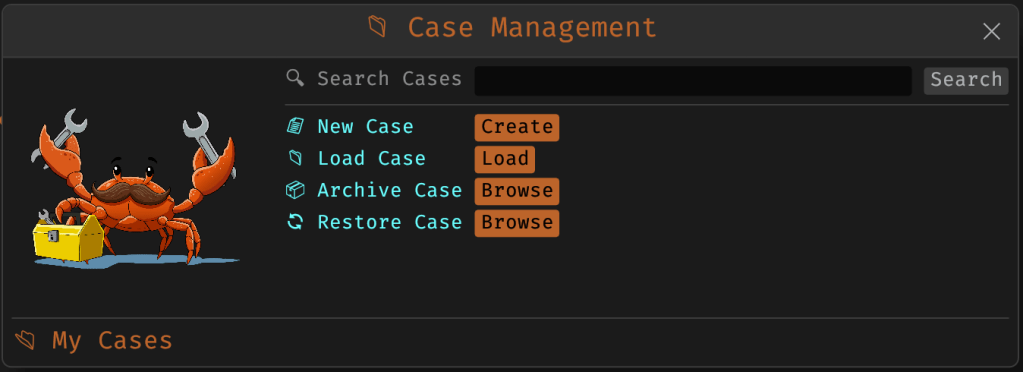
Cases: A Lightweight Way to Stay Organized
Until now, MalChela has operated in an ephemeral mode. You selected a tool, pointed it at a file or folder, and reviewed the output. Any saved results would be grouped by tool, but without much context.
Cases change that. In v3.0, you can start a new case from a file or folder — and everything from that point forward is grouped under that case. Tool outputs are saved to a dedicated case folder, file hashes are tracked, and metadata is preserved for review or reanalysis.
Case Management
You don’t need to create a case for every run — MalChela still supports standalone tool execution. But when you’re working with a malware sample set, an incident directory, or a disk image extract, cases give you the ability to:
Save tool results in a consistent location
Track analysis history per file
Reopen previous sessions with full context
Add notes, tags, and categorization (e.g., “suspicious”, “clean”, “needs review”)
Hello FileMiner: Goodbye MismatchMiner
The MismatchMiner tool was originally designed to surface anomalies between file names and actual content — a common trick in malicious attachments or script dropper chains. It worked well, but its scope was narrow.
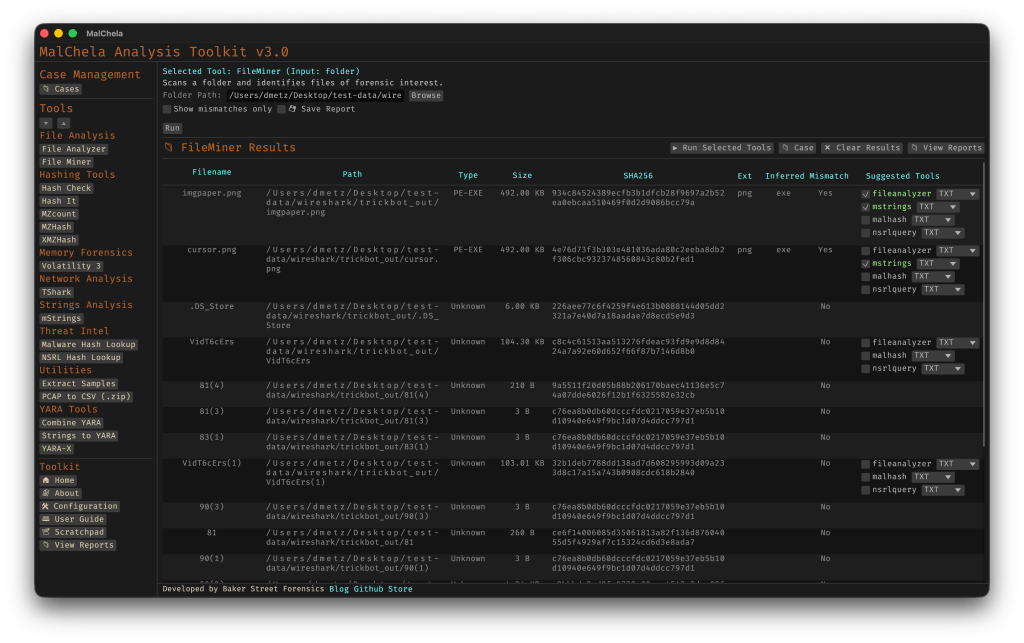
FileMiner replaces it, expanding the logic to support full file-type classification and metadata inspection across an entire folder. It still flags mismatches, but now it also:
Detects embedded file types using magic bytes
Groups files by class (e.g., images, documents, executables, archives)
Calculates hashes for correlation and NSRL comparison
Extracts size, extension, and other key metadata
Saves both a human-readable .txt summary and a structured .json report
The output is designed to be used both manually and programmatically — which brings us to one of v3.0’s most important additions: tool suggestions.
The new FileMiner app
Suggested Tools and Batch Execution
Once FileMiner runs, it doesn’t just stop at reporting. Based on each file’s type and characteristics, it can now suggest one or more appropriate tools from the MalChela suite. These suggestions are surfaced right in the GUI — or in the CLI if you’re running FileMiner interactively. From there, you can choose to launch the recommended tool(s) on a per-file basis or queue up several for batch execution.
This makes it much faster to pivot from triage to deeper inspection. No more switching tools manually or copying paths. You stay within the flow — and more importantly, you reduce the risk of skipping important analysis steps.
CLI and GUI Improvements Aligned
These features are available in both the CLI and GUI editions of MalChela. In the CLI, FileMiner presents an interactive table of results. You can pick a file, see its suggested tools, and choose which one to run. When you’re done, you can return to the table and continue with the next file.
The GUI extends this even further, allowing you to:
View and scroll through full case history
Run tools with live output streaming
Reopen previous FileMiner runs from saved reports
Run all suggested tools on all files with one click (if desired)
These features let you treat MalChela more like a toolbox with memory, not just a launcher.
CLI Enhancements:
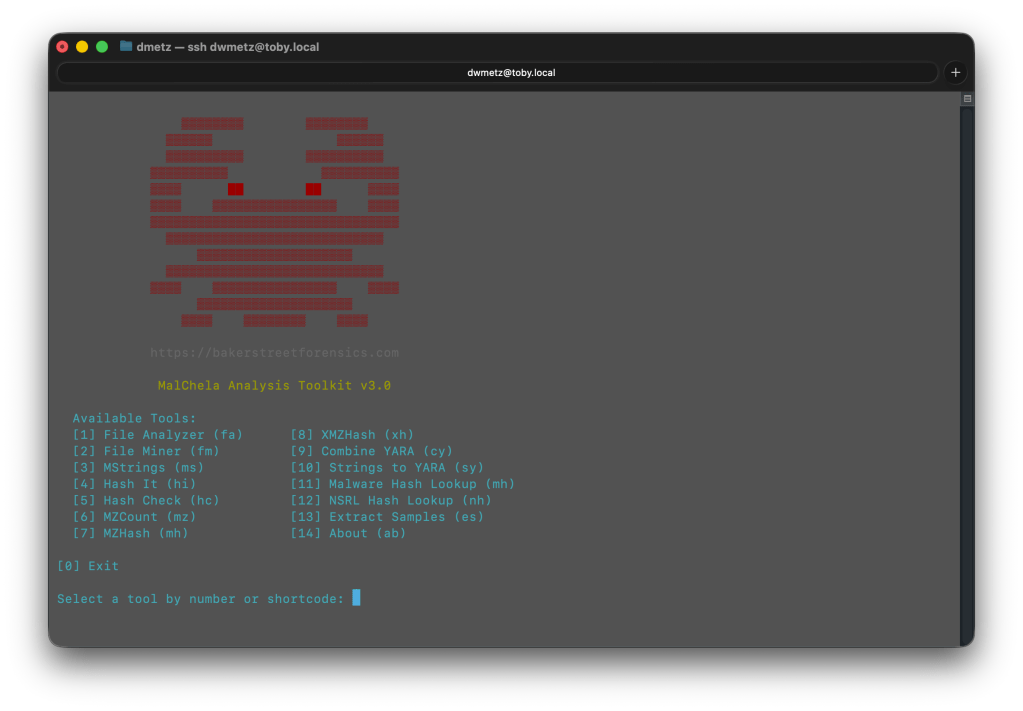
The command-line interface has also received a quiet but meaningful upgrade. Tool menus are now organized with clear numeric indexes and shortcodes, making it faster to navigate and launch tools without needing to retype full names. This small change goes a long way during repetitive tasks or when working in a time-constrained triage setting.
FileMiner supports an interactive loop: after running a tool on a selected file, you’re returned to the main results table — no need to restart the scan or re-navigate the menu. This allows you to run additional tools on different files within the same dataset, making FileMiner feel more like a lightweight control center for follow-up actions. It’s a subtle shift, but one that significantly reduces friction in batch-style or exploratory workflows.
Closing Thoughts
MalChela 3.0 reflects a steady evolution — not a revolution. It’s built on real-world feedback and a desire to make forensic and malware analysis a little less scattered. Whether you’re a one-person IR team or just trying to stay organized during a reverse engineering exercise, the new case features and smarter triage capabilities should save you time.
If you’ve been using MalChela already, I think this update will feel like a natural (and welcome) extension. And if you haven’t tried it yet, there’s never been a better time to start.






 Baker Street Forensics