MalChela – A YARA and Malware Analysis Toolkit written in Rust

Saturday was for Python. Sunday was for Rust.

After my success with the Python + YARA + Hashing, I decided to take things to the next level. Over the past few years I’ve created a number of Python and PowerShell scripts related to YARA and Malware Analysis. What if I combined them into a single utility? While we’re at it, let’s rewrite them all from scratch in Rust. Boy, do I know how to let loose on the weekends.

MalChela

MalChela combines (currently 10) programs in one Rust workspace, that can be invoked using a launcher.

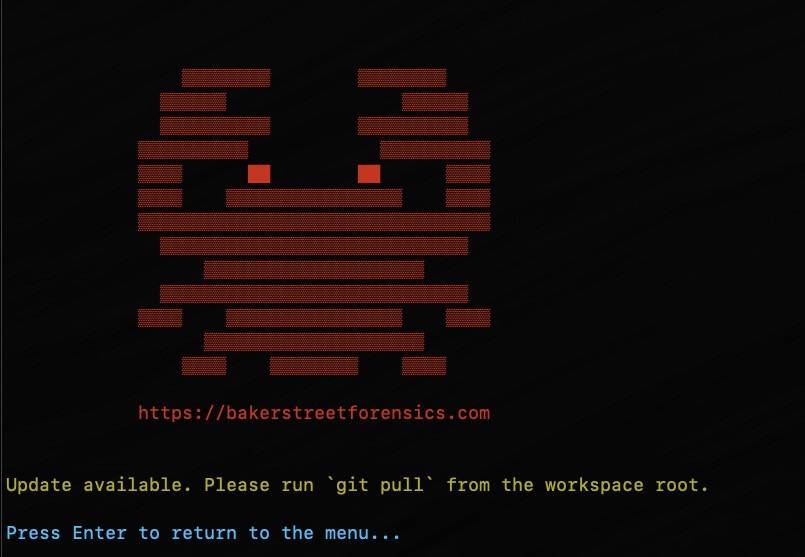
MalChela screenshot

Features:

Combine YARAPoint it at a directory of YARA files and it will output one combined rule
Extract SamplesPoint it at a directory of password protected malware files to extract all
Hash ItPoint it to a file and get the MD5, SHA1 and SHA256 hash
MZMD5Recurse a directory, for files with MZ header, create hash list
MZcountRecurse a directory, uses YARA to count MZ, Zip, PDF, other 
NSRL MD5 LookupQuery a MD5 hash against NSRL
NSRL SHA1 LookupQuery a SHA1hash against NSRL 
Strings to YARAPrompts for metadata and strings (text file) to create a YARA rule
Malware Hash LookupQuery a hash value against VirusTotal & Malware Bazaar*
XMZMD5Recurse a directory, for files without MZ, Zip or PDF header, create hash list

*The Malware Hash Lookup requires an api key for Virus Total and Malware Bazaar.  If unidentified , MalChela will prompt you to create them the first time you run the malware lookup function.

What’s with the Name?

mal — malware

chela — “crab hand”

A chela on a crab is the scientific term for a claw or pincer. It’s a specialized appendage, typically found on the first pair of legs, used for grasping, defense, and manipulating things;  just like these programs.

Sounds Awesome – How do I install it?

Install Rust – https://rustup.rs/

then

git clone https://github.com/dwmetz/MalChela.git
cd MalChela
cargo build

Run

cargo run -p malchela

Feedback

I’d love to get your feedback on this. Please download it and give it a try. I’m open to suggestions for adding additional capabilities.

https://github.com/dwmetz/MalChela

Installing the latest SIFT Workstation in WSL

If you’re like me and have your favorite forensic tools for Linux, and your favorite tools for Windows, you can run them both on the same machine without having to diminish resources with the use of a virtual machine. You can do this by installing SIFT (SANS Investigative Forensic Toolkit) within WSL (Windows Subsystem for Linux).

Note: this article assumes that WSL is already installed. If not, GTS.

Start off by grabbing Ubuntu 22.04 from the Windows store, or if you prefer the command line. 

wsl --install -d Ubuntu-22.04

New UNIX username: sansforensics

Password: ***************

Retype new password: ***************

Download cast from GitHub. 

wget https://github.com/ekristen/cast/releases/download/v0.14.30/cast-v0.14.30-linux-amd64.deb

Install cast from the download with the command

sudo dpkg -i cast-v0.14.30-linux-amd64.deb

Finally, install the server mode version of SIFT.  Server mode only installs the SIFT command line applications, which is most appropriate for running under WSL.

sudo cast install --mode=server teamdfir/sift-saltstack

If all goes right you’ll see a wall of text that concludes (after a few minutes) with ‘salt-call completed successfully.’

My go-to test for SIFT installations has always been to run Volatility (-h for help).

vol.py -h

If you’re seeing output, the mission was a success.

Besides saving the resources needed for a full VM, you also don’t have to worry about duplicating copies of evidence items as both Windows and Ubuntu are running on the same machine.

Now get yourself familiar with the Linux tools of the SIFT Workstation and enjoy running them in parallel with your favorite Windows forensic applications.

SIFT Cheat Sheet: https://pentest.sans.org/security-resources/posters/sift-cheat-sheet/355/download

CyberPipe version 5.0

The latest update to CyberPipe (the code formerly known as CSIRT-Collect), has been revised to leverage the free triage collection tool, MAGNET Response. As with previous versions it also runs Encrypted Disk Detector, another free tool from MAGNET.

Script Functions:

  • Capture a memory image with MAGNET DumpIt for Windows, (x32, x64, ARM64), or MAGNET RAM Capture on legacy systems,
  • Create a Triage collection* with MAGNET Response,
  • Check for encrypted disks with Encrypted Disk Detector,
  • Recover the active BitLocker Recovery key,
  • Save all artifacts, output and audit logs to USB or source network drive.

* There are collection profiles available for:

  • Volatile Artifacts
  • Triage Collection (Volatile, RAM, Pagefile, Triage artifacts)
  • Just RAM
  • RAM & Pagefile
  • or build your own using the RESPONSE CLI options

Prerequisites:

The setup is simple. Save the CyberPipe script to a USB drive. Next to the script is a Tools folder with the executables for MAGNET Response & EDD. Before running, customize the script to select a collection profile. Run the script from the USB drive and collect away. Move on to the next PC and run it again.

Network Usage:

CyberPipe 5 also has the capability to write captures to a network repository. Just un-comment the # Network section and update the \\server\share line to reflect your environment.

In this configuration it can be included as part of automation functions like a collection being triggered from an event logged on the EDR.

Prior Version (KAPE Support):

If you’re a prior user of CyberPipe and want to use the previous method where KAPE facilitates the collection with the MAGNET tools, or have made other KAPE modifications, use v4.01.

Download:

Download the latest release of CyberPIpe on GitHub.

https://github.com/dwmetz/CyberPipe

Ginsu: A tool for repackaging large collections to traverse Windows Defender Live Response

Screenshot of Ginsu.ps1

Enterprise customers running Windows Defender for Endpoint have a lot of capability at their fingertips. This includes the Live Response console, a limited command shell to interact with any managed Defender assets that are online. Besides its native commands you can also use the console to push scripts and executables to endpoints.

Note: there is a specific security setting in the Defender console if you want to allow unsigned scripts.

Microsoft has its own triage package capability, but you can also push your own tools like Magnet RESPONSE or KAPE. With a little bit of PowerShell mojo you can use your favorite collection utilities using the Defender Live Response console as your entry point into the remote asset.

The console enables you to pull back files from the remote endpoint, even when it’s been quarantined. One limitation of this console function is that you’re limited to retrieving files of 3GB or less.

For many triage collections this could be under the limit, but depending on the artifacts you’re collecting you might exceed that. So what do you do when you have an isolated endpoint but you need to pull back files over 3GB? That’s where Ginsu comes in.

Ginsu is a PowerShell script that you can upload to your Defender console along with the command line version of 7zip. You configure the script with the directory with the contents you want to transfer. The script acts as a wrapper for 7zip and will create a multipart archive, splitting the files into 3GB segments.

Once you pull the archives back to your workstation, you can use 7zip to extract the files back into their original properties.

In testing, the file transfer capabilities were a bit buggy, whether it was transferring 3GB Ginsu files or other smaller files from the asset. I’m hoping this improves as the Defender console matures. If you’re able to text Ginsu in your environment, I’d love to hear how it performs.

You can download Ginsu from my GitHub repo at https://github.com/dwmetz/Ginsu