Sometimes the best breakthroughs are the ones you don’t plan for. After a routine Windows update this week, I launched MalChelaGUI from the Ubuntu terminal on an Ubuntu WSL2 instance — and it simply opened. No X-server, no environment tweaks, no extra packages.
🎉 😱 A Rust native GUI app on Windows, via Ubuntu WSL terminal!
The latest WSL 2.5 + WSLg 1.0.66 update from Microsoft quietly unlocked full Wayland and GPU acceleration for Linux GUI apps on Windows 11 24H2. (Note the latest WSL at the time of this post is 2.61)
The result? MalChelaGUI now runs as a true desktop app on Windows, powered entirely by Ubuntu WSL.
Why This Matters
🧰 No configuration needed — just follow the default instructions at GItHub, and build MalChela as usual. (WSL, Ubuntu 24.04 or later)
🪟 Native windowing — Clipboard, display scaling, and GPU acceleration all handled automatically.
🦀 Cross-platform parity — macOS, Linux, and now Windows (via WSL) all run the same GUI experience.
It’s a small but meaningful proof of concept: cross-platform DFIR tooling can now live comfortably in every environment analysts work in — even Windows, without compromise.
Call for Testers
If you’re running Windows 11 24H2 or newer, update WSL and give it a try:
```powershell
wsl --update
Then from Ubuntu WSL
./target/release/MalChelaGUI
If it launches successfully, drop me a note or tag me — I’d love to hear how it behaves across different hardware and GPU setups.
In digital forensics and incident response, reliable storage isn’t a luxury — it’s a requirement. Whether you’re capturing evidence from a live system, processing large data sets with specialized tools, or running a virtual machine in the middle of a case, storage throughput can make or break your workflow.
The challenge? Reported specifications from manufacturers often don’t tell the full story. A drive rated for up to 400 MB/s might only deliver a fraction of that in real-world use. And performance isn’t determined by the drive alone: the quality of your USB cable, the number of hops between your system and the media (direct vs. through a hub), and the system’s own caching behaviors all play a part.
To eliminate the guesswork, I built Crabwise, a simple USB benchmarking utility designed with forensic workflows in mind.
How Crabwise Works
Crabwise calculates read and write speeds by creating a temporary file on the target device and measuring throughput under direct (uncached) conditions.
Write Test: The tool writes a pseudo-random 1 GiB file (size adjustable) to the USB drive in blocks, ensuring that system caching doesn’t skew results.
Read Test: It then reads the file back from the device, again bypassing caches, so the reported numbers reflect device-level throughput rather than RAM speeds.
Progress Feedback: While testing, Crabwise shows real-time percentages and MB/s estimates, so you can spot performance bottlenecks as they happen.
The result is a clean, standardized benchmark of the USB device’s true performance.
Building a Reference Table
One of the most useful features in Crabwise comes after the test: you’re prompted to save the results to the root of the device. If you choose to do so, Crabwise appends the results to a simple log file called crabwise.log.
Each entry includes:
Session name (you provide this — e.g., “coil cable via hub” or “direct to Mac”),
Read speed,
Write speed,
Timestamp of the test.
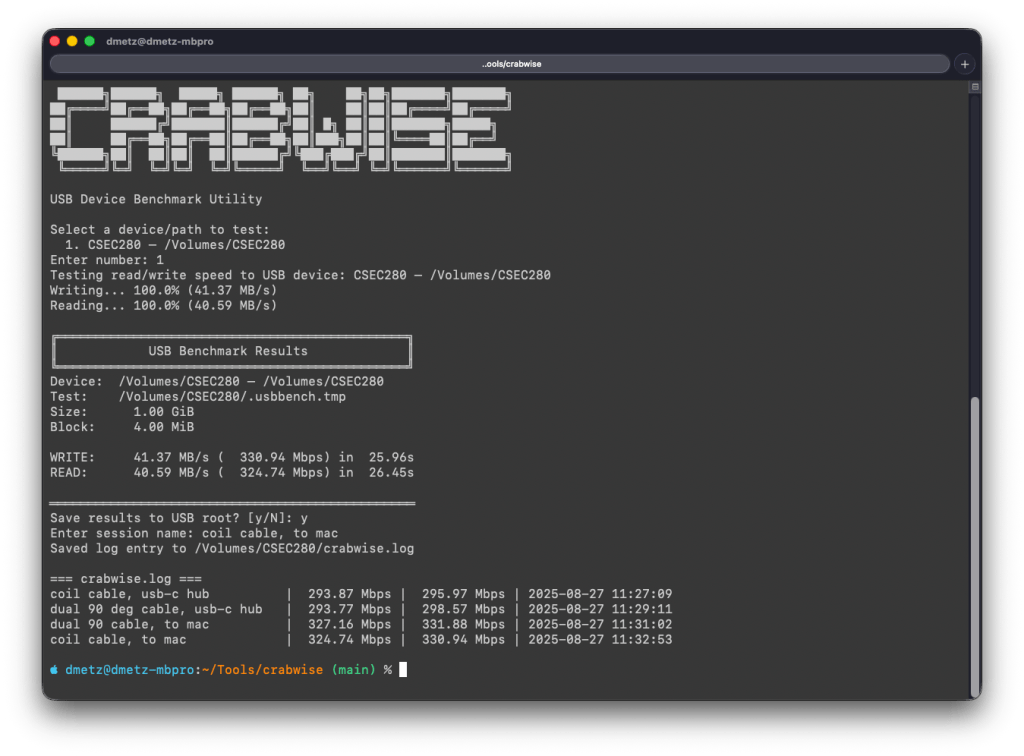
When you cat the file, you get an instant side-by-side comparison of your runs:
Over time, this builds into a practical reference table that lets you quickly compare how different cables, hubs, and ports affect performance. What looks like a subtle cabling change can sometimes mean the difference between a VM booting smoothly or crawling.
Closing Thoughts
In forensic and investigative work, you don’t always get to choose the hardware you’re handed — but you can make informed decisions about how you connect and use it. Tools like Crabwise give you a way to validate your environment, document your results, and avoid unpleasant surprises when timing matters most.
Whether you’re testing cables, validating a new hub, or verifying a forensic workstation setup, Crabwise turns USB benchmarking into a repeatable, documented process.
With the release of MalChela v3.0, I’m introducing features that shift the focus from tool-by-tool execution to a more structured investigative workflow. While the core philosophy of lightweight, file-first analysis remains unchanged, this version introduces smarter ways to manage investigations, track findings, and automate common analysis patterns, all with minimal fuss.
In this post, I’ll walk through the new Case Management system, the replacement of MismatchMiner with FileMiner, and the ability to identify and launch suggested tools — even in batch — based on file characteristics. These changes aim to reduce friction in multi-tool workflows and help analysts move faster without losing visibility or control.
Cases: A Lightweight Way to Stay Organized
Until now, MalChela has operated in an ephemeral mode. You selected a tool, pointed it at a file or folder, and reviewed the output. Any saved results would be grouped by tool, but without much context.
Cases change that. In v3.0, you can start a new case from a file or folder — and everything from that point forward is grouped under that case. Tool outputs are saved to a dedicated case folder, file hashes are tracked, and metadata is preserved for review or reanalysis.
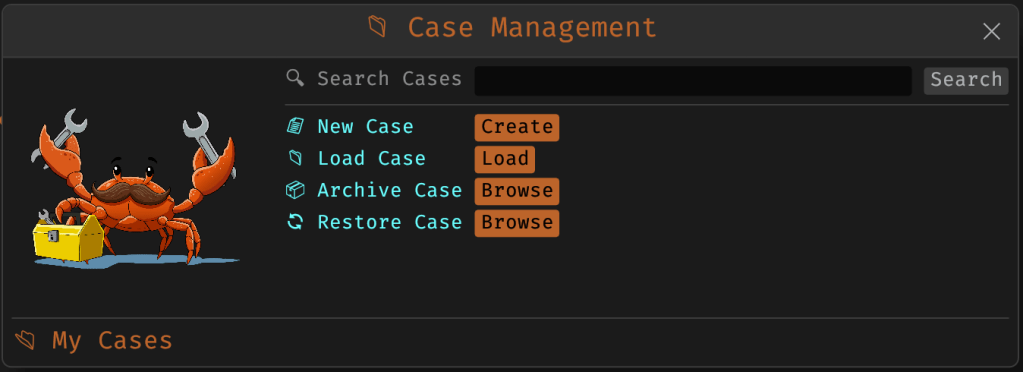
Case Management
You don’t need to create a case for every run — MalChela still supports standalone tool execution. But when you’re working with a malware sample set, an incident directory, or a disk image extract, cases give you the ability to:
Save tool results in a consistent location
Track analysis history per file
Reopen previous sessions with full context
Add notes, tags, and categorization (e.g., “suspicious”, “clean”, “needs review”)
Hello FileMiner: Goodbye MismatchMiner
The MismatchMiner tool was originally designed to surface anomalies between file names and actual content — a common trick in malicious attachments or script dropper chains. It worked well, but its scope was narrow.
FileMiner replaces it, expanding the logic to support full file-type classification and metadata inspection across an entire folder. It still flags mismatches, but now it also:
Detects embedded file types using magic bytes
Groups files by class (e.g., images, documents, executables, archives)
Calculates hashes for correlation and NSRL comparison
Extracts size, extension, and other key metadata
Saves both a human-readable .txt summary and a structured .json report
The output is designed to be used both manually and programmatically — which brings us to one of v3.0’s most important additions: tool suggestions.
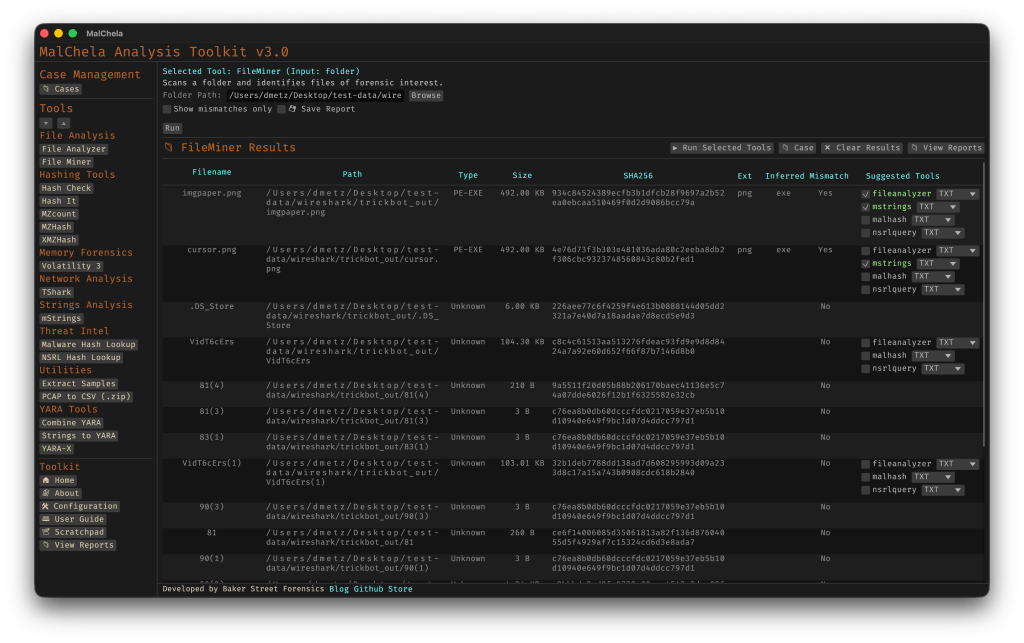
The new FileMiner app
Suggested Tools and Batch Execution
Once FileMiner runs, it doesn’t just stop at reporting. Based on each file’s type and characteristics, it can now suggest one or more appropriate tools from the MalChela suite. These suggestions are surfaced right in the GUI — or in the CLI if you’re running FileMiner interactively. From there, you can choose to launch the recommended tool(s) on a per-file basis or queue up several for batch execution.
This makes it much faster to pivot from triage to deeper inspection. No more switching tools manually or copying paths. You stay within the flow — and more importantly, you reduce the risk of skipping important analysis steps.
CLI and GUI Improvements Aligned
These features are available in both the CLI and GUI editions of MalChela. In the CLI, FileMiner presents an interactive table of results. You can pick a file, see its suggested tools, and choose which one to run. When you’re done, you can return to the table and continue with the next file.
The GUI extends this even further, allowing you to:
View and scroll through full case history
Run tools with live output streaming
Reopen previous FileMiner runs from saved reports
Run all suggested tools on all files with one click (if desired)
These features let you treat MalChela more like a toolbox with memory, not just a launcher.
CLI Enhancements:
The command-line interface has also received a quiet but meaningful upgrade. Tool menus are now organized with clear numeric indexes and shortcodes, making it faster to navigate and launch tools without needing to retype full names. This small change goes a long way during repetitive tasks or when working in a time-constrained triage setting.
FileMiner supports an interactive loop: after running a tool on a selected file, you’re returned to the main results table — no need to restart the scan or re-navigate the menu. This allows you to run additional tools on different files within the same dataset, making FileMiner feel more like a lightweight control center for follow-up actions. It’s a subtle shift, but one that significantly reduces friction in batch-style or exploratory workflows.
Closing Thoughts
MalChela 3.0 reflects a steady evolution — not a revolution. It’s built on real-world feedback and a desire to make forensic and malware analysis a little less scattered. Whether you’re a one-person IR team or just trying to stay organized during a reverse engineering exercise, the new case features and smarter triage capabilities should save you time.
If you’ve been using MalChela already, I think this update will feel like a natural (and welcome) extension. And if you haven’t tried it yet, there’s never been a better time to start.
A short while back, I released a pair of tools for building MD5 hash sets — one targeting known-good gold builds, the other designed for scanning malware corpora. The goal was simple: generate hash sets that could be used in forensics tools like Axiom Cyber to flag IOC matches during case processing.
Recently, I hit a familiar problem: I had a hash and wanted to know if that file existed in my malware library. Step one was updating my tooling to support SHA256 — the modern standard for hash sharing — and regenerating the hash sets. That part worked. I could search for a hash and confirm whether it appeared in my set.
But what if I got a match?
At that point, I realized: I had no way to correlate the match back to the original file. With ~30,000 samples in the library, “just eyeballing it” wasn’t an option.
As I’ve been coding up new tools — or revisiting earlier ones — I’ve discovered that rabbit holes have rabbit holes.
So I updated the SHA256 tool to not only generate a hash set, but also produce a .tsv lookup table mapping each hash to its full file path. This made the sets usable both in forensics platforms and for custom lookups in more ad hoc workflows. As they say: necessity is the mother of intention.
Of course, that led to another realization. I now had four hashing tools — two for MD5 (MZ and non-MZ), and two for SHA256. The “Hashing Tools” section in MalChela was getting a bit crowded.
Back to the drawing board.
The Result: Three Unified Tools
I consolidated and upgraded everything into three tools — all of which support both CLI and GUI usage.
#️⃣ MZHash (replaces mzmd5)
• Uses YARA to recursively scan for files with an MZ header (i.e., Windows executables and DLLs)
• Generates one hash file per selected algorithm: MD5, SHA1, SHA256
• Also creates a .tsv lookup file for each, mapping hashes to paths
cargo run -p mzhash /directory/to/scan -- -a MD5 -a SHA1 -a SHA256
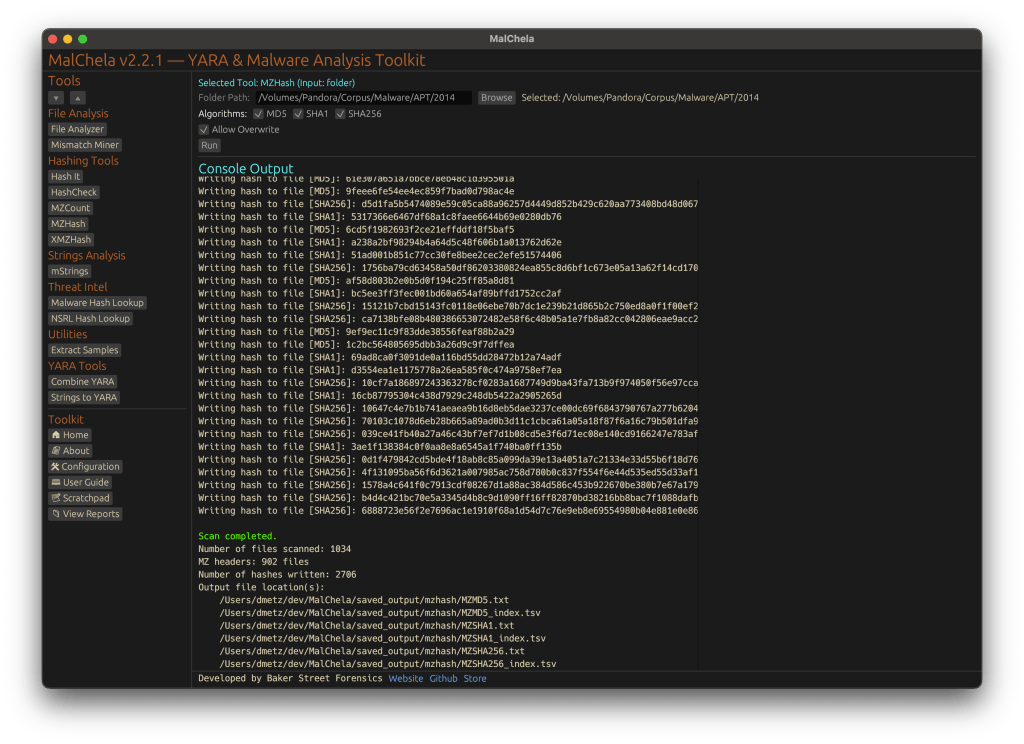
Via GUI, you can browse to the folder and check boxes for each algorithm.
🌐 XMZHash (replaces xmzmd5)
• Uses YARA to skip over files with MZ, ZIP, or PDF headers
• Hashes everything else — ideal for surfacing Linux, Mac, or unusual samples from a mixed malware corpus
• Also supports .tsv lookup file generation
cargo run -p xmzhash /directory/to/scan -- -a MD5 -a SHA1 -a SHA256
The idea: hash what’s not obviously Windows, document-related, or un-extracted samples.
XMZHash
🔍 HashCheck
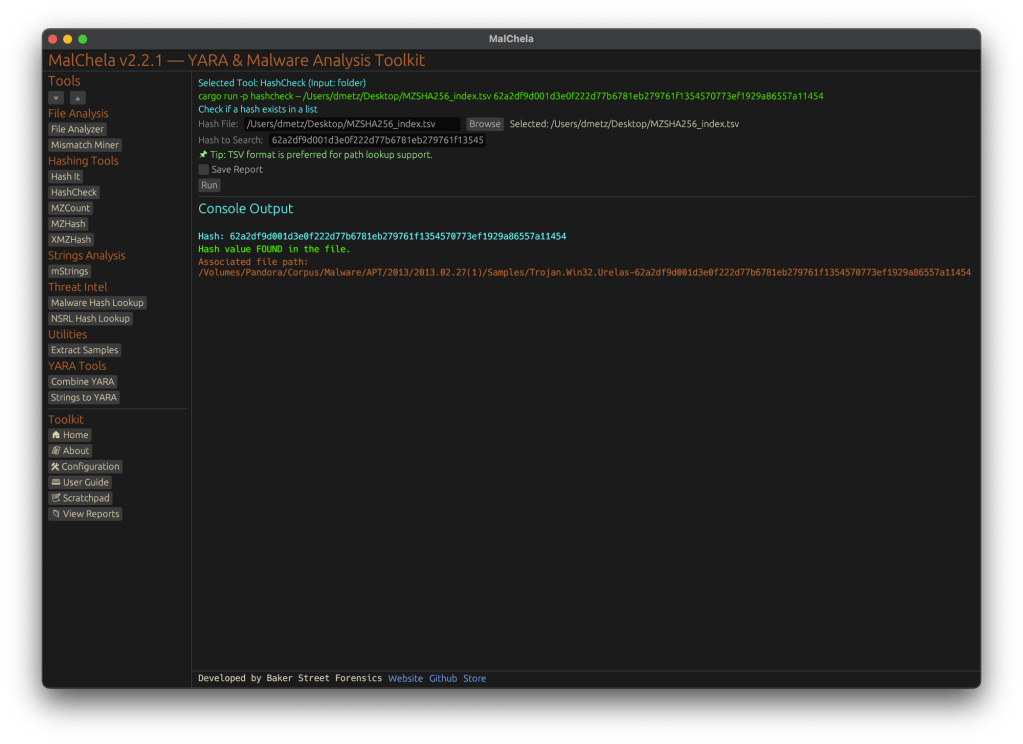
Okay, so naming might not be my strong suit. But this tool’s direct.
• Provide a hash value and a .txt or .tsv hash set
• It checks for matches, and if you’re using a .tsv, it shows the file path of the match
• Great for live triage, corpus hunting, or checking known-bads
cargo run -p hashcheck ./hashes.tsv 44d88612fea8a8f36de82e1278abb02f
Hash Check
In Summary
MalChela 2.2.1 expands its hashing toolkit with the introduction of HashCheck, MZHash, and XMZHash — giving analysts faster ways to flag known-good, isolate unknowns, and build actionable sets. In this release, we’ve also said goodbye to legacy tools, standardized output saving, and doubled down on clarity across both CLI and GUI workflows.