After my success with the Python + YARA + Hashing, I decided to take things to the next level. Over the past few years I’ve created a number of Python and PowerShell scripts related to YARA and Malware Analysis. What if I combined them into a single utility? While we’re at it, let’s rewrite them all from scratch in Rust. Boy, do I know how to let loose on the weekends.
MalChela
MalChela combines (currently 10) programs in one Rust workspace, that can be invoked using a launcher.
MalChela screenshot
Features:
Combine YARA
Point it at a directory of YARA files and it will output one combined rule
Extract Samples
Point it at a directory of password protected malware files to extract all
Hash It
Point it to a file and get the MD5, SHA1 and SHA256 hash
MZMD5
Recurse a directory, for files with MZ header, create hash list
MZcount
Recurse a directory, uses YARA to count MZ, Zip, PDF, other
NSRL MD5 Lookup
Query a MD5 hash against NSRL
NSRL SHA1 Lookup
Query a SHA1hash against NSRL
Strings to YARA
Prompts for metadata and strings (text file) to create a YARA rule
Malware Hash Lookup
Query a hash value against VirusTotal & Malware Bazaar*
XMZMD5
Recurse a directory, for files without MZ, Zip or PDF header, create hash list
*The Malware Hash Lookup requires an api key for Virus Total and Malware Bazaar. If unidentified , MalChela will prompt you to create them the first time you run the malware lookup function.
What’s with the Name?
mal — malware
chela — “crab hand”
A chela on a crab is the scientific term for a claw or pincer. It’s a specialized appendage, typically found on the first pair of legs, used for grasping, defense, and manipulating things; just like these programs.
I don’t like to brag, he said, but you should see the size of my malware library.
For a recent project, I wanted to produce a hash set for all the malware files in my repository. Included in the library are malware samples for Windows and other platforms. Within the library there are also a lot of pdf’s with write ups corresponding to different samples. Lastly there are zip files that the malware samples haven’t been extracted from yet.
I didn’t want hashes for any of the pdf documents or zip files. I wanted one hash set for the malware specific to Windows, and a second set for all the other samples.
Using YARA and Python, and some (a lot of) AI coaching, I wound up with three scripts. Two of them are used to create the hash sets, and a third that does counting and indexing on the source directory for different file headers.
Windows Malware Hashing
The majority of Windows malware has an MZ header. The first Python script uses YARA to recursively search a directory. For any files with an MZ header, it will write the MD5 hash to a file.
launching MZMD5.py with PythonCompletion of the MZMD5.py script showing 22789 hashes generated for MZ files.
MZMD5.py
import os
import yara
import hashlib
import sys

def compile_yara_rules():
    """
    Compile YARA rules for detecting MZ headers.

    Returns:
        yara.Rules: Compiled YARA rules.
    """
    rules = """
rule mz_header {
    meta:
        description = "Matches files with MZ header (Windows Executables)"
    strings:
        $mz = {4D 5A}  // MZ header in hex
    condition:
        $mz at 0  // Match if MZ header is at the start of the file
}
"""
    return yara.compile(source=rules)

def calculate_md5(file_path):
    """
    Calculate the MD5 hash of a file.

    Args:
        file_path (str): Path to the file.

    Returns:
        str: MD5 hash in hexadecimal format.
    """
    md5_hash = hashlib.md5()
    try:
        with open(file_path, "rb") as f:
            for byte_block in iter(lambda: f.read(4096), b""):
                md5_hash.update(byte_block)
        return md5_hash.hexdigest()
    except Exception as e:
        return None

def scan_and_hash_files(directory, rules, output_file):
    """
    Scan files in a directory using YARA rules, calculate MD5 hashes for matches,
    and write results to an output file.

    Args:
        directory (str): Path to the directory to scan.
        rules (yara.Rules): Compiled YARA rules.
        output_file (str): Path to the output file where results will be saved.

    Returns:
        int: Total number of hashes written to the output file.
    """
    hash_count = 0
    with open(output_file, "w") as out_file:
        # Walk through the directory and its subdirectories
        for root, _, files in os.walk(directory):
            for file in files:
                file_path = os.path.join(root, file)

                try:
                    # Match YARA rules against the file
                    matches = rules.match(file_path)
                    if any(match.rule == "mz_header" for match in matches):
                        # Calculate MD5 hash if the file matches the MZ header rule
                        md5_hash = calculate_md5(file_path)
                        if md5_hash:
                            out_file.write(f"{md5_hash}\n")
                            # Print hash value and flush output immediately
                            print(md5_hash, flush=True)
                            hash_count += 1
                except Exception as e:
                    pass  # Suppress error messages

    return hash_count

if __name__ == "__main__":
    # Prompt user for directory to scan
    directory_to_scan = input("Enter the directory you want to scan: ").strip()

    # Verify that the directory exists
    if not os.path.isdir(directory_to_scan):
        print("Error: The specified directory does not exist.")
        exit(1)

    # Set output file path to MZMD5.txt in the current working directory
    output_file_path = "MZMD5.txt"

    # Check if the output file already exists
    if os.path.exists(output_file_path):
        overwrite = input(f"The file '{output_file_path}' already exists. Overwrite? (y/n): ").strip().lower()
        if overwrite != 'y':
            print("Operation canceled.")
            exit(0)

    # Compile YARA rules
    yara_rules = compile_yara_rules()

    # Scan directory, calculate MD5 hashes, and write results to an output file
    total_hashes = scan_and_hash_files(directory_to_scan, yara_rules, output_file_path)

    # Report total number of hashes written and location of the output file
    print(f"\nScan completed.")
    print(f"Total number of hashes written: {total_hashes}")
    print(f"Output file location: {os.path.abspath(output_file_path)}")
Non-Windows Malware Hashing
The second script is a little more complicated. Again we will use YARA to determine the filetype, however in this case we want to exclude anything with an MZ header, as well as exclude any zip files or pdfs. Based on the contents of the library, this should produce a hash set for all the other binaries in the library that aren’t targeted to Windows.
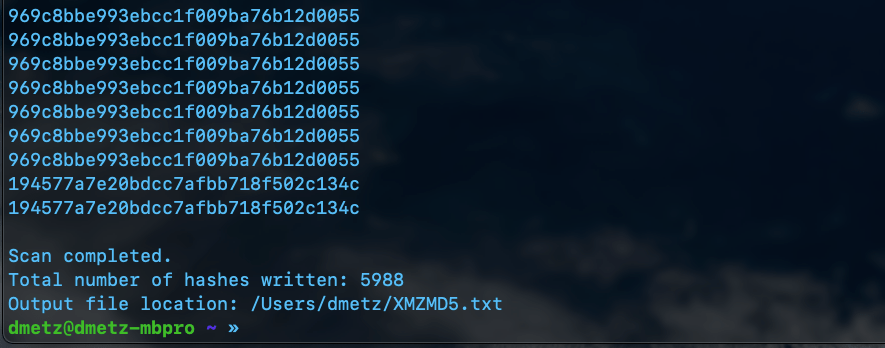
Launching XMZMD5.py in PythonResults of XMZMD5.py showing 5988 hashes calculated.
XMZMD5.py
import os
import yara
import hashlib

def compile_yara_rules():
    """
    Compile YARA rules for MZ, PDF, and ZIP headers.

    Returns:
        yara.Rules: Compiled YARA rules.
    """
    rules = """
rule mz_header {
    meta:
        description = "Matches files with MZ header (Windows Executables)"
    strings:
        $mz = {4D 5A}  // MZ header in hex
    condition:
        $mz at 0  // Match if MZ header is at the start of the file
}

rule pdf_header {
    meta:
        description = "Matches files with PDF header"
    strings:
        $pdf = {25 50 44 46}  // PDF header in hex (%PDF)
    condition:
        $pdf at 0  // Match if PDF header is at the start of the file
}

rule zip_header {
    meta:
        description = "Matches files with ZIP header"
    strings:
        $zip = {50 4B 03 04}  // ZIP header in hex
    condition:
        $zip at 0  // Match if ZIP header is at the start of the file
}
"""
    return yara.compile(source=rules)

def calculate_md5(file_path):
    """
    Calculate the MD5 hash of a file.

    Args:
        file_path (str): Path to the file.

    Returns:
        str: MD5 hash of the file, or None if an error occurs.
    """
    hasher = hashlib.md5()
    try:
        with open(file_path, 'rb') as f:
            for chunk in iter(lambda: f.read(4096), b""):
                hasher.update(chunk)
        return hasher.hexdigest()
    except Exception as e:
        print(f"[ERROR] Unable to calculate MD5 for {file_path}: {e}")
        return None

def scan_directory(directory, rules, output_file):
    """
    Scan a directory for files that do not match YARA rules and calculate their MD5 hashes.

    Args:
        directory (str): Path to the directory to scan.
        rules (yara.Rules): Compiled YARA rules.
        output_file (str): File to save MD5 hashes of unmatched files.
    """
    hash_count = 0  # Counter for total number of hashes written

    try:
        with open(output_file, 'w') as out:
            for root, _, files in os.walk(directory):
                for file in files:
                    file_path = os.path.join(root, file)
                    try:
                        # Check if the file matches any YARA rule
                        matches = rules.match(file_path)
                        if not matches:  # Only process files that do not match any rule
                            md5_hash = calculate_md5(file_path)
                            if md5_hash:
                                print(md5_hash)  # Print hash to console
                                out.write(md5_hash + '\n')  # Write only hash to output file
                                hash_count += 1
                    except yara.Error as ye:
                        print(f"[WARNING] YARA error scanning {file_path}: {ye}")
                    except Exception as e:
                        print(f"[ERROR] Unexpected error scanning {file_path}: {e}")

        # Report total number of hashes written and location of the output file
        print(f"\nScan completed.")
        print(f"Total number of hashes written: {hash_count}")
        print(f"Output file location: {os.path.abspath(output_file)}")

    except Exception as e:
        print(f"[ERROR] Failed to write to output file {output_file}: {e}")

if __name__ == "__main__":
    # Prompt user for directory to scan
    directory_to_scan = input("Enter directory to scan: ").strip()

    # Compile YARA rules
    try:
        yara_rules = compile_yara_rules()
    except Exception as e:
        print(f"[ERROR] Failed to compile YARA rules: {e}")
        exit(1)

    # Output filename for unmatched files' MD5 hashes
    output_filename = "XMZMD5.txt"

    # Check if the output file already exists and prompt user for action
    if os.path.exists(output_filename):
        overwrite_prompt = input(f"[WARNING] The file '{output_filename}' already exists. Do you want to overwrite it? (yes/no): ").strip().lower()

        if overwrite_prompt not in ['yes', 'y']:
            print("[INFO] Operation canceled by user.")
            exit(0)

    # Scan the directory
    if os.path.isdir(directory_to_scan):
        scan_directory(directory_to_scan, yara_rules, output_filename)
    else:
        print(f"[ERROR] The provided path is not a valid directory: {directory_to_scan}")
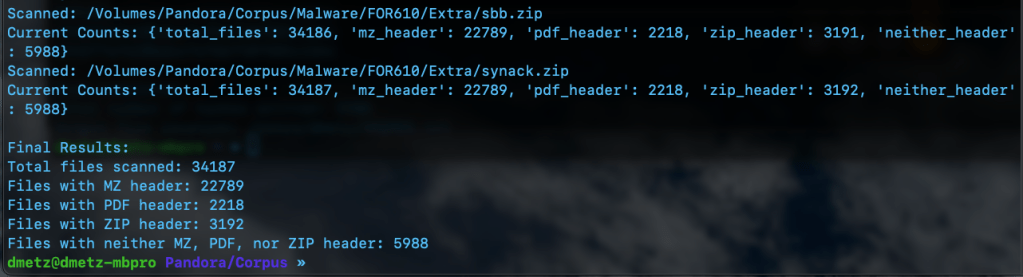
The third script is for counting and validation. I wanted to know the total number of files, and how many had the MZ header, were zip or pdf files, or none of the above. Based on the counts, the hash lists should contain a matching number of entries, the MZ’s for Windows malware samples and the “Neither Header Files” for the remaining binaries. Note: to run this script you will need to have the Python module “tabulate” installed. (pip install tabulate). There are 2 output options available, Detailed and Table View.
MZCount.py Table ViewMZCount.py Detailed View.Completed MZCount in Table View.Completed MZCount in Detailed View.
MZCount.py
import os
import yara
import time


def compile_yara_rules():
    """
    Compile YARA rules for MZ, PDF, and ZIP headers.

    Returns:
        yara.Rules: Compiled YARA rules.
    """
    rules = """
rule mz_header {
    meta:
        description = "Matches files with MZ header (Windows Executables)"
    strings:
        $mz = {4D 5A}  // MZ header in hex
    condition:
        $mz at 0  // Match if MZ header is at the start of the file
}

rule pdf_header {
    meta:
        description = "Matches files with PDF header"
    strings:
        $pdf = {25 50 44 46}  // PDF header in hex (%PDF)
    condition:
        $pdf at 0  // Match if PDF header is at the start of the file
}

rule zip_header {
    meta:
        description = "Matches files with ZIP header"
    strings:
        $zip = {50 4B 03 04}  // ZIP header in hex
    condition:
        $zip at 0  // Match if ZIP header is at the start of the file
}
"""
    try:
        return yara.compile(source=rules)
    except yara.SyntaxError as e:
        print(f"Error compiling YARA rules: {e}")
        raise


def display_table(counts):
    """
    Display the counts in a simple table format.

    Args:
        counts (dict): Dictionary containing counts for each file type.
    """
    # Clear console before displaying new table
    os.system('cls' if os.name == 'nt' else 'clear')  # Clears terminal for Windows ('cls') or Linux/Mac ('clear')

    # Print updated table
    print("\n+----------------------+---------+")
    print("| File Type           | Count   |")
    print("+----------------------+---------+")
    print(f"| Total Files         | {counts['total_files']:<7} |")
    print(f"| MZ Header Files     | {counts['mz_header']:<7} |")
    print(f"| PDF Header Files    | {counts['pdf_header']:<7} |")
    print(f"| ZIP Header Files    | {counts['zip_header']:<7} |")
    print(f"| Neither Header Files| {counts['neither_header']:<7} |")
    print("+----------------------+---------+")


def scan_and_count_files(directory, rules, use_table_display):
    """
    Scan files in a directory using YARA rules and count matches by header type.

    Args:
        directory (str): Path to the directory to scan.
        rules (yara.Rules): Compiled YARA rules.
        use_table_display (bool): Whether to use table display for live updates.

    Returns:
        dict: A dictionary with counts for total files, MZ headers, PDF headers, ZIP headers, and neither headers.
    """
    counts = {
        "total_files": 0,
        "mz_header": 0,
        "pdf_header": 0,
        "zip_header": 0,
        "neither_header": 0
    }

    # Walk through the directory and its subdirectories
    for root, _, files in os.walk(directory):
        for file in files:
            counts["total_files"] += 1
            file_path = os.path.join(root, file)

            try:
                # Open file in binary mode for YARA matching
                with open(file_path, "rb") as f:
                    data = f.read()

                # Match YARA rules against file content
                matches = rules.match(data=data)

                # Process matches
                if matches:
                    matched_rules = {match.rule for match in matches}
                    if "mz_header" in matched_rules:
                        counts["mz_header"] += 1
                    if "pdf_header" in matched_rules:
                        counts["pdf_header"] += 1
                    if "zip_header" in matched_rules:
                        counts["zip_header"] += 1
                else:
                    counts["neither_header"] += 1

            except Exception as e:
                print(f"Error scanning {file_path}: {e}")
                # Decrement total_files if an error occurs
                counts["total_files"] -= 1

            # Display updated output after processing each file
            if use_table_display:
                display_table(counts)
            else:
                print(f"Scanned: {file_path}")
                print(f"Current Counts: {counts}")

            time.sleep(0.1)  # Optional: Add a small delay for smoother updates

    return counts


if __name__ == "__main__":
    # Prompt user for directory to scan
    directory_to_scan = input("Enter directory to scan: ").strip()

    # Check if the directory exists
    if not os.path.isdir(directory_to_scan):
        print(f"Error: The directory '{directory_to_scan}' does not exist. Please enter a valid directory.")
        exit(1)

    # Prompt user for display format preference
    display_choice = input("Choose output format - (1) Detailed, (2) Table Display: ").strip()

    # Determine whether to use table display or original output format
    use_table_display = display_choice == "2"

    # Compile YARA rules
    yara_rules = compile_yara_rules()

    # Scan directory and count matches
    results = scan_and_count_files(directory_to_scan, yara_rules, use_table_display)

    # Final results display after completion
    print("\nFinal Results:")

    if use_table_display:
        display_table(results)

        # Handle case where no results were found
        if results["total_files"] == 0:
            print("No files were scanned. Please check your directory.")

    else:
        print(f"Total files scanned: {results['total_files']}")
        print(f"Files with MZ header: {results['mz_header']}")
        print(f"Files with PDF header: {results['pdf_header']}")
        print(f"Files with ZIP header: {results['zip_header']}")
        print(f"Files with neither MZ, PDF, nor ZIP header: {results['neither_header']}")
Double Checking the Hash Files
Finally we can use RegEx to count the number of MD5 hashes for each file. The RegEx looks for strings of 32 hexadecimal digits. (A-F and 0-9.)
Regex output showing counts for hashes, 22789 and 5988 respectively.
The number of hashes in the MZMD5.txt hash list matches the number of MZ files identified by YARA. Additionally, the number of non-MZ binaries in the hash list, XMZMD5.txt, matches the number of files when we exclude the Windows binaries and the pdf and zip files.
There you have it, the fruits of my labors combining a few of my favorite things (cue John Coltrane), YARA, Malware, Python, and using AI as tool to develop my coding skills. If you’d like to download the scripts for your own usage, they can be found at https://github.com/dwmetz/Toolbox/ (Miscellaneous PowerShell and Python scripts related to YARA and Malware Analysis.)
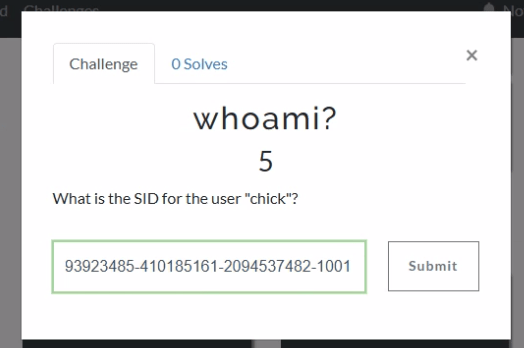
If we jump into Axiom and head to the User Accounts, we can see that the SID for chick is S-1-5-21-493923485-410185161-2094537482-1001.
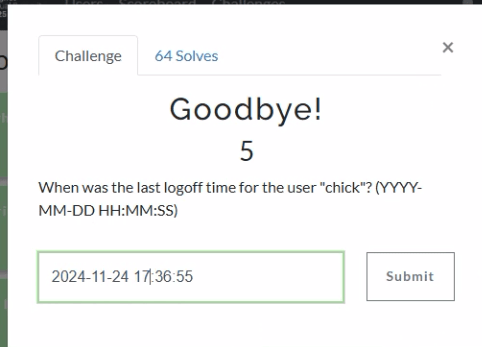
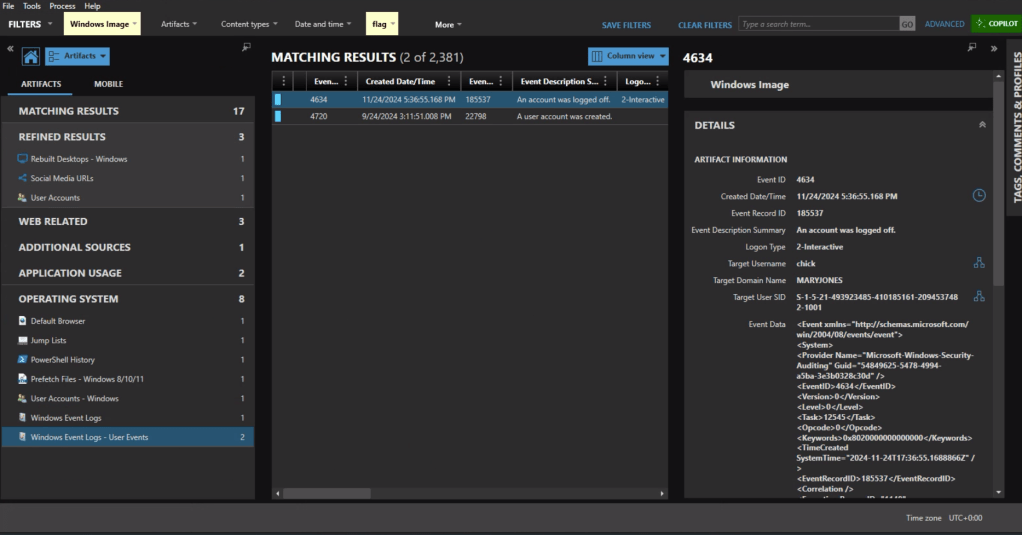
Windows Event Logs will track user login and logoff activity. The primary event IDs for Windows logoff are: 1. Event ID 4647: This is logged when a user manually initiates a logoff process. It is typically associated with interactive and remote-interactive logon types and indicates user-initiated activity. 2. Event ID 4634: This is logged when a logon session is terminated and no longer exists. It can result from system actions (e.g., idle timeout or shutdown) rather than explicit user action. It often follows Event ID 4647 if the logoff was user-initiated.
In Axiom we can find the most recent 4634 event at 11/24/2024 5:36:55 PM, formatted for the challenge as 2024-11-24 17:36:55.
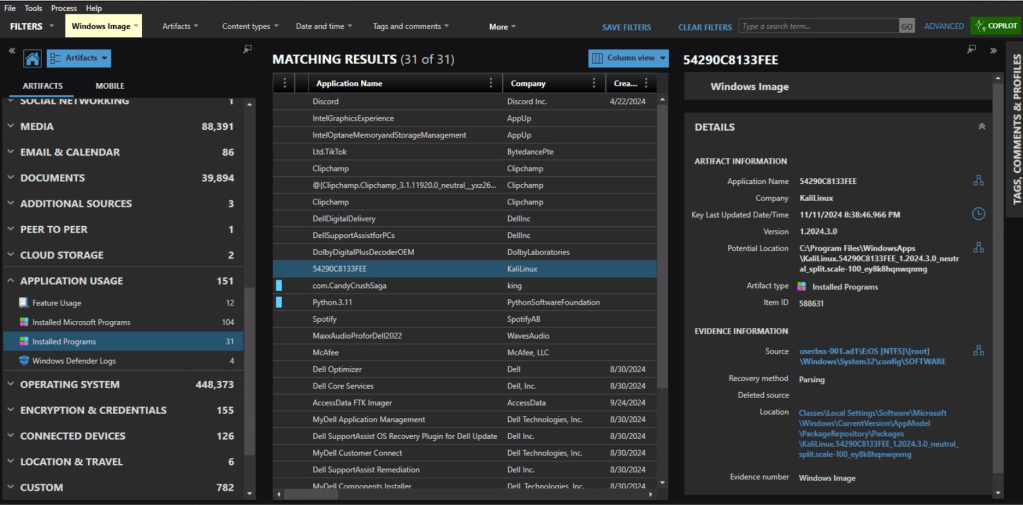
In the Installed Programs under Application Usage we can see that com.CandyCrushSaga was installed. This is the package name for Candy Crush.
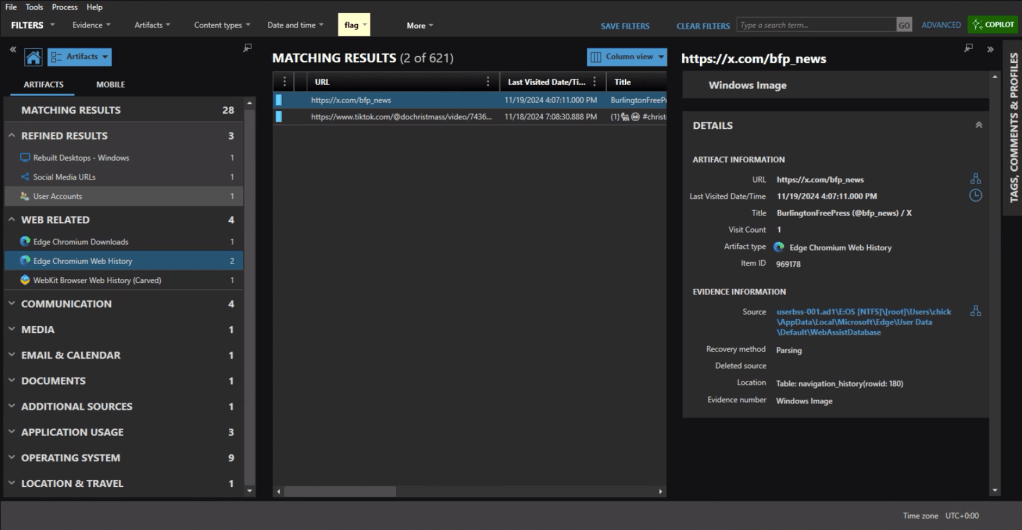
Under the Web Related artifacts, specifically Edge Chromium Web History we can see traffic to https://x.com/bfp_news which is the Twitter/X site for Burlington Free Press.
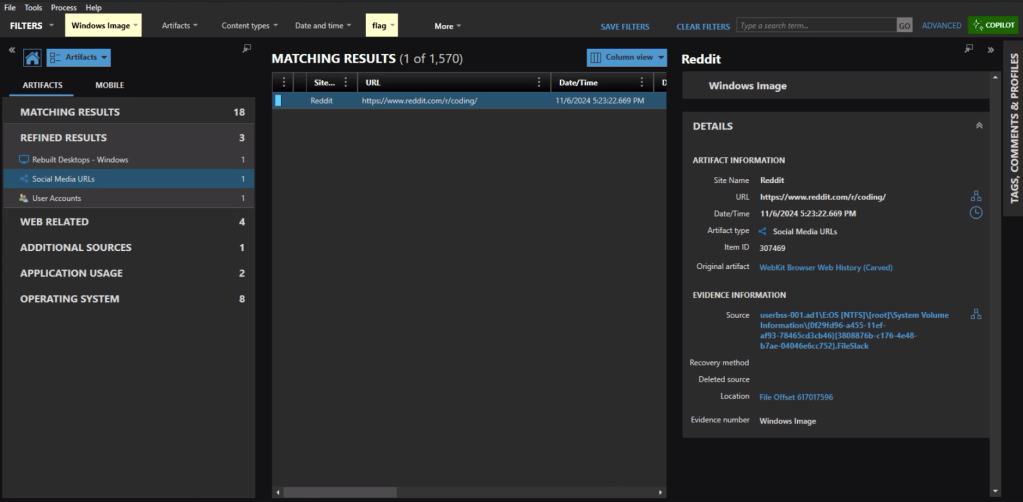
Refined Results, Social Media URLs, shows that the user visited the subreddit of https://reddit.com/r/coding.
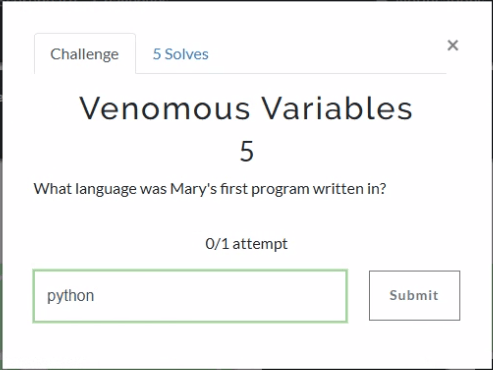
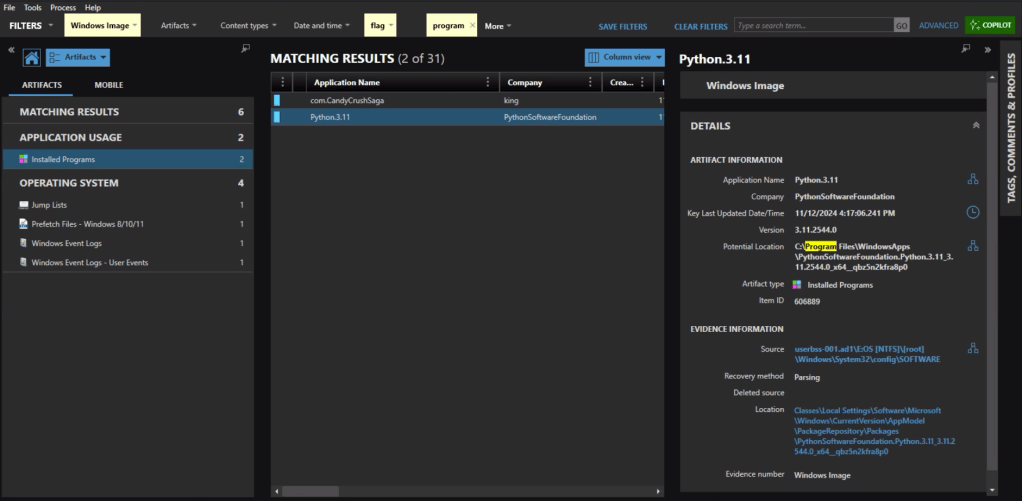
The question itself practically gives it away, but we’ll check the Installed Programs to be safe. Sure enough the user had Python installed.
Event ID 4720 is a Windows Security Log event that is generated whenever a new user account is successfully created on a system. The creation date for Mary’s account is 2024-09-24 15:11:51.
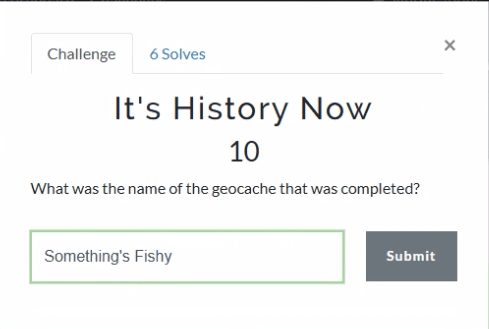
As someone who used to geocache frequently, this question was a pleasant surprise. Already having an account on geocaching.com also helped.
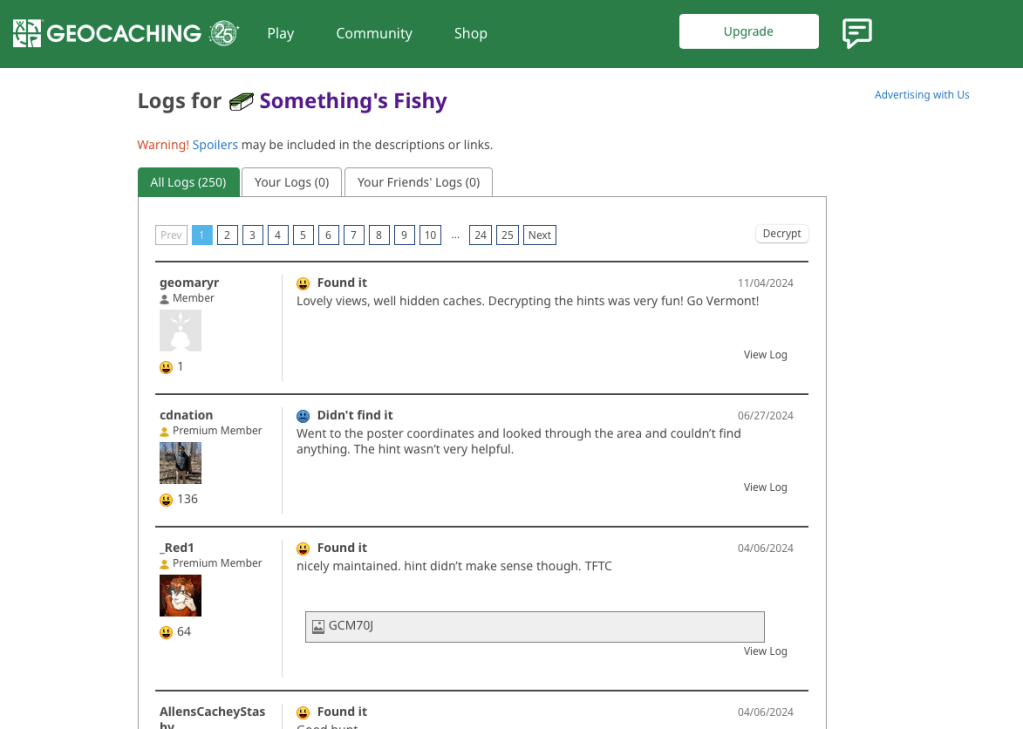
There’s a fair amount of results if you search on geocaching, but there is only reference in the history to an actual geocache location (GCM70J) titled “Something’s Fishy.”
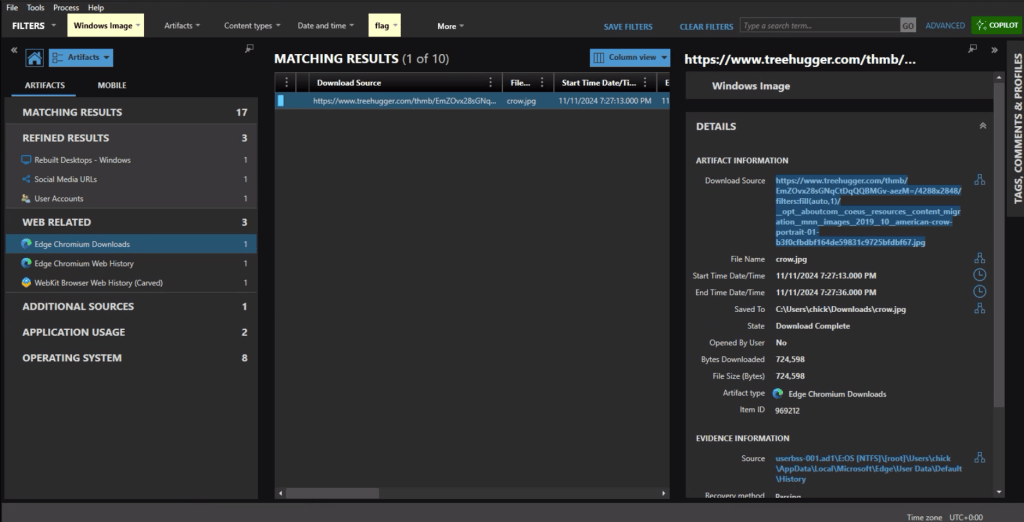
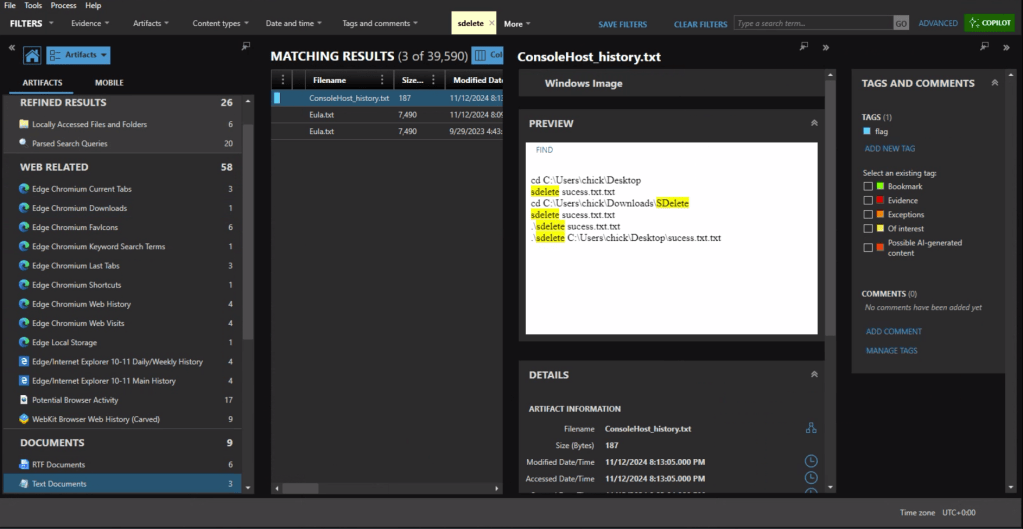
First we need to identify what counter-forensics tools may have been in use. In the user’s download activity we see that SDelete was downloaded.
If we look at the PowerShell history, ConsoleHost_history.txt, we can see that the command sdelete success.txt.txt was executed.
There are multiple evidence items indicating that the user was also using Proton Mail on the device with the account hackergotyou@proton.me.
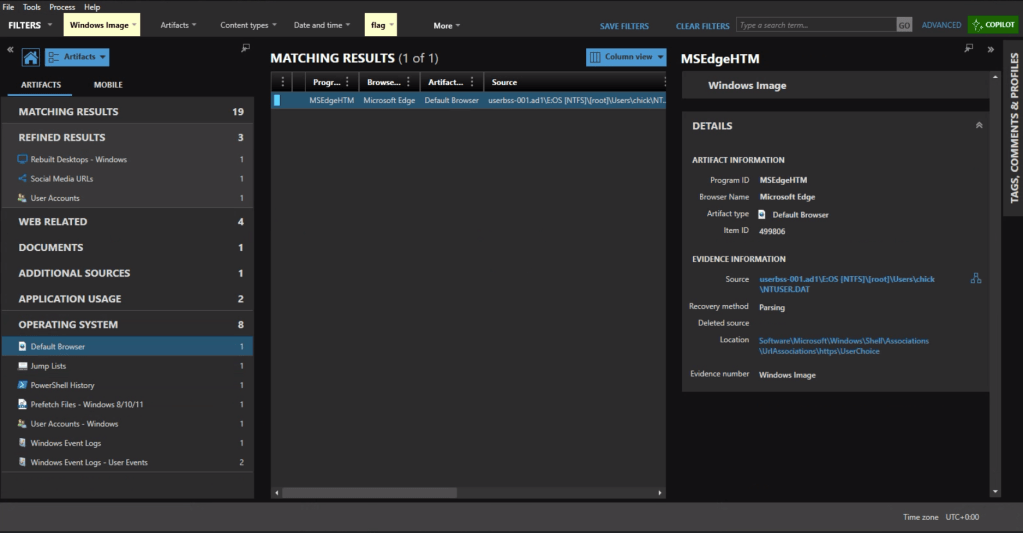
The default browser can be identified from the Registry at Software\Microsoft\Windows\Shell\Associations\UrlAssociations\https\UserChoice. In this instance the user was using Edge, the default, as their browser.
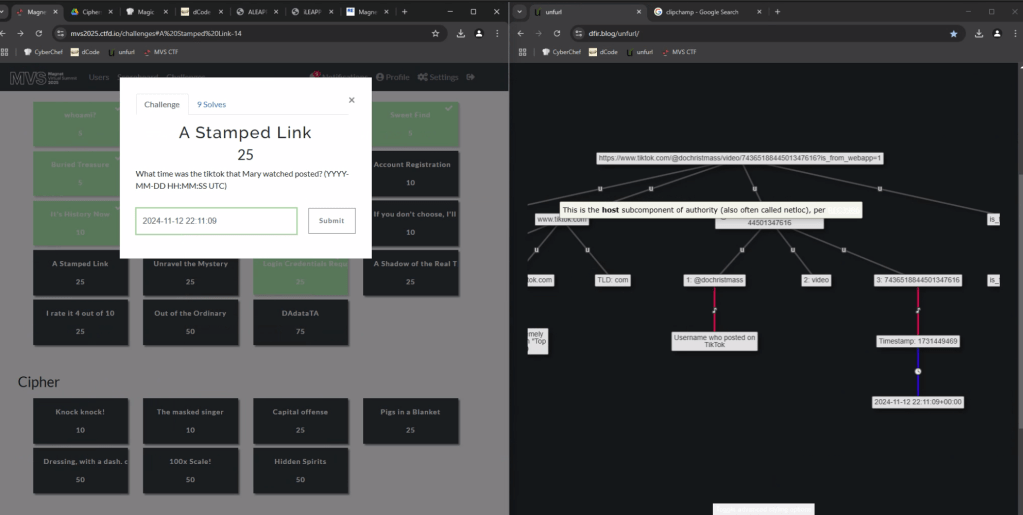
To get the time the video was posted, we can copy the url into UNFURL. This reveals the timestamp the video was posted as 2024-11-22 22:11:09.
Again with a filter on ‘geocaching’ we see a fair amount of activity. There is a url with “join” that appears to be part of the user sign in, including username=geomaryr
We also have an entry under Edge Chromium Autofill, as the user opted to save the login ID on that page.
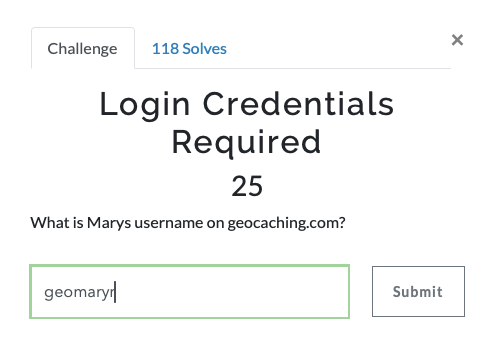
Lastly we can double-check the geocaching.com site with the log for “Something’s Fishy” which matches the timestamp of the web activity. geomaryr is Mary’s username on geocaching.com
The first thought would be to go to the Passwords and Tokens Refined Result. We see a hash for the chick user account. But Wait!
The key is in “Shadow.” It’s not the Windows account we’re looking for.
Looking at Installed Programs we identify that the user installed KALI in Windows Subsystem for Linux (WSL). I knew I wanted to get the /etc/shadow file from the KALI installation – but I was hitting a wall on how.
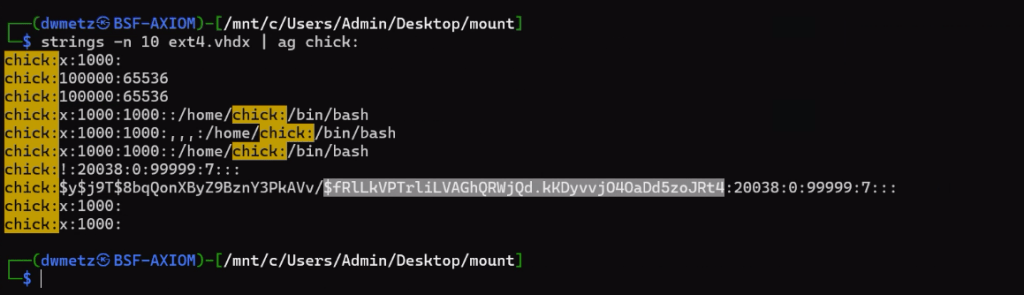
Finally I wound up exporting the ext4.vhdx (the virtual hard drive for the KALI instance) and running strings against it, and piped the results to ag (grep on steroids) with a search for ‘chick:’.
Much like the way my father would describe my shots back when we would play golf together, ugly but effective. The hash for the user account chick is $fRLLkVPTrLiLVAGhQRWjQd.kKDyvvj040aDd5zoJRt4.
There were a few more challenges under the Windows category but that was as far as I made it in the time allotted.
I hope you’ve enjoyed these walk throughs on my approach to solving the challenges.
If you’d like to access the images used for the CFT for your own training and investigation, you can find them at https://cfreds.nist.gov/all/Hexordia/2025MVSCTF. In addition to the Windows 11 image used here, there is also full file system extractions of Android and iOS, as well as two Google Takeout exports. It’s a great reference set for practicing.
A couple weeks ago, I participated in the Magnet Virtual Summit 2025 CTF (Capture the Flag). While I don’t think I will ever see a day where I win one of these, (speed is not my forte), I enjoyed working through a good number of the challenges, starting with the lower point values and working my way up. The CTF covered images/sources including: Cipher challenges, iOS and Android full file system images, Google takeouts, and images of a Windows 11 workstation and a Chromebook. I spent my available time working on the iOS and Windows challenges. I wasn’t able to complete all of them, but I’ll share what I was able to complete.
In this post I’ll be sharing my solutions for the iOS challenges. Warning: SPOILERS AHEAD!
To determine the version of iOS, I used the iLEAPP report for the device.
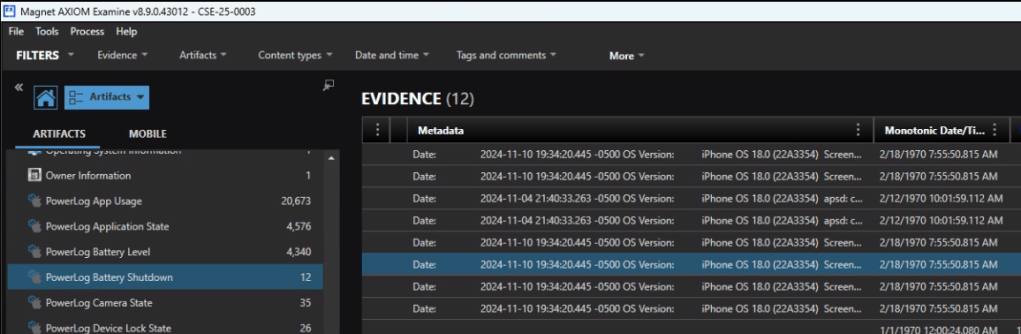
Another way of finding this information in Axiom is to review the Powerlog Battery Shutdown events.
The answer is 18.0
Looking at the Owner information in Axiom is quick way to identify the telephone number associated with the device. 18024959063.
For this one you could start in Contacts or start with a Date/Time filter as that was very specific to the question. The answer is Mary.
Reviewing the iOS Call Logs in Axiom we see that the user never answers their phone. (I can relate.) The answer is “0”.
That’s a ducking odd thing to be curious about. According the the Keyboard Usage Stats, the answer is 51.
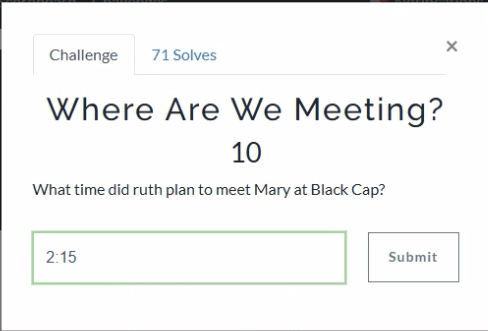
In a Discord chat, Mary and Ruth agree to meet up at 2:15 for coffee.
Started off with a global search on ‘bitmoji’ and then reviewed the media files. (Brown)
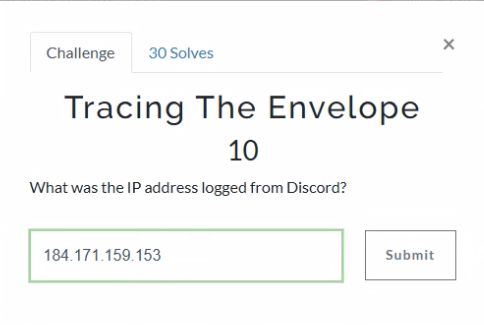
A global search on Discord narrows the results. There is an apple mail message from Discord about the user signing in from a new location. The IP address is 184.171.159.153.
Ah, Nashville. Home of the Magnet User Summit coming up in just a few weeks. iLEAPP can provide us with the Lat and Long of the cities configured in the Weather app.
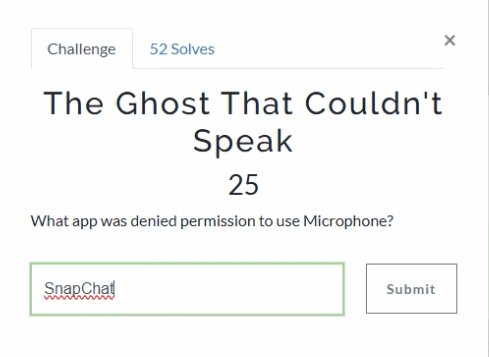
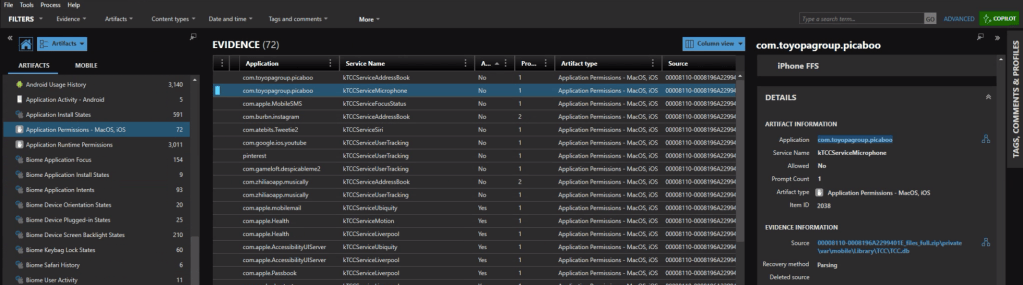
Looking at the Application Permission we can see which applications had (or were denied) access to the microphone. The app identifier com.toyopagroup.picaboo corresponds to Snapchat. The name “Picaboo” refers to Snapchat’s original name before it was rebranded.
In the iOS Messages, we find a number of ‘sale’ announcement from Zenni. EARLYBF24 is the code associated with the 40% off promotion.
First off, we need to know what TikTok video this is referring to. In the iOS messages we see a TikTok video that was shared.
Copy the url and head over to Ryan Benson’s Unfurl. Unfurl decodes the different elements of the url string. One of the details embedded in the string is the time the video was posted. 2024-11-12 22:11:09.
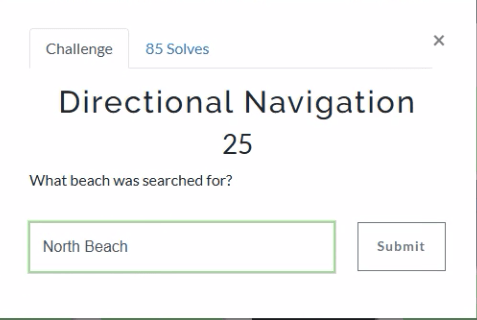
For this one we can take a look at the Apple Maps – Biome App Intents, and see a search for directions to North Beach Park.
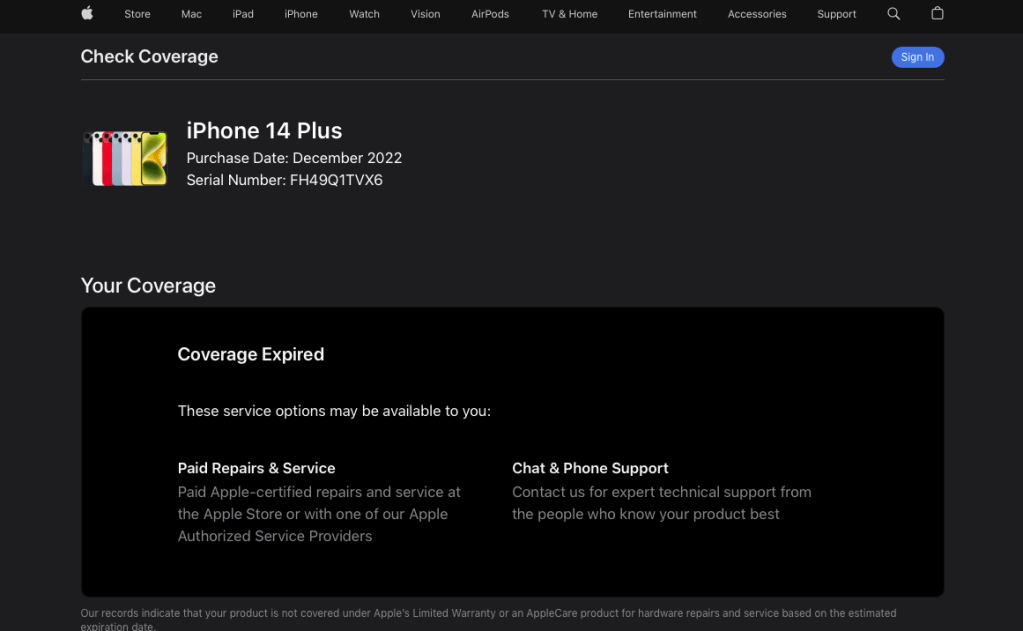
When I first looked at this one I thought there could be a “Welcome to your new iPhone” message or something similar. No dice. Besides, that would be too easy for a 25 pointer. A quick googling indicated was that one way to confirm the purchase date of an iPhone is too look up the warranty status on checkcoverage.apple.com.
We can grab the serial number for the device from iLEAPP.
Plugging that into the warranty coverage site we get: December 2022 (2022-12).
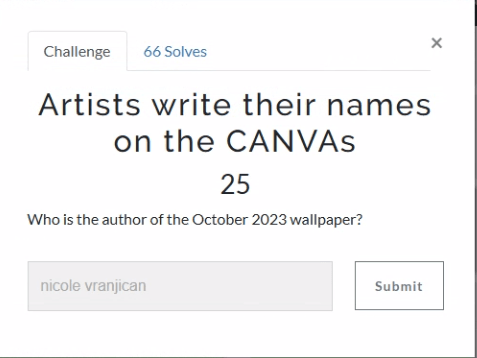
“October” is a good search to start with. Within the PDF documents we find a reference for an October-2023-iphone-wallpaper. In the details we see that the author of this image was nicole vranjican.
There were a few more higher point challenges in the iOS section, but that’s as far as I made it in the allotted time. I’m looking forward to reading other’s write-ups, both for the questions I was unable to solve, as well as seeing the unique and alternative ways that others solved the ones I did.
Stay tuned for my next post on the solutions for the Windows challenges.











































/__opt__aboutcom__coeus__resources__content_migration__mnn__images__2019__10__american-crow-portrait-01-b3f0cfbdbf164de59831c9725bfdbf67.jpg)