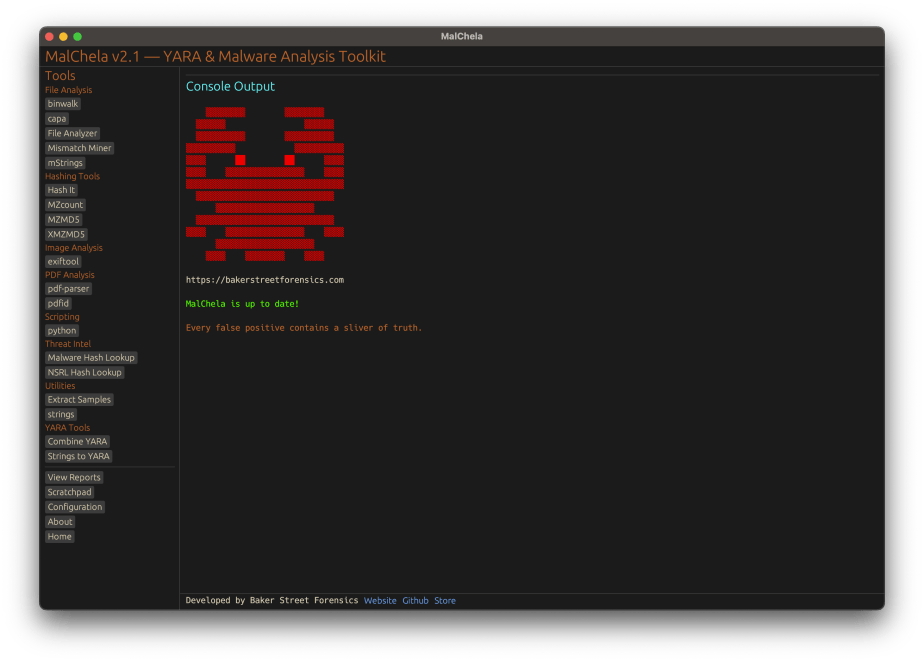
MalChela v2.1 Released: Smoother Workflows, Easier Tool Integration


🧰 A Toolkit That Grows With You

Version 2.1 of MalChela, the modular digital forensics and malware analysis launcher, is now available. This release focuses on flexibility and simplicity — especially when integrating third-party tools and refining workflows between CLI and GUI.

Whether you’re testing suspicious files, generating YARA rules, or examining malware indicators from different sources, the updated interface helps you move fluidly from one tool to another — without losing your place or rewriting commands.


🔄 Run, Re-run, Refine

One of the most helpful improvements in 2.1 is the ability to quickly rerun tools with updated arguments. There’s no need to backtrack or manually rebuild command lines. Just update the Arguments field in the GUI, click Run, and MalChela will handle the rest.

If you’re pivoting between tools like mstrings, pdf-parser, or capa, the consistent interface lets you switch input, adjust flags, and review results in one console — no clutter, no confusion.


🔌 Integration Made Easy

You can now seamlessly add external tools — including Python scripts, native binaries, or custom Rust programs — using just the tools.yaml configuration file. Each tool can define:

  • Input type (file, folder, or hash)
  • Command structure
  • Where input should appear in the argument list
  • Whether it’s a script, binary, or cargo-built tool

The GUI reads these definitions and builds a dynamic interface to support them, removing the guesswork of launching external programs.


💾 One Report to Rule Them All

In past versions, you might have seen multiple output files for a single run — especially when running scripts that already saved their own logs. That’s no longer the case.

With 2.1, all tools now produce a single unified report when run through the GUI. Even scripts that don’t natively generate output will have their results captured and saved by MalChela, giving you clean, consistent documentation for every tool.


🐚 CLI Power, GUI Convenience

MalChela still supports CLI-based workflows (cargo run -p toolname) and a menu-driven terminal launcher. But the GUI now offers a refined experience for analysts who want more visibility, easier input selection, and better organization of results — without losing the precision of command-line control.


🚀 Try It Out

MalChela is open-source and free to use. You can:

🎥 A Video Tour

If you haven’t seen it yet, be sure to check out the YouTube video where I walk through some of the different functions in MalChela in the new GUI, stepping through basic static analysis to yara rule writing – all in minutes.

🙏 Thank You

A huge thank you to the community of forensic analysts and developers who continue to test, refine, and inspire this project. If you have feedback, feature ideas, or tools you’d like to see integrated — reach out, submit a PR, or just let me know what’s working.

Mining for Mismatches: Detecting Executables Disguised as Image Files

Malware authors often use file masquerading—disguising malicious executables as seemingly harmless files—to bypass both user scrutiny and automated defenses. A classic example is an executable file with an image extension, such as `.png`, that actually contains a Windows PE binary. To help address this challenge, the Mismatch Miner utility, written in Rust and part of the MalChela malware analysis toolkit, introduces a practical approach for uncovering these deceptive files using YARA rules.

Why File Masquerading Matters

File extension spoofing remains a simple yet effective evasion tactic. Users and some security tools may trust files based on their extensions, ignoring the underlying content. Attackers exploit this by renaming executables with extensions like `.jpg` or `.png`, hoping to slip past defenses. While this technique is not new, it continues to be relevant due to its effectiveness and the limitations of extension-based filtering.

That said, this method should be seen as one component of a broader detection strategy. While it is effective for catching executables disguised as images or documents, it does not address more sophisticated evasion tactics, such as fileless malware or executables embedded within other file formats. Additionally, some legitimate software may use unconventional file extensions, so results should be reviewed with context in mind.

Mismatch Miner: Approach and Implementation

Mismatch Miner is designed to scan a directory for files with extensions that are commonly abused for masquerading, including popular image formats. For each candidate file, it leverages YARA—a widely used pattern-matching tool in malware analysis—to check for the presence of the “MZ” header, which marks the start of Windows executable files. If a file’s extension suggests it is an image, but its header indicates it is an executable, the tool flags the file and reports its name, full path, and SHA256 hash, to support further investigation.

Mismatch Miner screenshot

Mismatch Miner offers a practical solution for identifying a common malware evasion technique: executables disguised as benign files. By combining Rust’s performance with YARA’s pattern-matching, it provides security analysts with a reliable tool for uncovering hidden threats. While not a panacea, header-based mismatch detection is a useful addition to any malware analysis workflow, helping to close a gap that attackers continue to exploit.

Mismatch Miner is bundled with MalChela, the YARA & Malware Analysis toolkit. If you’ve already installed it, a ‘git pull’ from your workspace directory should get you the new feature.

https://github.com/dwmetz/MalChela

MalChela Updates: New Features and Enhancements

It’s been just over a week since MalChela was initially released and already here have been a number of updates.

mStrings

In the previous post, I walked through the new mStrings function. I think this is one of my favorites so far. It extracts strings from a file and uses Sigma rules defined in YAML against the strings to evaluate threats and align results to the MITRE ATT&CK framework.

For fun I pointed it at an old WannaCry sample . I had a proud papa moment at the positive network IOC detection.

Check for Updates

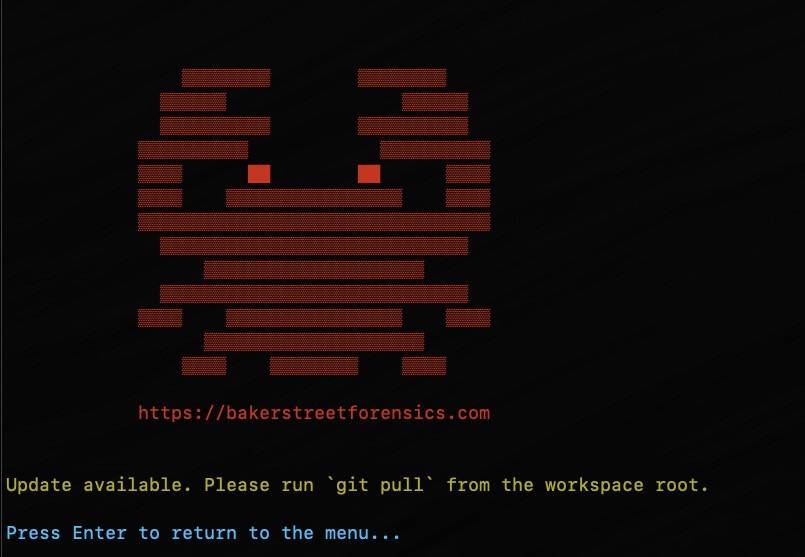
Next came a function to automatically check the GitHub repo for updates and encourage a git pull to grab the latest… because apparently I can’t stop myself and this project will just keep growing, as my sleep keeps dwindling. Personally I found it ironic that you have to update in order to get the update telling you that updates are available… but it will work for all future updates as they come. So go ahead and update why don’t you.

Screenshot of MalChela indicating an update is available via git.

New File Analyzer module

Most recently a File Analyzer module has been added. Give it the path to your suspect file and it will return back:

  • SHA-256 Hash
  • Entropy (<7.5=high)
  • A RegEx detection for packing (mileage may vary)
  • PE Header info if it’s a PE
  • File Metadata
  • Yara Matches (any rules in yara_rules folder in workspace)
  • If there’s a positive match for the hash on VirusTotal (leverages the same key as previously in MalChela with the Virus Total / Malware Bazaar lookup)

Lastly, you’re given the option of whether or not you want to run strings on the file, or return to the main menu.

I really like the idea of using this as a possible first step in static analysis. Run this first and opt for strings. Things look interesting there, throw it into mStrings. Positive match on VirusTotal – use the malware hash lookup and get a more detailed analysis. Use the results from mStrings to craft a YARA rule and add it to your repo for future detections.


Installing REMnux on a MacBook Pro

I had an older MacBook Pro (15-inch, 2.53GHz, Mid 2009) that had been unused for a while as it was no longer getting updates from Apple. It’s one of the Intel chip ones and last ran Monterey. I pulled it out of the closet and decided to give it a refresh by installing REMnux on it. The process was pretty straightforward, but there were a couple things noted along the way I thought I’d share.

Start off by downloading the Ubuntu 20.04.6 AMD64 Desktop ISO. Yes, 20.04. Later installations aren’t supported by the REMnux installer.

Next you’ll want to burn the image to a flash drive, and make it bootable, using Rufus (Windows) or Balena Etcher (Mac.) This model MacBook has USB-A ports which seems like a relic compared to the current Macs. You’ll need at least an 8GB flash drive for the Ubuntu image. The first free one I could find was 32GB so I used that.

With the bootable USB drive inserted, power-up the MacBook and hold the option key until you see the different hard drives listed.

The flash drive is the one that shows as EFI Boot. Select it and hit return/enter.

Once everything is booted up you’ll get to the Try or Install Ubuntu menu. We’ll choose install.

Specify options as needed for timezone, keyboard, etc. For the username we’ll use remnux and the password malware as that’s the default. After the installation you can set the password for the remnux user as you wish.

At the Installation type we’ll choose Erase disk and install Ubuntu.

Sorry for the wavy resolution. Tough to get good screenshots during bare-metal OS installations.

Once the installation completes, hit Restart Now.

When I first logged in I was getting an error, “Activation of network connection failed” when trying to authenticate to the wireless network. Disabling IPv6 for that network fixed. it.

Now that we’ve got connectivity, we can grab any available Ubuntu updates.

sudo apt-get update && sudo apt-get upgrade

If at any point you’re prompted to do a distribution upgrade (a version of Ubuntu later than 20.04), choose Don’t Upgrade.

Once you’ve done all the OS updates, and rebooted, we can start the REMnux installation. We’ll be following the Install from Scratch instructions at remnux.org

wget https://REMnux.org/remnux-cli
sha256sum remnux-cli 

Verify the hash matches the published hash 88cd35b7807fc66ee8b51ee08d0d2518b2329c471b034ee3201e004c655be8d6

mv remnux-cli remnux
chmod +x remnux
sudo mv remnux /usr/local/bin

The first time I ran the installer it failed as curl wasn’t installed. So take care of that before starting the install.

sudo apt-get install curl

At this point we’re ready to run the installation. The one deviation I’m choosing here is that rather than the standard install, I’m choosing the ‘cloud mode.’

If you’re depoying REMnux in a remote cloud environment and will need to keep the SSH daemon enabled for remotely accessing the system, use the following command instead to avoid disabling the SSH daemon. Remember to harden the system after it installs to avoid unauthorized logins.

remnux.org

In my case I plan to be ssh’ing into the box from within my own network more often than actual hands on keyboard, hence the cloud mode.

sudo remnux install --mode=cloud

At this point grab a coffee, walk the dog, or find something to do while the wall of text streams by.

Note if the install fails the first time don’t be afraid to re-run the install command a 2nd time.

Finally when it’s done, Reboot.

There you go. A shiny, happy, malware analysis machine.