CyberPipe v5.3: Enhanced PowerShell Compatibility and Reliability

I’m pleased to announce the release of CyberPipe v5.3, bringing critical compatibility improvements for Windows PowerShell 5.1 and enhanced reliability across all PowerShell environments.

The Problem

After releasing v5.2 with the new unified banner design, several users reported an interesting issue: CyberPipe would execute perfectly in PowerShell Core, but in Windows PowerShell 5.1, the script would complete the Magnet Response collection successfully—then immediately fail with an exit code error and stop before running EDD and BitLocker key recovery.

The collected artifacts were there. The output looked successful. But the script refused to continue.

The Root Cause

This turned out to be a known quirk in Windows PowerShell 5.1: the $process.ExitCode property isn’t always reliably populated after calling WaitForExit() on a process object. Even when Magnet Response completed successfully with exit code 0, PowerShell 5.1 would sometimes report a non-zero value, causing CyberPipe to think the collection had failed.

The Solution

Version 5.3 introduces dual validation logic that checks both the exit code and verifies that files were actually collected. If Magnet Response reports a non-zero exit code but artifacts were successfully collected, CyberPipe recognizes this as a PS 5.1 reporting issue and continues the workflow with a warning message.

The script now validates success based on what actually matters: did we collect the evidence?

Bonus: Adaptive Banners

While fixing the PS 5.1 compatibility, I also enhanced the banner display:

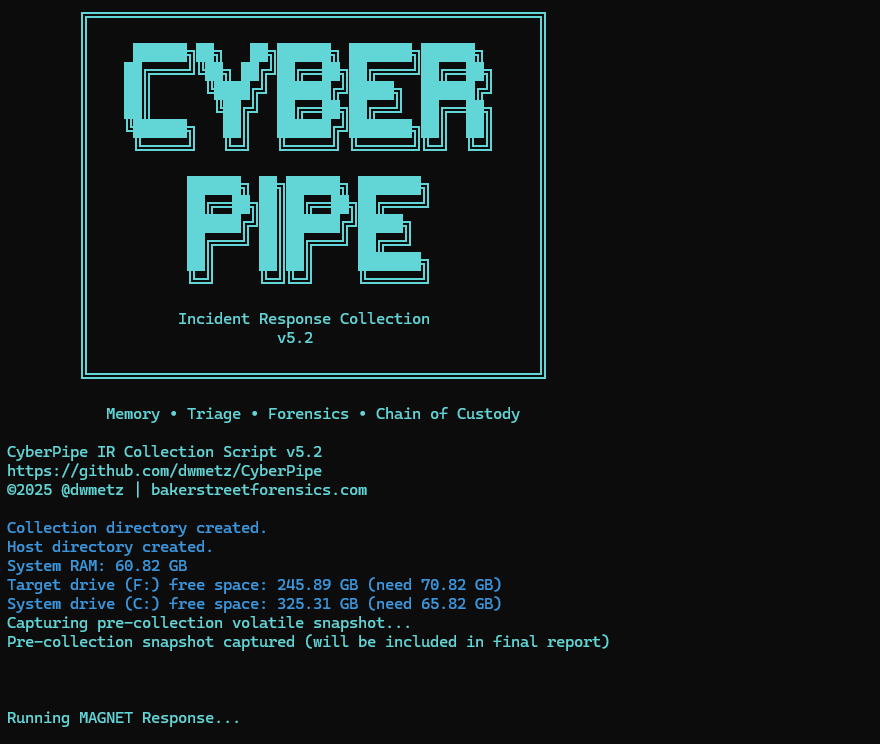
  • PowerShell Core: Displays the full Unicode box-drawing banner with visual flair
  • Windows PowerShell 5.1: Shows a clean ASCII banner optimized for automation, EDR deployment, and environments where Unicode rendering may be inconsistent

The script automatically detects which PowerShell edition is running and adjusts accordingly.

Testing & Validation

CyberPipe v5.3 has been tested and verified on:

  • ✅ Windows PowerShell 5.1
  • ✅ PowerShell Core 7.x
  • ✅ All collection profiles (Volatile, RAMOnly, RAMPage, RAMSystem, QuickTriage, Full)

The script now executes flawlessly in both environments with no workflow interruptions.

Compatibility Notes

This is a drop-in replacement for v5.2 with no breaking changes:

  • All command-line parameters work identically
  • Existing automation scripts require no modifications
  • All collection profiles function as before

Why This Matters

For incident response work, reliability is non-negotiable. When you’re collecting evidence from a potentially compromised system, you need tools that work consistently across different Windows environments—corporate workstations running PS 5.1, modern systems with PS Core, virtual machines, and physical hardware.

CyberPipe v5.3 ensures that whether you’re running an interactive collection or deploying via EDR automation, the script executes reliably from start to finish.

Get CyberPipe v5.3

DownloadCyberPipe v5.3 on GitHub

DocumentationGitHub Repository

As always, feedback and issue reports are welcome on the GitHub repository.


CyberPipe is a free, open-source incident response collection tool for Windows systems, automating memory capture, triage collection, encrypted disk detection, and BitLocker key recovery.

Streamline Digital Evidence Collection with CyberPipe 5.2

I first wrote CyberPipe when I was on the front lines of incident response, driven by the need for more robust and efficient triage collections, whether online or off.  Over the years, CyberPipe continues to adapt and improve, addressing the ever-changing challenges faced by incident response practitioners. 

CyberPipe (formerly CSIRT-Collect) is a PowerShell script that is designed to streamline the collection of digital evidence using Magnet Response in enterprise environments, ensuring that responders can gather critical data efficiently and effectively.  Other features include detection of encrypted drives, BitLocker key recovery, and memory image collection.

The most recent update includes enhancements in three areas: Collection, Capabilities, and Reliability.

Screenshot of CyberPipe

🔍 What’s New in 5.2

Intelligent Collection

  • The script now includes dual disk space validation, checking both the target drive and the system drive with profile-aware thresholds to prevent sudden failures due to insufficient space. 
  • A pre-collection volatile snapshot captures uptime, users, connections, and processes to preserve transient state before heavy operations begin.
  • Reports virtual environment detection (VMware, Hyper-V, VirtualBox, etc.) to help analysts understand collection limitations.
  • Real-time progress indicators provide accurate size tracking during the collection, offering responders visibility into the remaining data capture.

Enhanced Capabilities

  • The new QuickTriage profile allows for rapid collection of volatile and system artifacts when time is ticking.
  • BitLocker recovery now includes all volumes, not just the C: drive.
  • A single-file report (CyberPipe-Report.txt) consolidates metadata and a summary of collected artifacts in a human-readable format.
  • All collected artifacts and logs are hashed using SHA-256 to enhance integrity and chain of custody.
  • Output compression is available via the -Compress flag, aiding in storage and transfer.
  • Network collection is simplified with the -Net parameter, eliminating the need for manual network path or configuration edits.

Improved Reliability

  • Profile-aware space checks alert when free space is insufficient for a chosen profile, preventing silent failures.
  • The script now validates exit codes from MAGNET Response to detect failures more effectively.
  • Artifact verification after collection ensures that all expected items were gathered.
  • Error handling and messaging have been refined to provide clearer feedback to the operator.

What I’m hoping this delivers

CyberPipe 5.2 aims to address some challenges observed in real-world triage and live-response operations:

  • Resilience in constrained environments — dual drive checks and profile awareness help prevent mid-collection failures.
  • Better transparency and oversight — real-time progress display and post-collection verification enhance confidence.
  • Faster response options — the QuickTriage profile is suitable when speed is paramount.
  • Stronger forensic hygiene — SHA-256 hashing, improved error detection, and full-volume BitLocker key recovery contribute to defensibility.
  • Easier network deployments — built-in ‘-Net‘ support facilitates smoother remote collection.

As always, CyberPipe is freely available at https://github.com/dwmetz/CyberPipe. Forks and Contributions welcome and appreciated. 

Is there a feature you’d like to see? I think next I might work on support for copying output to AWS/Azure. Thoughts?

Toby-Find: Simplifying Command-Line Forensics Tools

In digital forensics, we often take a toolbox approach — success hinges on having the right tool for the job. Some tools offer broad functionality, while others are deeply specialized. Distributions like KALI and REMnux do a fantastic job bundling a wide range of forensic and security tools, but keeping track of what’s actually installed can be a challenge.

If you’re using a graphical interface, browsing through available packages is fairly intuitive. But when you’re living in the terminal — as many analysts do — that discoverability disappears. There’s no built-in index of command-line tools or how to invoke them.

The first version of Toby-Find was born out of necessity. I teach a Network Forensics course at the university, using a custom VM loaded with tools like Zeek, Tshark, Suricata, and more. I wanted students to have an easy, searchable way to see what CLI tools were available and how to run them — without needing to memorize commands or dig through man pages.

Later, when I built Toby (a forensic-focused Raspberry Pi rig running a customized KALI install), I updated Toby-Find to include the complete CLI toolset geared toward forensics and malware analysis from the KALI ecosystem.

And because I can’t leave well enough alone, I decided to build a REMnux-compatible version too.

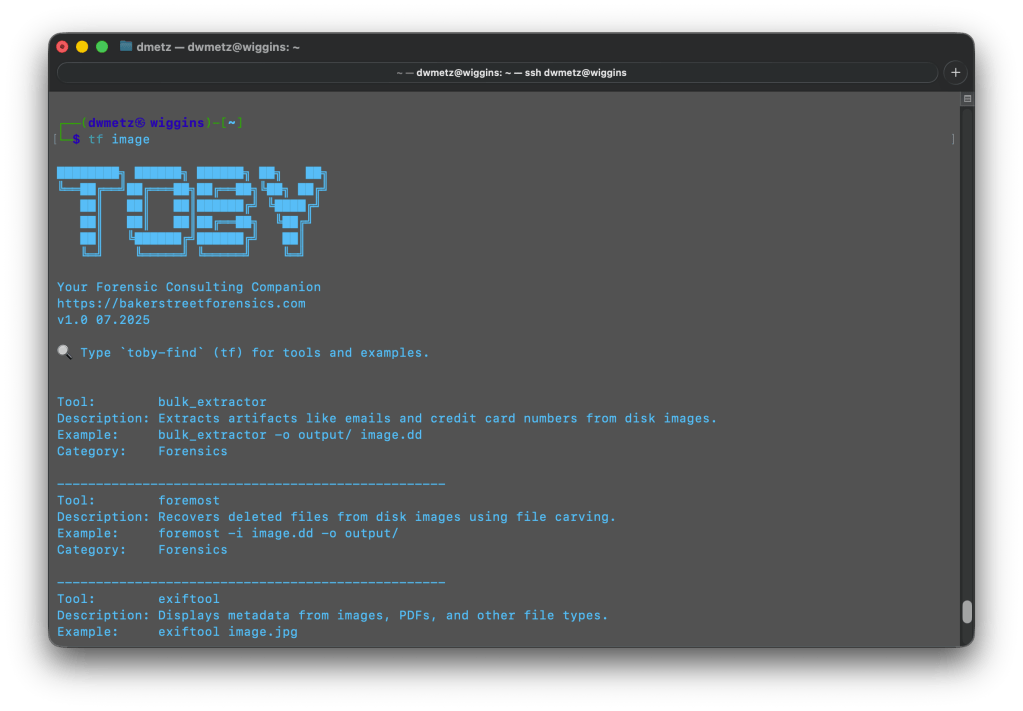
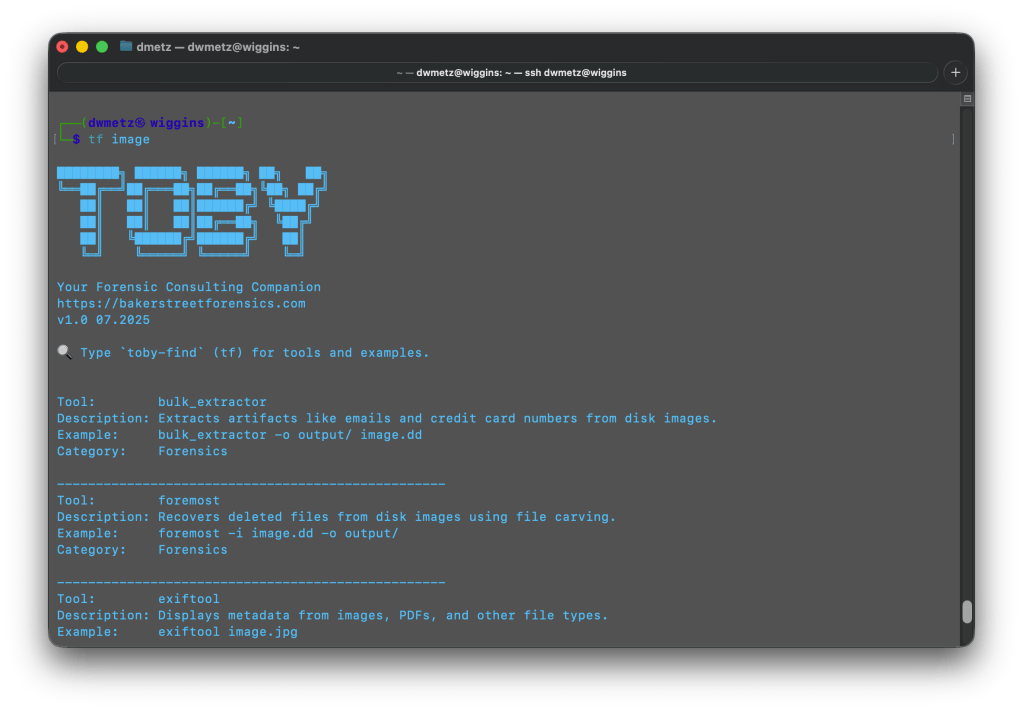
Once installed, you can launch Toby-Find (via tf, toby-find, or tf-help) from any terminal and instantly search for tools, descriptions, examples, and more.

Toby-Find on REMnux
Toby-Find on Kali

📦 Installation

1. Clone the repository:

git clone https://github.com/dwmetz/Toby.git

2. Make the install script executable:

cd Toby
chmod +x install.sh

3. Run the installer:

./install.sh

4. Follow the prompt to choose your environment (KALI or REMnux)
5. Open a new terminal or run:

source ~/.bashrc   # or ~/.zshrc depending on shell

🚀 Usage

tf [keyword]

Examples:

tf yara
tf volatility
tf hash

To view the full list:

tf-help

Whether you’re working from a custom VM, a rugged Pi, or a hardened REMnux box, Toby-Find gives you a fast, terminal-friendly way to surface the tools at your disposal — without breaking focus. It’s lightweight, portable, and easy to extend for your own lab or classroom.

You can grab the full installer from GitHub, and contributions are always welcome. If you find it helpful — or build on it — I’d love to hear about it.


MalChela v3.0: Case Management, FileMiner, and Smarter Triage

With the release of MalChela v3.0, I’m introducing features that shift the focus from tool-by-tool execution to a more structured investigative workflow. While the core philosophy of lightweight, file-first analysis remains unchanged, this version introduces smarter ways to manage investigations, track findings, and automate common analysis patterns, all with minimal fuss.

In this post, I’ll walk through the new Case Management system, the replacement of MismatchMiner with FileMiner, and the ability to identify and launch suggested tools — even in batch — based on file characteristics. These changes aim to reduce friction in multi-tool workflows and help analysts move faster without losing visibility or control.

Cases: A Lightweight Way to Stay Organized

Until now, MalChela has operated in an ephemeral mode. You selected a tool, pointed it at a file or folder, and reviewed the output. Any saved results would be grouped by tool, but without much context.

Cases change that. In v3.0, you can start a new case from a file or folder — and everything from that point forward is grouped under that case. Tool outputs are saved to a dedicated case folder, file hashes are tracked, and metadata is preserved for review or reanalysis.

Case Management

You don’t need to create a case for every run — MalChela still supports standalone tool execution. But when you’re working with a malware sample set, an incident directory, or a disk image extract, cases give you the ability to:

  • Save tool results in a consistent location
  • Track analysis history per file
  • Reopen previous sessions with full context
  • Add notes, tags, and categorization (e.g., “suspicious”, “clean”, “needs review”)

Hello FileMiner: Goodbye MismatchMiner

The MismatchMiner tool was originally designed to surface anomalies between file names and actual content — a common trick in malicious attachments or script dropper chains. It worked well, but its scope was narrow.

FileMiner replaces it, expanding the logic to support full file-type classification and metadata inspection across an entire folder. It still flags mismatches, but now it also:

  • Detects embedded file types using magic bytes
  • Groups files by class (e.g., images, documents, executables, archives)
  • Calculates hashes for correlation and NSRL comparison
  • Extracts size, extension, and other key metadata
  • Saves both a human-readable .txt summary and a structured .json report

The output is designed to be used both manually and programmatically — which brings us to one of v3.0’s most important additions: tool suggestions.

The new FileMiner app

Suggested Tools and Batch Execution

Once FileMiner runs, it doesn’t just stop at reporting. Based on each file’s type and characteristics, it can now suggest one or more appropriate tools from the MalChela suite.  These suggestions are surfaced right in the GUI — or in the CLI if you’re running FileMiner interactively. From there, you can choose to launch the recommended tool(s) on a per-file basis or queue up several for batch execution.

This makes it much faster to pivot from triage to deeper inspection. No more switching tools manually or copying paths. You stay within the flow — and more importantly, you reduce the risk of skipping important analysis steps.

CLI and GUI Improvements Aligned

These features are available in both the CLI and GUI editions of MalChela. In the CLI, FileMiner presents an interactive table of results. You can pick a file, see its suggested tools, and choose which one to run. When you’re done, you can return to the table and continue with the next file.

The GUI extends this even further, allowing you to:

  • View and scroll through full case history
  • Run tools with live output streaming
  • Reopen previous FileMiner runs from saved reports
  • Run all suggested tools on all files with one click (if desired)

These features let you treat MalChela more like a toolbox with memory, not just a launcher.


CLI Enhancements:

The command-line interface has also received a quiet but meaningful upgrade. Tool menus are now organized with clear numeric indexes and shortcodes, making it faster to navigate and launch tools without needing to retype full names. This small change goes a long way during repetitive tasks or when working in a time-constrained triage setting.

FileMiner supports an interactive loop: after running a tool on a selected file, you’re returned to the main results table — no need to restart the scan or re-navigate the menu. This allows you to run additional tools on different files within the same dataset, making FileMiner feel more like a lightweight control center for follow-up actions. It’s a subtle shift, but one that significantly reduces friction in batch-style or exploratory workflows.


Closing Thoughts

MalChela 3.0 reflects a steady evolution — not a revolution. It’s built on real-world feedback and a desire to make forensic and malware analysis a little less scattered. Whether you’re a one-person IR team or just trying to stay organized during a reverse engineering exercise, the new case features and smarter triage capabilities should save you time.

If you’ve been using MalChela already, I think this update will feel like a natural (and welcome) extension. And if you haven’t tried it yet, there’s never been a better time to start.

Download: https://github.com/dwmetz/MalChela/releases

User Guide: https://dwmetz.github.io/MalChela/